Joey knowledge base
Audience: everyone — this page routes you to the right part of the documentation.
Joey is a private baby tracker for one family: breastfeeds with left/right timing, bottles, pumping, sleep, nappies, growth centiles, medications and milestones — logged from the app, from home-screen widgets, or from the lock screen, and synced end-to-end encrypted between parents' phones (iPhone and Android).
This documentation is published at https://docs.joey.medipearl.com.au (see Deploy the docs site).
Joey on the web
| Address | What it serves | Cloudflare Worker |
|---|---|---|
| https://joey.medipearl.com.au | Landing page, sync API, and the admin dashboard at /admin |
joey-sync (backend/, serves site/ as assets) |
| https://docs.joey.medipearl.com.au | This knowledge base | joey-docs (docs/kb/) |
(The old joey-sync.personal-account-f61.workers.dev URL still answers during
the transition — see the README's workers.dev retirement checklist.)
Start here
- New to Joey? Work through Getting started with Joey, then A day with Joey.
- Need to do one thing? Jump to the how-to guides — each covers a single task.
- Setting up sync with your partner or family? Set up family sync.
- Wondering how the app is being used? View usage stats — the
/admindashboard. - Want to know how it all works? The explanation section covers the architecture, the privacy model, and why the app behaves the way it does.
- Where the project stands: Project status, Gap analysis, and how Joey compares to Mango Baby, Huckleberry and friends.
The four kinds of page (Diátaxis)
| Kind | Question it answers | Read it when |
|---|---|---|
| Tutorials | "Teach me" | You're new and want a guided session |
| How-to guides | "How do I…?" | You know the basics and have a task |
| Reference | "What exactly is…?" | You need precise facts (widgets, data model, colours) |
| Explanation | "Why…?" | You want to understand the design |
House rules baked into the app
- Times display in hours and minutes, never counting seconds (the one exception: the lock-screen stopwatch for an active timer).
- Nappy, not diaper. Volumes in mL. Australian English throughout.
- No accounts. A family is a QR/invite code, and the sync server can't read your data.
User journeys
Audience: everyone — the map of who does what with Joey, and which docs cover each journey.
The people
- Mum (primary, iPhone) — logs feeds/pumps/sleeps/nappies dozens of times a day, mostly one-handed, often mid-feed or in the dark. Widgets and the lock screen matter more to her than the app itself.
- Dad (iPhone) — logs his share (bottles, nappies, sleeps), watches the same live timers, checks Trends. Starts timers that Mum stops and vice versa.
- Grandparent (Android) — occasional babysitter. Needs to see "when was the last feed" and log the basics with zero learning curve.
- The clinician conversation — at check-ups, the Growth tab and day breakdowns answer "how often is she feeding / sleeping / gaining?"
The journeys
| # | Journey | Surface | Docs |
|---|---|---|---|
| 1 | First-time setup: profile, first logs, widgets | App + home screen | Getting started |
| 2 | Breastfeed with side switching, from anywhere | Card, widget, lock screen | Log a breastfeed |
| 3 | Bottle feed, volume at the end | Card, widget, lock screen | Log a bottle |
| 4 | Pump left/right/both, switch mid-session | Card, Pump widget, lock screen | Pump |
| 5 | Sleep down/awake; nappies incl. mixed | Cards, widgets | Sleep and nappies |
| 6 | Glanceable status without opening the app | Widgets, lock screen, island | Widgets · Control widget · Lock screen & island |
| 7 | "How was the day/week?" and drilling in | Trends tab | Read trends |
| 8 | Growth check-ups and centiles | Growth tab | Growth & centiles |
| 9 | Sick bub: doses and temperatures | More → Health | Health & milestones |
| 10 | Two phones, one baby: live shared timers | Family sharing | Set up family sync |
| 11 | Grandma's Android joins the family | APK + two-scan pairing | Onboard Android family |
| 12 | A full realistic day, end to end | Everything | A day with Joey |
| 13 | "That's wrong" / "I forgot to log it" — fix or backdate any entry | Journal, log sheets | Edit & backdate entries |
| 14 | Who has access? Add, remove, recover devices | Family sharing (admins) | Manage family devices |
Journey health at a glance
All journeys are live: the sync backend was deployed on 6 September 2026, so journeys 10 and 14 work for real — create the family on one phone and pair the rest. Journey 11 (Android onboarding) is written and the build works, but it hasn't had a real-device smoke test since the applicationId rename — see known issues.
A day with Joey
Audience: a new Joey user (parent or family member) who has the app installed and wants to learn it by following one full day of tracking.
This tutorial walks you through a realistic day with bub — a morning breastfeed, nappies as they happen, naps logged straight from a widget, an afternoon pump controlled from the lock screen, an evening bottle, and finally a look back at the whole day in Trends. By the end you'll have used every everyday feature of Joey without needing to read anything else.
You don't need any setup beyond the app itself. Everything you log lives on your phone straight away. (Sharing with other phones is optional and set up separately — How to set up family sync; Joey works perfectly as a single-phone tracker too.)
7:00 am — the morning breastfeed
- Open Joey. The Feeding card is at the top of the Home screen, with three buttons: Left, Right and Bottle. Notice one of the side buttons is filled in — that's Joey's suggested next side, based on which side the last feed ended on. There's also a hint underneath, like "Suggested next: left side".
- Bub latches on the left, so tap Left. A coloured banner appears at the top of the screen showing the feed is running — it reads "just started", then ticks over in minutes ("5m", "12m").
- About ten minutes in, you swap sides. On the banner, tap the Switch side button. The banner updates to the right side, and Joey remembers the switch — the history keeps every side change, not just the last one.
- When bub is done, tap Stop on the banner.
- Have a look at the Journal tab. Your feed is there with a colour-coded badge and an entry like "Breastfed 22m · L 10m → R 12m". That arrow is the mid-feed switch you made, with the time spent on each side.
That's the core rhythm of Joey: tap to start, a banner while it runs, tap to stop.
Through the day — nappies
Nappies aren't timed, so they're even quicker. On the Home screen, the Nappy card has three buttons: Wee, Poo and Mixed.
- After the morning feed, tap Wee. Done — one tap, logged instantly.
- Later in the morning there's a poo nappy: tap Poo.
- Mid-afternoon delivers both at once: tap Mixed.
Each one lands in the Journal with its own badge, and they'll all show up in the day's totals later.
9:30 am — naps, without opening the app
You've just settled bub for a nap and your phone is on the bench. You don't need to open Joey at all.
- On your home screen, find the Joey Sleep widget (if you haven't added it yet: long-press the home screen, tap the +, search for Joey, and add the Sleep widget).
- Tap Fell asleep on the widget. Joey starts the sleep timer in the background — give it a second or three, as the widget boots a tiny headless copy of the app to do the logging.
- When bub wakes at 10:45, tap Awake on the same widget. The whole nap is recorded and you never unlocked the app.
If you do open Joey while a nap is running, you'll see it on the Sleep card, and between sleeps the card shows how long bub has been awake.
2:00 pm — the afternoon pump, from the lock screen
Time to pump while bub naps.
On the Home screen, find the pump row on the Feeding card — it shows something like "Last pump 4h ago". Tap Start pump and choose Left from the menu.
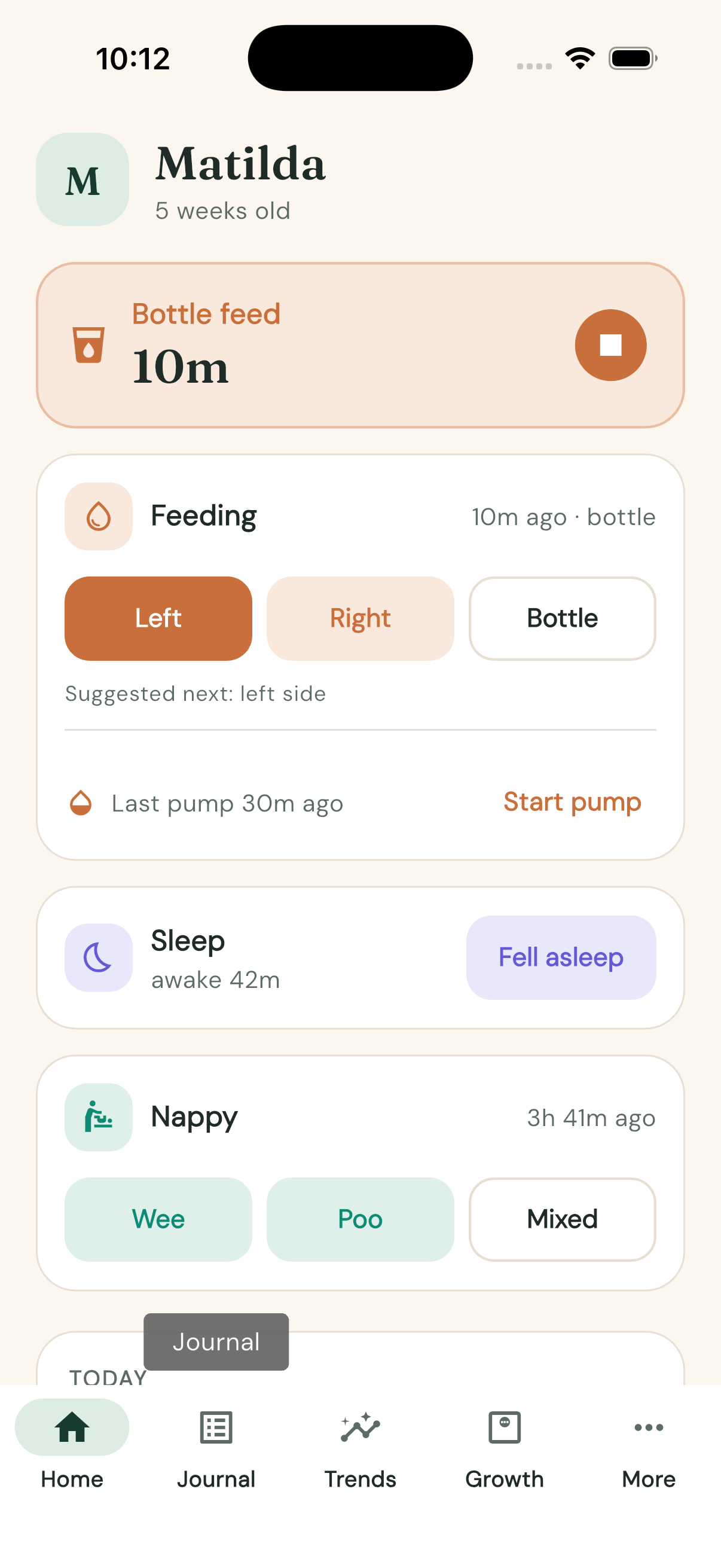
The Feeding card now shows the pump running:
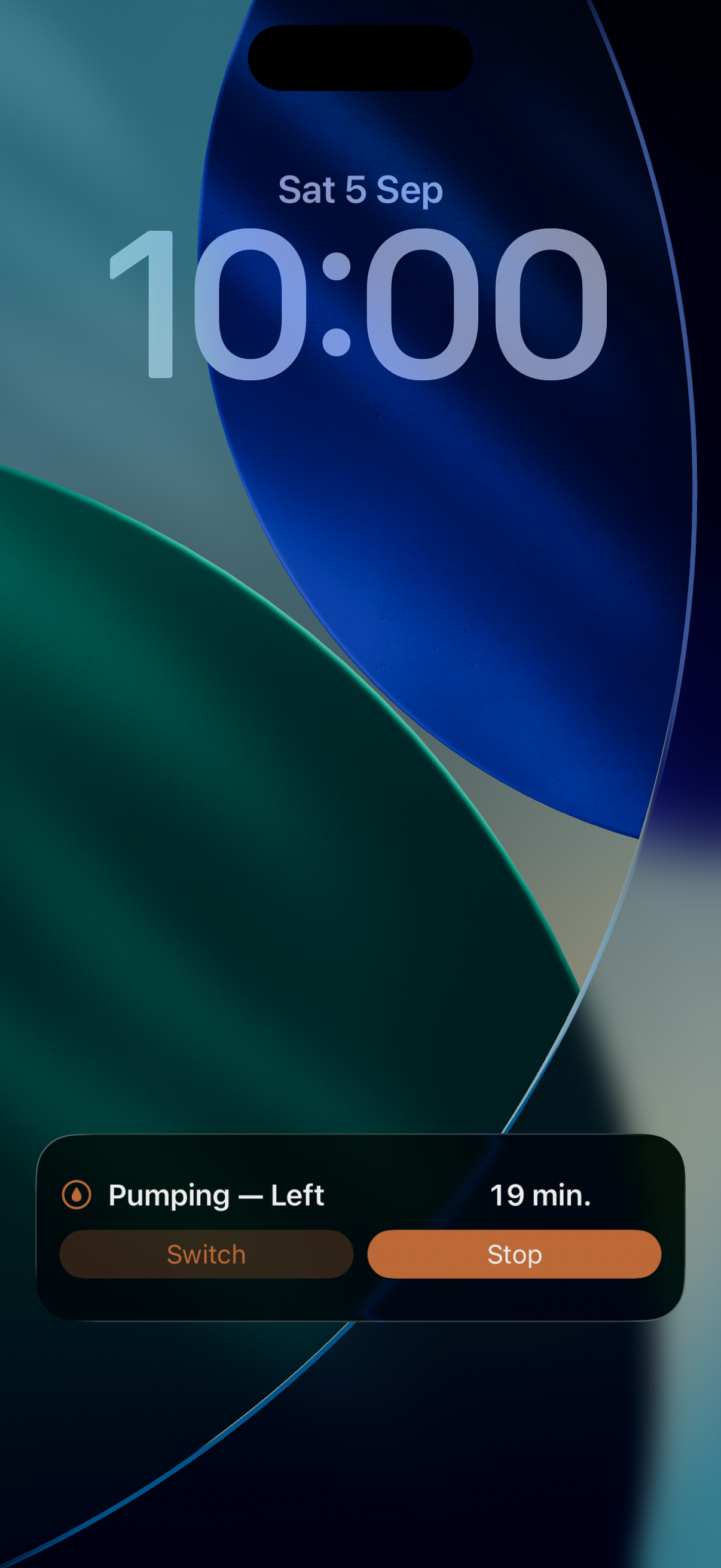
Lock your phone. Joey puts a Live Activity on the lock screen — the pump title with a live stopwatch, plus Switch and Stop buttons right there. (The first time a timer runs, iOS asks "Allow Live Activities from Joey?" — tap Allow.)
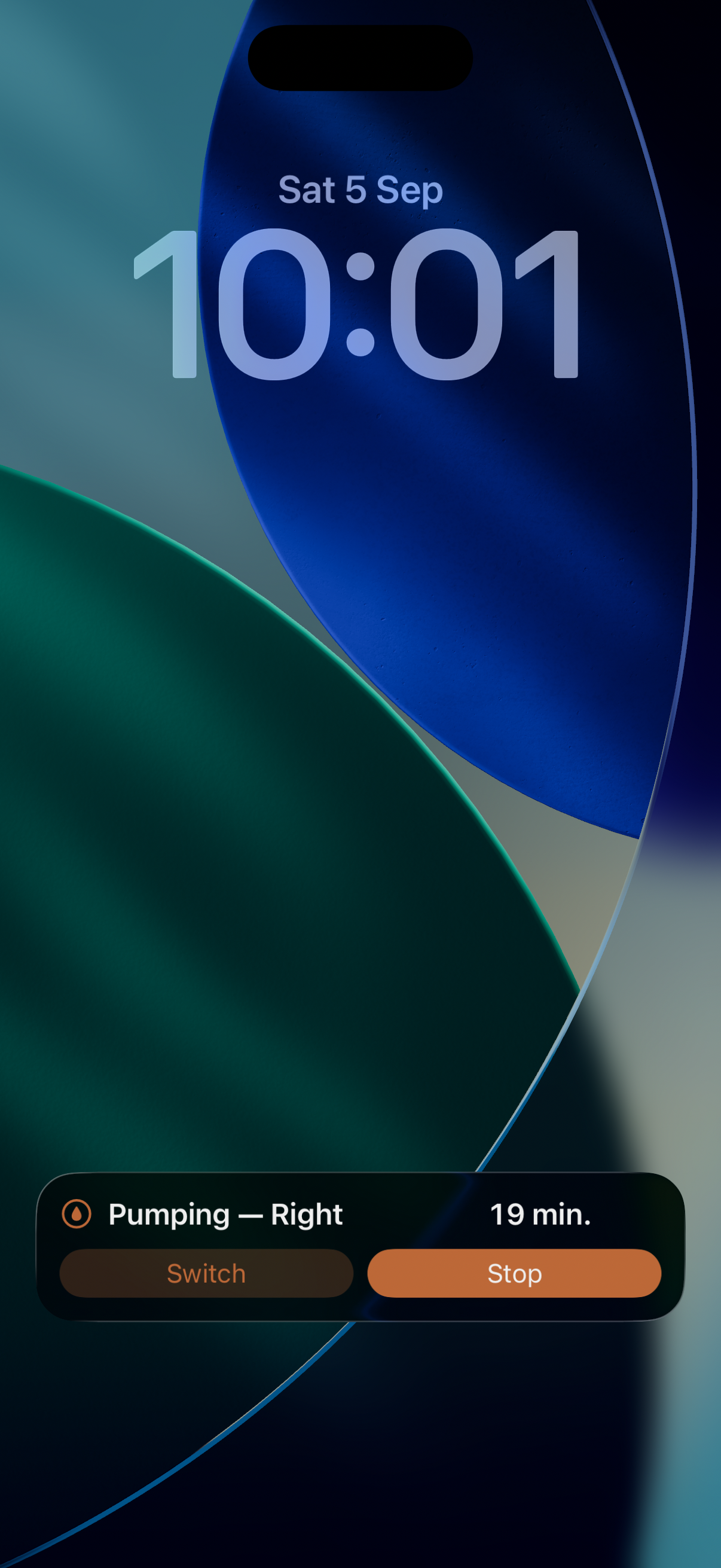
Halfway through, swap the pump to the other side by tapping Switch on the lock screen — no unlocking needed. The activity updates to the right side immediately.
When you're finished, tap Stop on the lock screen. The pump session is saved to the Journal, recorded against the side it finished on.
The same Live Activity appears for breastfeeds, bottles and sleeps too, and on newer iPhones it also lives in the Dynamic Island.
6:30 pm — the evening bottle
Dad's turn to feed, with expressed milk from this afternoon.
On the Feeding card, tap Bottle. A bottle banner starts running, just like the breastfeed one.
When bub's finished, tap Stop on the banner. Joey asks "How much did bub take?" — this is where the volume goes in, at the end of the feed, once you can actually see how much is gone from the bottle.
Type the amount in mL and confirm. (If you genuinely don't know, there's a Finish without amount button — and if the number turns up later, just tap the entry in the Journal and add it. The same tap-to-edit fixes a bottle stopped from a widget or the lock screen, which can't ask for a volume — see How to edit or backdate entries.)
8:00 pm — reviewing the day in Trends
Bub's down for the night. Time to see how the day looked.
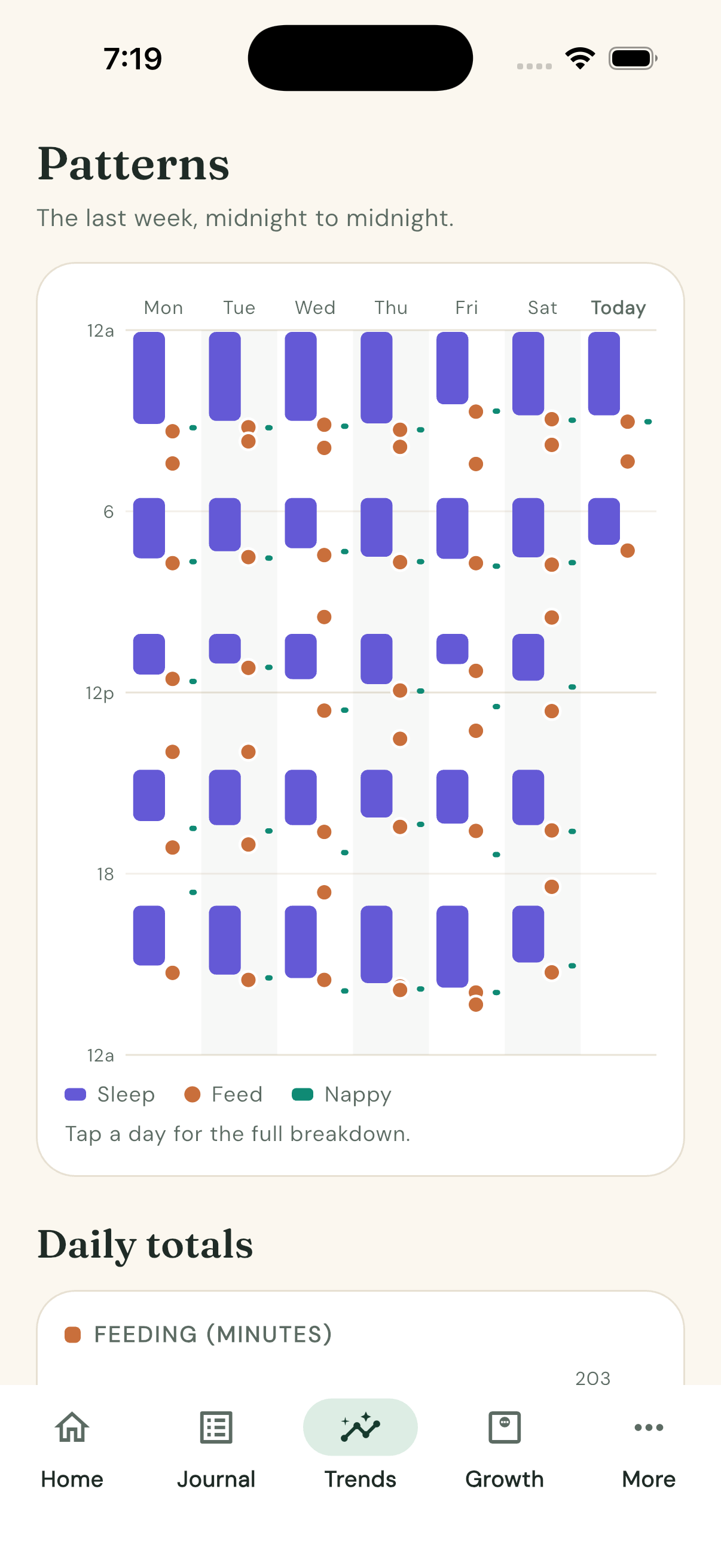
Open the Trends tab. The Patterns chart shows the last 7 days as vertical columns, running midnight to midnight from top to bottom — sleep as long spans, feeds as dots, nappies as small ticks. After a few days you'll start to see the day's shape at a glance.
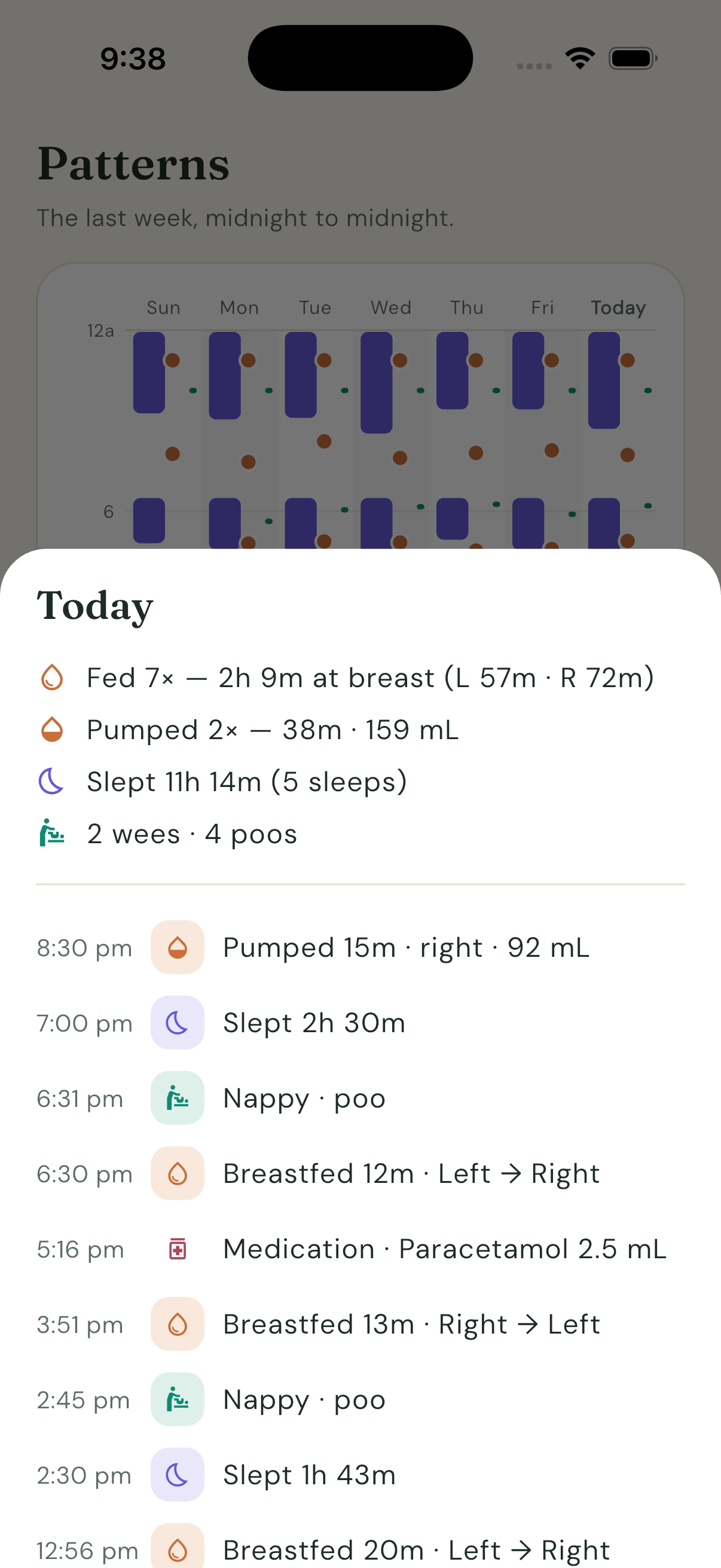
Tap today's column. A breakdown sheet slides up with the whole day in one place: breastfeeding minutes split Left and Right, pump totals, the bottle's mL, sleep hours, the nappy count, and a list of every timed event.
Scroll down on the Trends tab and you'll also find daily totals — FEEDING (MINUTES), SLEEP (HOURS) and NAPPIES bar charts. Tapping any bar opens a focused version of the day sheet for just that activity, led by a 24-hour strip graph.
What you've learnt
In one day you've used all of Joey's everyday tools:
- Starting, switching and stopping a breastfeed, and reading the "L 10m → R 12m" entry in the Journal
- One-tap nappy logging: Wee, Poo and Mixed
- Logging a whole nap from a widget without opening the app
- Running a pump from the lock screen, including switching sides mid-session
- A bottle feed with the volume entered at the end
- Reviewing everything in Trends and the day breakdown sheet
From here, explore the Growth tab (WHO centile charts, once you've set bub's date of birth and sex in More → Baby profile) and the More tab for health logging, notes and milestones — and set up Family sharing so everyone's phones stay in sync.
Getting started with Joey
Audience: a parent (or family member) opening Joey for the very first time — no prior knowledge needed.
Welcome! In the next ten minutes you'll set up bub's profile, log your first breastfeed, nappy and sleep, find them again in the Journal, put a Joey widget on your home screen, and meet the lock-screen Live Activity. By the end you'll have touched everything you need for day-to-day tracking.
You don't need an account, and nothing you log leaves your phone unless you later set up Family sharing.
1. A quick look around
Open Joey. Along the bottom you'll see five tabs: Home, Journal, Trends, Growth and More. Everything in this tutorial happens on Home, Journal and More.
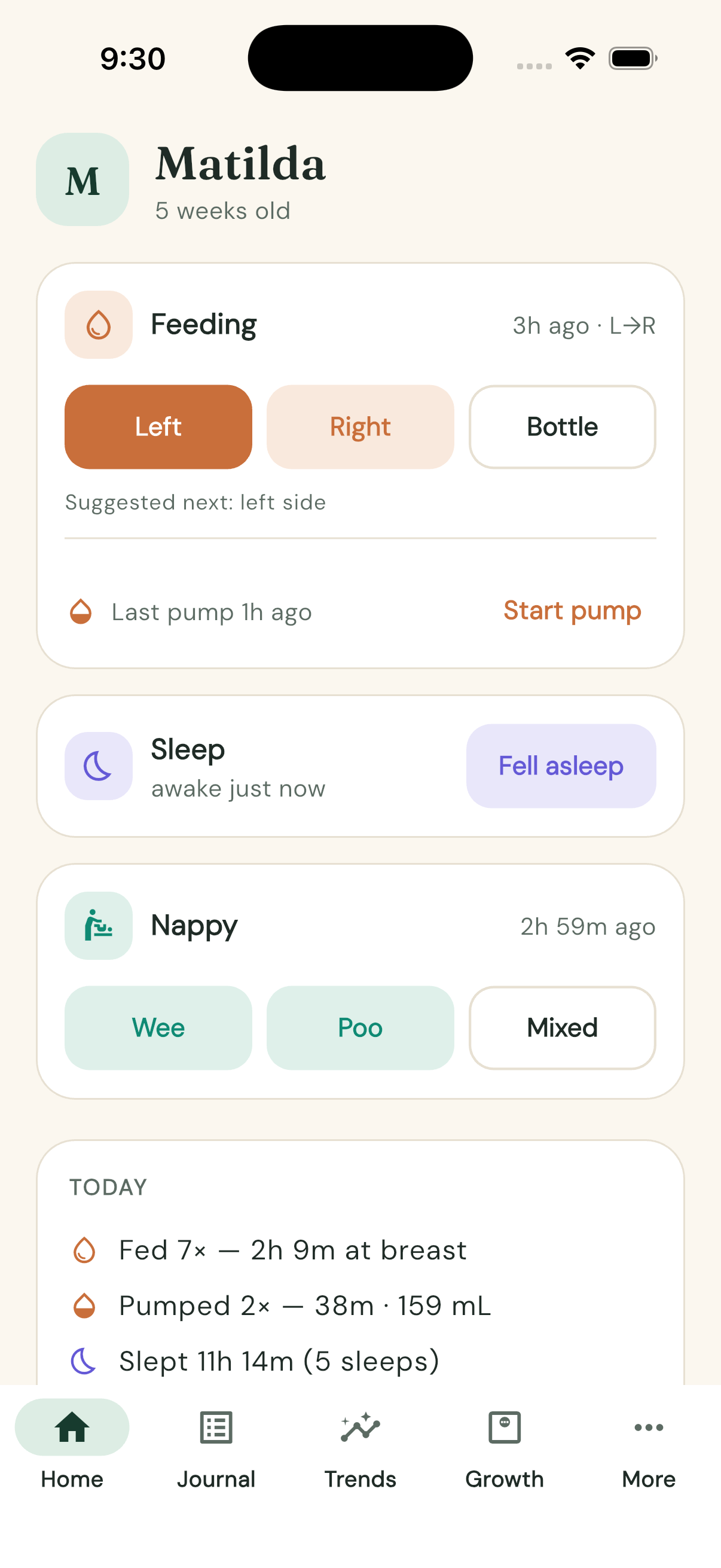
Home is the tab you'll live on. It has a Feeding card, a Sleep card, a Nappy card and a Today summary:
(The coloured banner at the top only appears while a timer is running — you'll make one of your own in a moment.)
2. Set up the Baby profile
Let's tell Joey who we're tracking. Everything here is optional, but the date of birth and sex power the Growth tab's centile charts later.
Tap the More tab.
Tap Baby profile (subtitle: "Name, date of birth, sex (for centiles)").
Type bub's Name.
Tap Date of birth: not set and pick the birthday.
Choose Girl or Boy.
Tap Save.
That's it — Joey never asks for an email or password.
3. Log your first breastfeed
Back to the Home tab. The Feeding card has three buttons: Left, Right and Bottle. One side button is filled in — that's Joey's suggested next side. (After your first feed, a caption underneath spells it out too — "Suggested next: left side".)
- Tap Left. A coloured banner appears at the top of Home reading "Breastfeeding — Left". It shows "just started", then counts up in minutes.
- When bub swaps sides in real life, tap the Switch side button (the arrows icon) on the banner. The title changes to "Breastfeeding — Right", and Joey remembers every switch.
- When the feed is done, tap the Stop button (the square icon).
The feed is saved instantly — no forms to fill in. Next time you open Home, the other side will be the suggested one.
Tip: the banner also has a Move to bottle button. If bub finishes on the breast and moves to a bottle, tapping it stops the breastfeed and starts a bottle timer in one go. When you stop a bottle, Joey asks "How much did bub take?" so you can enter the mL — and there's a "Finish without amount" option if you didn't measure.
4. Log a nappy
The Nappy card has three buttons: Wee, Poo and Mixed.
- Tap whichever applies — let's say Wee.
Done. Nappies are one tap; there's no timer and nothing else to enter.
5. Track a sleep
The Sleep card works as a toggle.
- When bub nods off, tap Fell asleep. A sleep banner appears with the running time.
- When bub wakes, tap the Awake button on the banner.
Between sleeps, the Sleep card shows how long bub has been awake — handy for judging when the next nap is due.
6. See it all in the Journal
Tap the Journal tab. Everything you just logged is there, newest first, with a time column and colour-coded badges. Your breastfeed appears as something like "Breastfed 12m · L 5m → R 7m" — the arrow records your side switch, with the minutes spent on each side.
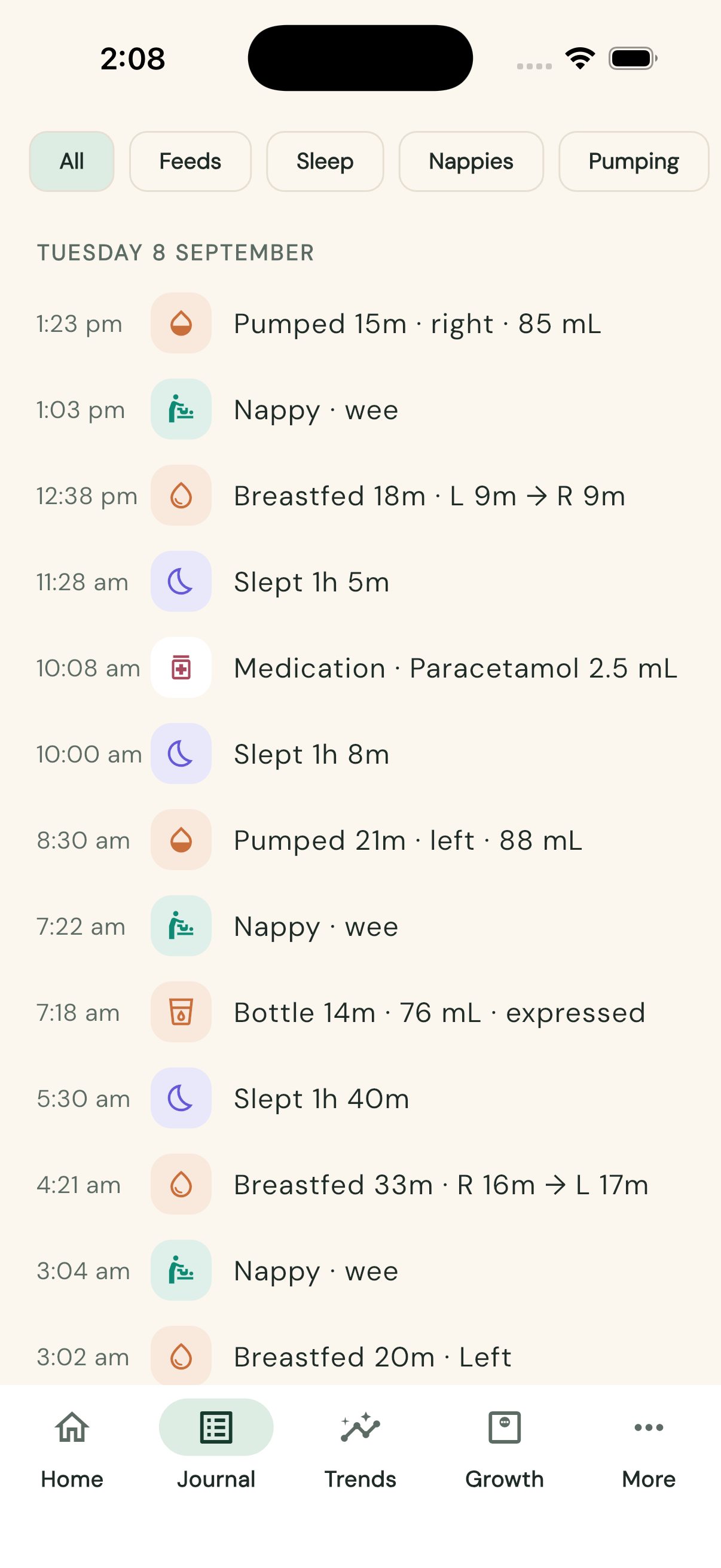
- Try the filter chips along the top: All, Feeds, Sleep, Nappies, Pumping, Other.
- Got a detail wrong? Tap the entry. An edit sheet opens pre-filled — tap a time row (the ✏️ pencil) to retype it, change the side or amount, then tap Save changes.
- Stopped a timer too soon? Tap the entry and hit ▶ Resume — still going — the timer picks straight back up, banner, widgets and all.
- Logged something by mistake entirely? Swipe the entry left and confirm 🗑 Delete.
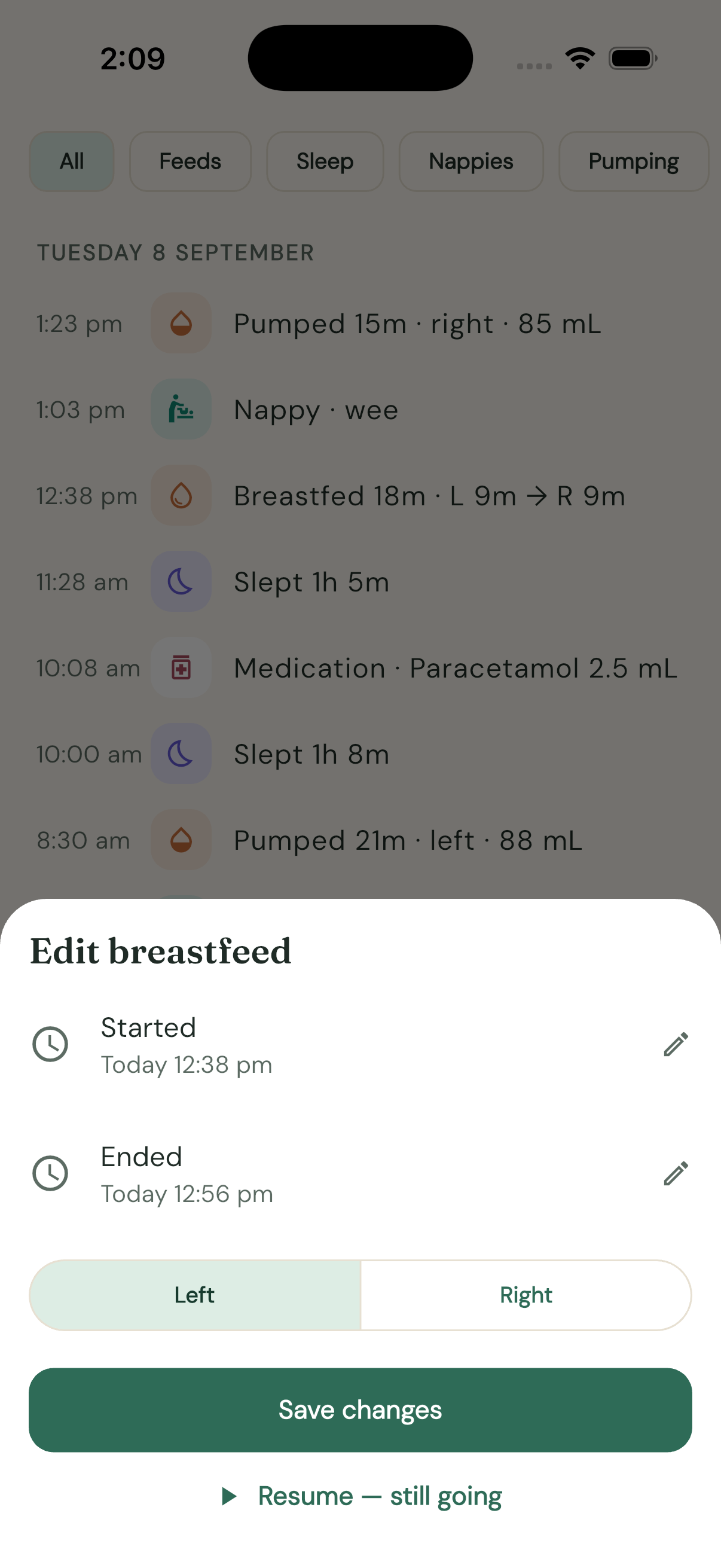
Edits, resumes and deletes all sync to the rest of the family like any other change. For the finer points — backdating a forgotten entry, adding the mL to a bottle stopped from a widget — see How to edit or backdate entries.
7. Add the Feeding widget to your home screen (iOS)
The best part of Joey is not opening Joey. The Feeding widget puts Left, Right and a bottle button straight on your home screen, and they work without launching the app.
Go to your iPhone home screen and long-press on empty space until the apps jiggle.
Tap Edit in the top corner, then Add Widget.
Search for Joey.
You'll see Joey's widgets — swipe across to the Feeding widget, pick a size, and tap Add Widget.
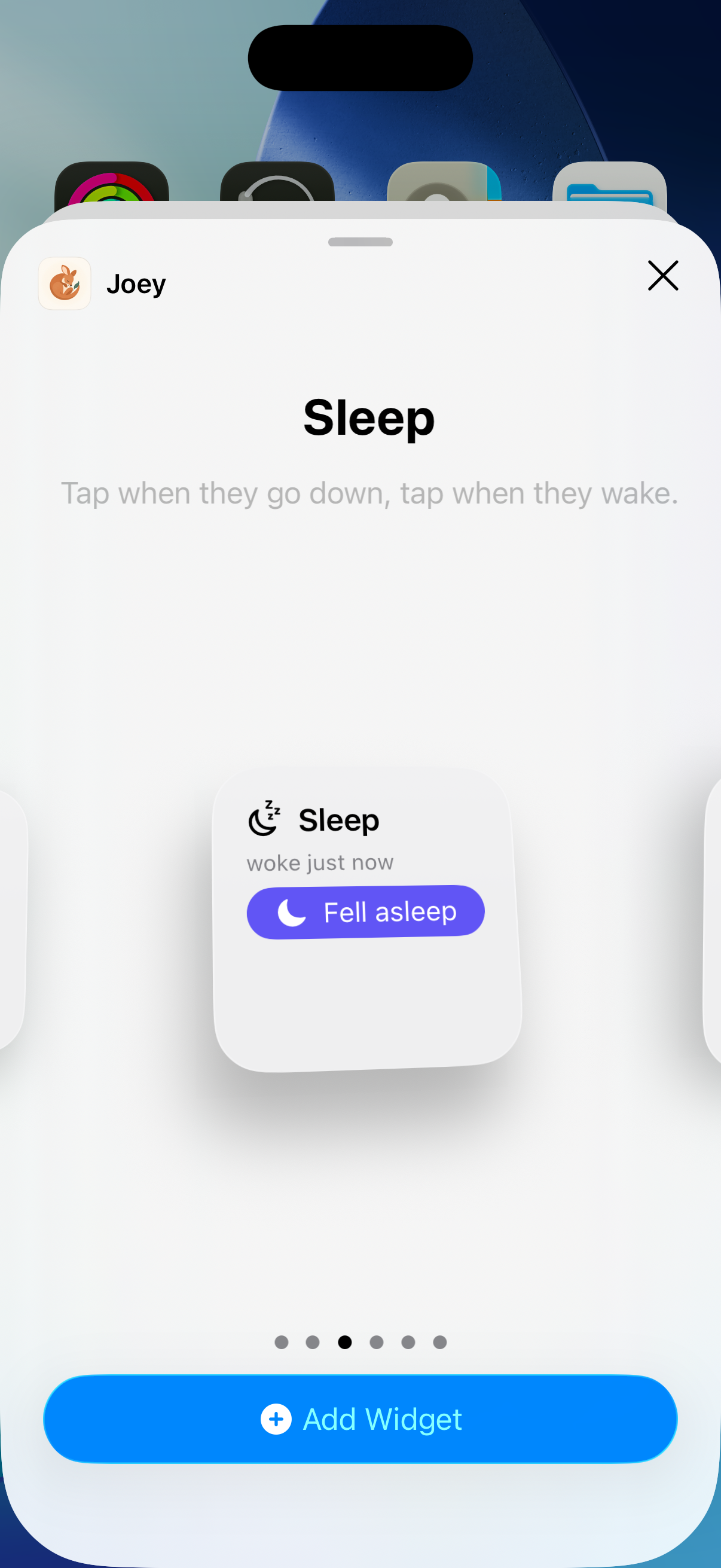
Tap Done. The widget shows the feeding buttons plus your last feed, e.g. "L→R · 2h 5m ago".
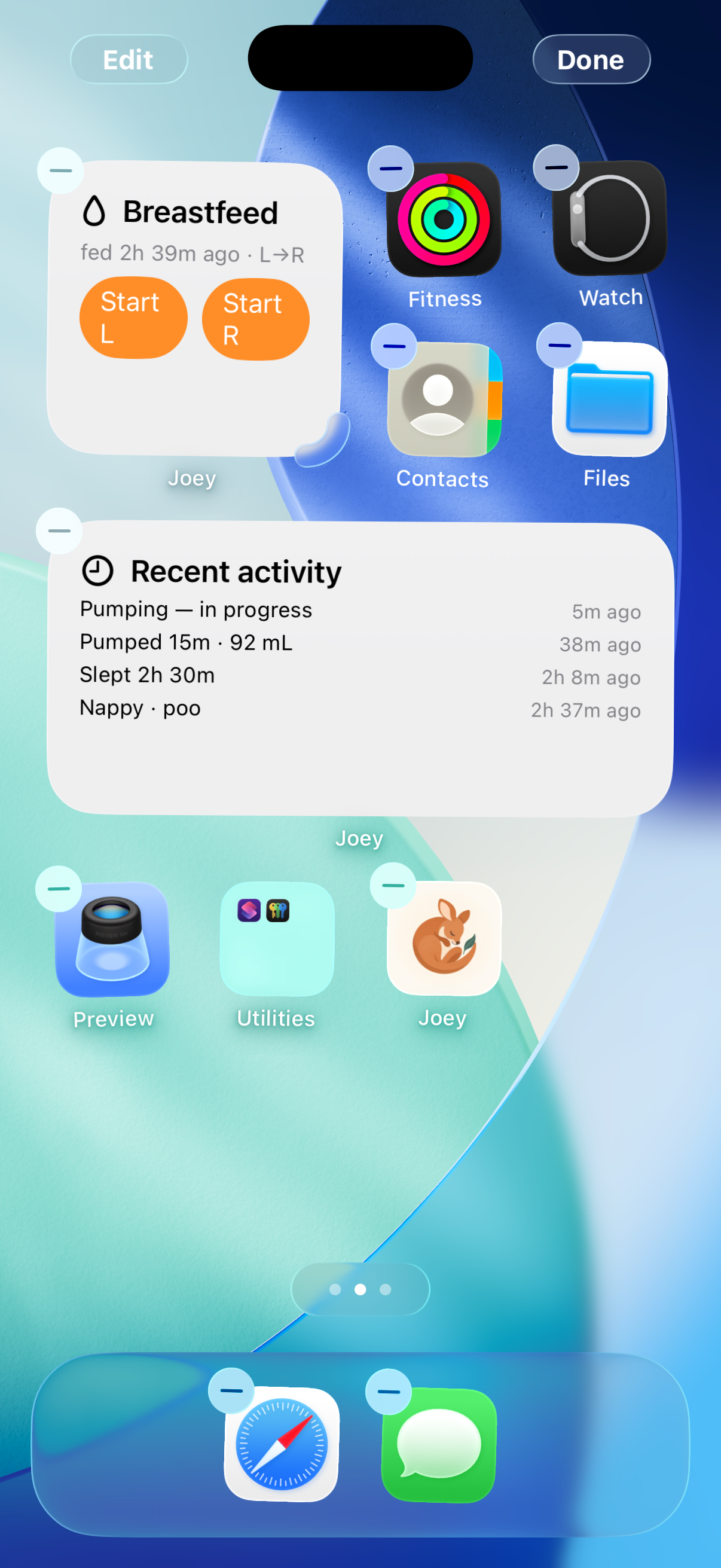
Tap Left on the widget and the timer starts — expect a second or three of delay, as the widget wakes the app in the background. There are six iOS widgets in total (Feeding, Sleep, Nappy, Pump, Recent activity, and the large Joey control panel); add more the same way whenever you like. Android has home-screen widgets too, added the usual Android way.
8. Meet the Live Activity (iOS)
With a timer running, lock your phone. Joey shows the running timer on your lock screen and in the Dynamic Island.
Start any timer — tap Fell asleep, say.
The first time, iOS asks "Allow Live Activities from Joey?" — tap Allow.
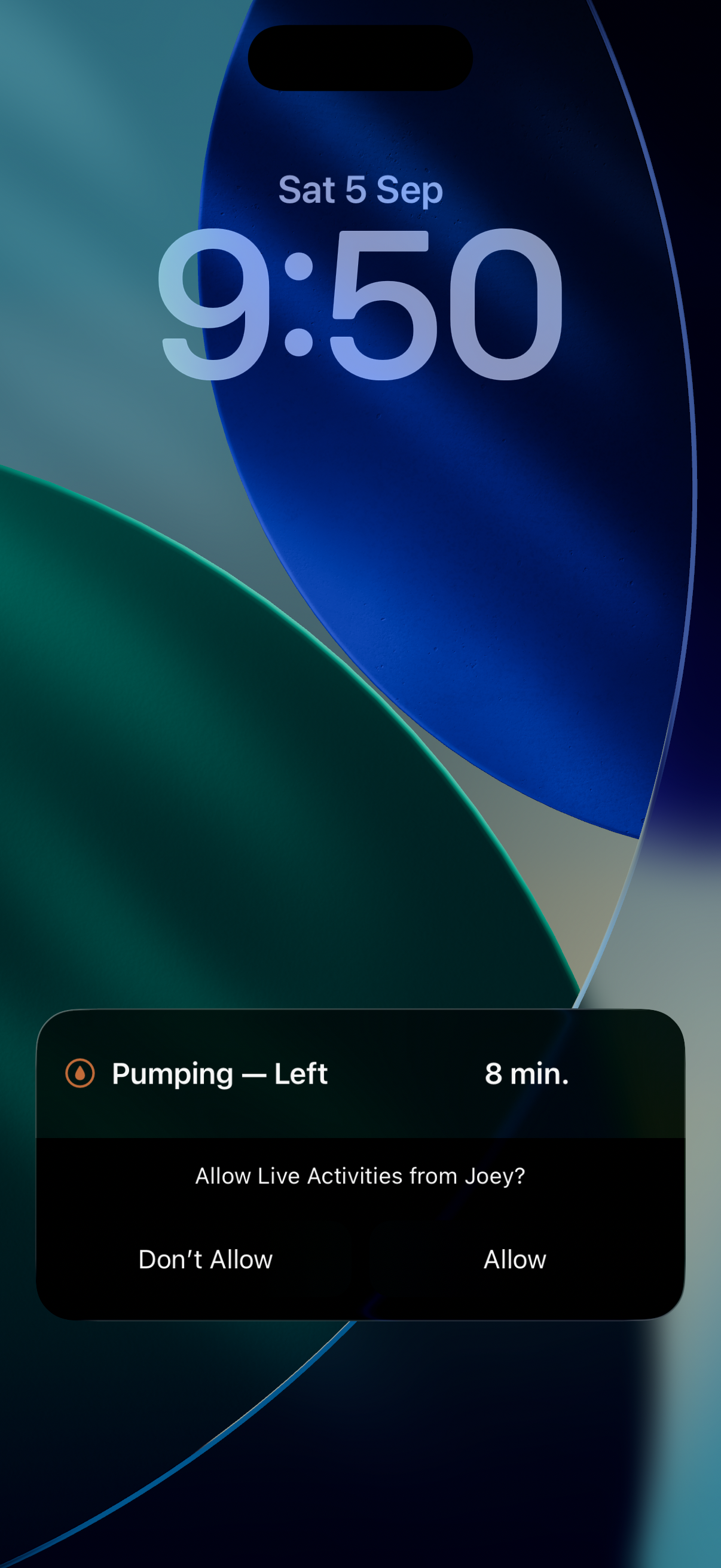
Lock your phone. The activity shows the timer counting up, with buttons right on the lock screen — a sleep shows Awake; a breastfeed shows Switch, Bottle and Stop.
You can now run an entire overnight feed without ever unlocking your phone.
Where to next
You've covered the daily essentials. When you're ready:
- Trends shows your last 7 days as a pattern chart — tap any day for a full breakdown.
- Growth plots weight, length and head circumference on WHO centile curves (it uses the profile you set up in step 2).
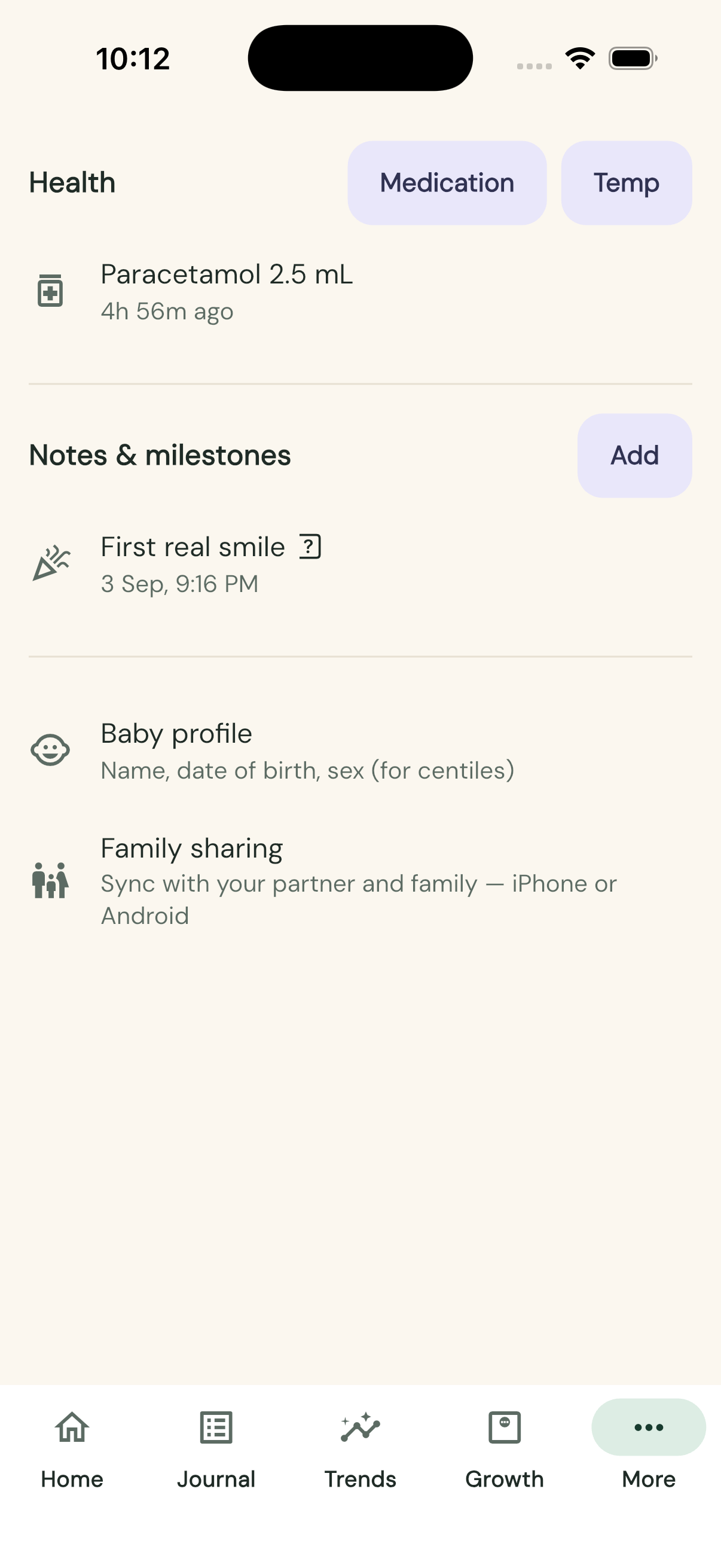
- More → Health logs medications and temperatures; Notes & milestones is for everything else.
- More → Family sharing syncs Joey between phones with end-to-end encryption — the server only ever sees encrypted blobs. Set it up whenever you're ready: How to set up family sync.
Happy tracking!
How to add and configure widgets
Audience: anyone who wants to log feeds, sleeps and nappies from the home screen without opening Joey.
Joey's widgets are interactive — tapping a button on the widget logs the event or starts the timer directly. You don't need the app open. On iOS the widget flips to the expected state almost instantly (~200 ms) while Joey completes the real write in the background; on Android expect a 1–3 second pause before the widget refreshes to show the result.
Add a widget (iOS)
- Long-press an empty spot on your home screen until the icons jiggle.
- Tap Edit in the top-left corner, then Add Widget.
- Search for Joey and pick a widget from the list.
- Swipe to choose a size (where more than one is offered), then tap Add Widget.
- Drag it where you want it and tap Done.
While the icons are still jiggling you can add several at once — a Feeding widget next to a Recent activity widget is a handy pairing.
The six iOS widgets
| Widget | Sizes | What it shows and does |
|---|---|---|
| Feeding | Small, medium, lock screen | Idle: L, R and a bottle-icon button, plus the last feed (e.g. "L→R · 2h 5m ago"). While breastfeeding: elapsed time with Switch and Stop. While bottle feeding: elapsed time with Stop. |
| Sleep | Small, lock screen | Fell asleep button when bub is awake (with "woke Xh Ym ago"); Awake button and elapsed time while asleep. |
| Nappy | Small, medium | Three icon buttons — wee (💧 waves), poo (swirl) and mixed (both icons together) — plus when the last nappy was changed. (The labels are spoken by VoiceOver; Android's nappy widget uses text buttons.) |
| Pump | Small, medium | Idle: L, R and Both start buttons plus the last pump. Running: elapsed time and Stop. |
| Recent activity | Medium | A read-only log of the last few feeds, sleeps and nappies with times. |
| Joey control | Large | Everything in one widget — a left rail of activities and a control panel. See How to use the control widget. |
All widget times update once a minute and show minutes only ("just started", "27m", "1h 05m") — no distracting seconds.
The Feeding and Sleep widgets also come in a rectangular lock-screen size, showing status at a glance (e.g. "Feeding L · 12m" or "woke 1h 20m ago").
Edit Widget toggles
Two widgets have options. Long-press the widget on your home screen and choose Edit Widget:
- Feeding — Show bottle button: turn this off if you never bottle feed and want just the L and R buttons. (A Show pumping toggle appears in the same sheet but does nothing on this widget — it belongs to Joey control, which shares the options list.)
- Joey control — Show pumping: turn this off to remove the Pump row from the rail. It also has Show bottle button for its feeding panel.
Toggles are per-widget, so two copies of the same widget can be set up differently.
Android widgets
Android has five widgets: Breastfeed, Sleep, Nappy (with text Wee/Poo/Mixed buttons), Recent activity and Pump. Add them the usual way — long-press the home screen, choose Widgets, and find Joey. The buttons do the same things as on iOS.
Why Android widgets show clock times, not "ago" times. Android widgets are static pictures the system redraws at most every 30 minutes, so a label like "fed 12m ago" could sit half an hour out of date. Joey therefore shows absolute times on Android — "fed at 3:04 pm", "yesterday 3:04 pm" — which stay true no matter when the widget last redrew (a background refresher rolls the day labels over). iOS widgets can pre-render a frame per minute, which is why they get "ago" times.
Android widgets don't have configuration toggles yet, there's no bottle button on the Breastfeed widget (start bottles in-app), and there's no large control widget.
How to deploy the backend
Audience: Rob (or anyone comfortable with a terminal and a free Cloudflare account). One-time job, about five minutes.
Joey's sync server is a single Cloudflare Worker with a D1 (SQLite) database.
✅ Already done for this family: deployed 6 September 2026 (D1 database
joey-sync), and since 9 September 2026 served at its canonical addresshttps://joey.medipearl.com.au(custom domain; the originalhttps://joey-sync.personal-account-f61.workers.devURL keeps working during the transition). The same Worker also serves the landing page (site/as assets) and the admin dashboard at/admin. The steps below are kept for re-deploys or for anyone self-hosting their own copy.
Steps
Install dependencies and log in to Cloudflare:
cd backend
npm install
npx wrangler login        # opens a browser to log into Cloudflare
Create the D1 database:
npx wrangler d1 create joey-syncCopy the
database_idit prints.Paste that id into
backend/wrangler.jsoncasd1_databases[0].database_id(self-hosters: replace our live id with your own).Apply the schema to the real (remote) database:
npm run db:remoteDeploy the Worker:
npm run deployThis prints the server URL —
https://joey.medipearl.com.aufor our deployment (self-hosters get ahttps://joey-sync.<subdomain>.workers.devURL unless they attach a custom domain viaroutesinwrangler.jsonc). The app never asks users for a URL — it's the compile-time constantkJoeyServerUrlinapp/lib/src/data/family.dart; self-hosters change that constant and rebuild.Optional sanity check: open
<server URL>/healthin a browser — it should return{"ok":true}.
Trying it locally first (optional)
npm run db:local
npm run dev
Then use http://<your-mac-ip>:8787 as the server URL from phones on the same wifi. Anything created against the local server is separate from the real deployment — you'd re-create the family after deploying for real.
What the server can and cannot see
The server is deliberately dumb. It exposes a small fixed set of endpoints — family create / erase / token-rotate, push-pull sync, push registration, health, and the operator /admin routes — serves the landing page as static assets, and stores:
- Can see: a random family id, a hashed access token, and for each event an opaque id, a timestamp, and an AES-256-GCM encrypted blob (max 32 KB). Plus the usual traffic metadata (when phones sync, from what IP).
- Cannot see: anything inside the blobs — feed times, nappy contents, baby's name, who's in the family. The encryption key is generated on the phone that creates the family and travels only sealed to a specific approved device (welcome QR, key-rotation records) or inside the printed recovery document; it never reaches the server.
Practical consequence: the server is disposable. Losing it (or Cloudflare's free tier going away) means losing sync, not data — every phone keeps the full history locally and can re-push it to a fresh deployment. The free tier is far beyond what one family's logging generates.
How to deploy the docs site
Audience: Rob. Takes under a minute once logged in to Cloudflare.
This knowledge base is published publicly at https://docs.joey.medipearl.com.au —
a second Cloudflare Worker (joey-docs) that serves docs/kb/ as static assets:
the KB browser (joey-docs.html), a root redirect (index.html) and the
screenshots in assets/. The markdown sources are excluded from upload by
docs/kb/.assetsignore, and the *.workers.dev URL is disabled so the custom
domain is the only address.
The site is plain static hosting — no database, no code — and contains only demo-data screenshots and documentation, so being public is fine.
The hostname plan
| Hostname | Serves | Config |
|---|---|---|
joey.medipearl.com.au |
Sync API + landing page (site/ as assets) + /admin dashboard |
backend/wrangler.jsonc |
docs.joey.medipearl.com.au |
This knowledge base | backend/wrangler.docs.jsonc |
Both are Workers in the one Cloudflare account on the medipearl.com.au zone;
each custom_domain route creates its own DNS record and certificate on
deploy. Since 9 September 2026 the apex hostname belongs to the sync Worker
(npm run deploy redeploys everything it serves, landing page included); the
separate joey-site worker and deploy:site script are gone, and
sync.joey.medipearl.com.au was never needed.
Redeploy after changing the docs
cd backend
npm run deploy:docs   # rebuilds joey-docs.html (tools/build_kb.mjs) then
                      # wrangler deploy -c wrangler.docs.jsonc
That's it. The custom_domain route in backend/wrangler.docs.jsonc created the
DNS record and certificate for docs.joey.medipearl.com.au on first deploy; later
deploys just replace the files.
Where the pieces live
| Piece | Path |
|---|---|
| Worker config (name, domain, asset dir) | backend/wrangler.docs.jsonc |
| Upload exclusions | docs/kb/.assetsignore |
Root redirect (/ → joey-docs.html) |
docs/kb/index.html |
| Deploy script | backend/package.json → deploy:docs |
The sync server (joey-sync, see how-to--deploy-the-backend.md)
is a separate Worker in the same Cloudflare account; the two share nothing but
the wrangler install in backend/.
How to edit or backdate a journal entry
Every entry can be corrected after the fact — times, sides, amounts, text. Edits sync to the other phones like any other change.
Edit any entry
- Open the Journal tab.
- Tap the entry you want to fix. An edit sheet opens pre-filled with the entry's details.
- Change what you need and tap Save changes.
What each entry type lets you edit:
| Entry | Editable fields |
|---|---|
| Breastfeed | Started, Ended, side (Left/Right) |
| Bottle | Started, Ended, amount (mL), Formula / Expressed milk |
| Pump | Started, Ended, side (Left/Right/Both), amount (mL) |
| Sleep | Started, Ended |
| Nappy | When, wee, poo |
| Medication | When, name, dose + unit (mL/mg/drops) |
| Temperature | When, °C |
| Note / Milestone | When, text |
| Growth | When, weight, length, head circumference |
Tapping a time row (the clock icon) opens straight into time entry — it's the time you're correcting nine times out of ten, not the date. Hour and minute are typed on the numeric keypad in your phone's own 12/24-hour format; tapping a field selects its digits so you just type over them, and entry jumps from hours to minutes by itself. The date sits underneath as its own row ("Today"/"Yesterday"/the date) — tap it only when the entry belongs to a different day. An end time before the start time is rejected with a message.
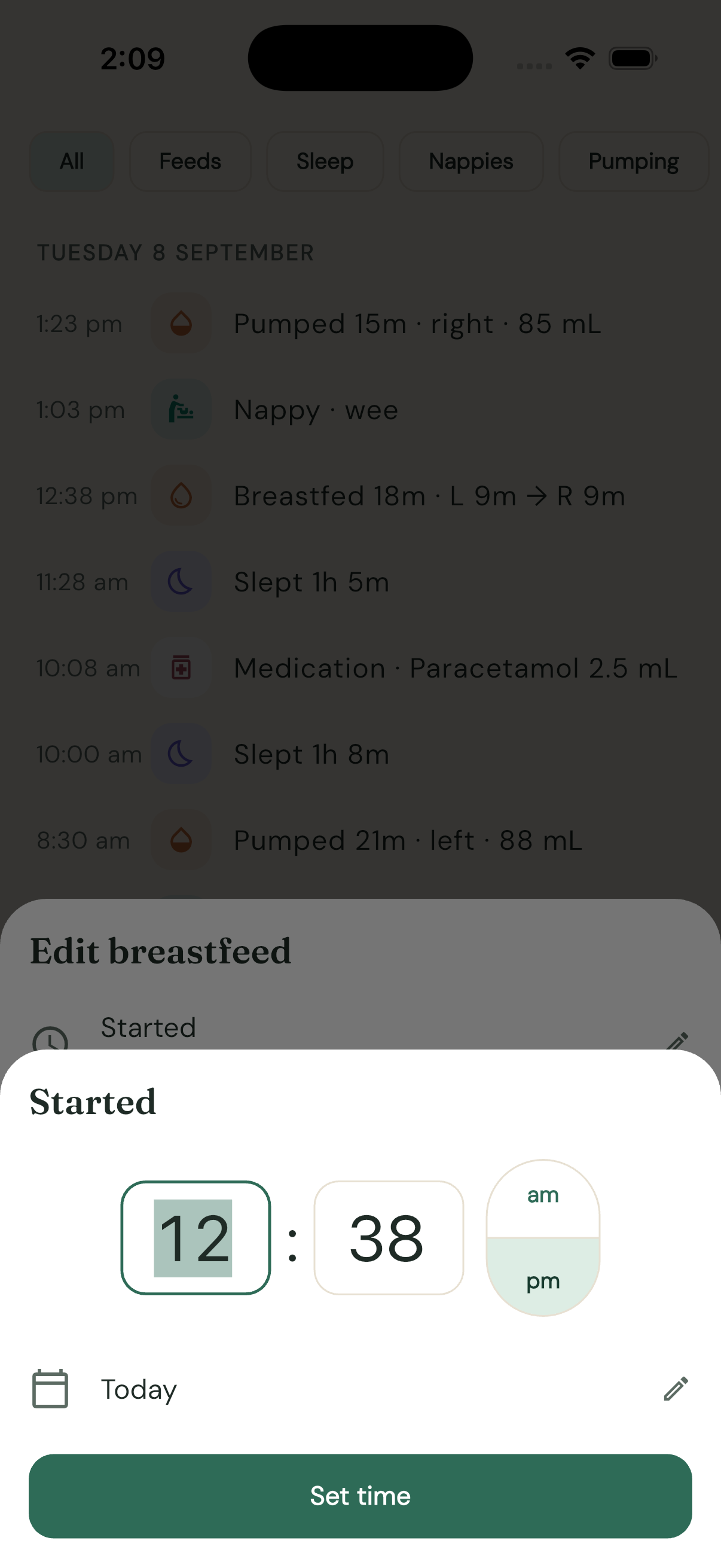
Resume a timer you stopped by mistake
Stopped a sleep (or feed, pump, bottle) that was actually still going? Don't fiddle with the end time — tap the entry in the Journal and tap Resume — still going. The entry loses its end time and runs again everywhere: banners, widgets and the Live Activity come back. Resume refuses (with a message) if another timer of the same type is already running.
Fix a bottle stopped from a widget or the lock screen
Stopping a bottle from a widget or Live Activity can't ask for the volume, so the entry is saved without mL. To complete it: Journal → tap the bottle → enter the amount (and Formula/Expressed) → Save changes. The daily bottle total updates immediately.
End a stuck "running" entry
If an entry shows the running ▶ icon but the timer is long over (e.g. both phones started a timer before sync was set up), tap it and set an Ended time. (Once sync is live this repairs itself — see the concurrent-start rule in reference — event model and sync.)
Log something you forgot (backdating)
Every retro-log sheet — medication, temperature, note/milestone, growth — has a When row that defaults to now. Tap it to pick the real time before saving, including times on earlier days. (Bottles have no retro-log sheet yet: log one, then edit its Started/Ended times.)
Quick-logged nappies (the one-tap Wee/Poo/Mixed buttons) are stamped at tap time; if you're logging a change you did an hour ago, tap the entry in the Journal afterwards and move its time.
Delete an entry
Unchanged: swipe the entry left in the Journal and confirm. Deletes sync too.
How to use the lock screen and Dynamic Island
Audience: iPhone users who want to see and control running timers without unlocking the phone.
Whenever a Joey timer is running — breastfeed, bottle, pump or sleep — iOS shows it as a Live Activity: a card on the lock screen and a presence in the Dynamic Island. You can glance at the elapsed time and stop or switch the timer right there, mid-cuddle, without unlocking anything.
Allow Live Activities (first time only)
The first time you start a timer after installing Joey, iOS asks:
Allow Live Activities from "Joey"?
Tap Allow. If you dismissed it, you can turn Live Activities back on in Settings → Joey. Timers still work in the app either way — this only affects the lock screen and Dynamic Island.
What shows where
- Lock screen — a card with the activity title (e.g. "Pumping — Left"), a live stopwatch, and action buttons.
- Dynamic Island, compact (phone unlocked, app in background) — the activity's own icon and the running time in the pill: an orange drop for a breastfeed, a bottle for a bottle feed, a pump drop for pumping, and a violet moon for sleep — so you can tell a sleeping baby from a feeding one at a glance. No buttons here — Apple doesn't allow them in the compact pill.
- Dynamic Island, expanded — long-press the pill to expand it: title, timer and the same action buttons as the lock screen.
The timer uses the standard stopwatch format, so during the first minute you'll see seconds ticking (e.g. "0:42") before it settles into minutes and seconds.
The buttons for each timer
| Timer | Buttons |
|---|---|
| Breastfeed | Switch · Bottle · Stop |
| Bottle | Stop |
| Pump (Left or Right) | Switch · Stop |
| Pump (Both) | Stop (there's no side to switch) |
| Sleep | Awake |
Buttons take 1–3 seconds to respond — Joey briefly boots in the background to record the event — and then the card updates.
Tapping Switch flips the side immediately, and the title updates to match:
Moving a breastfeed to a bottle
If bub comes off the breast and you top up with a bottle, tap Bottle on the breastfeed activity. Joey stops the breastfeed (keeping every side and switch in the history) and starts a bottle timer in one tap. When the bottle is done, tap Stop.
Bottle volumes and the lock screen
Joey asks "How much did bub take?" at the end of a bottle feed, and that prompt only appears in the app. If you stop a bottle from the lock screen (or a widget), the feed is saved with its duration but no volume — add the mL afterwards by tapping the entry in the Journal (How to edit or backdate entries).
Timers started on the OTHER phone (since v1.9.0)
The island now mirrors the whole family, not just this phone:
- Start (or resume) a timer on either phone → the other phone's island and lock screen light up within seconds, first with a generic "Joey" stopwatch (the push deliberately carries no content), then the title corrects to "Asleep" / "Breastfeeding — Left" as details sync in.
- Stop a timer anywhere — button, widget, deleting the entry, or editing an end time in — and every phone's island ends within seconds.
- This rides explicit Live Activity pushes end-to-end; it works with the receiving phone locked and the app closed. The very first island after a fresh install registers its end-address on the next sync cycle (~10 s), so an immediate start-stop within seconds of installing may leave it to the next sync to clean up.
Island quick reference
- Timers started from a widget appear in the Dynamic Island too.
- Press and hold the island to expand it: full action buttons (⇄ switch, Bottle, Stop, Awake). A short tap always opens the app — that gesture is reserved by iOS and cannot be remapped.
- A stuck activity can always be cleared by swiping it sideways on the lock screen.
How to log a bottle
Audience: anyone in the family who already has Joey on their phone and knows their way around the Home tab.
Start the bottle
- On the Home tab, find the Feeding card.
- Tap Bottle. A "Bottle feed" banner appears at the top of the screen with a running timer (minutes only — "just started", then "10m").
You can also start a bottle from the iOS Feeding widget (the bottle icon button, if "Show bottle button" is enabled in Edit Widget) or from the Joey control widget. (Android's Breastfeed widget has no bottle button — start bottles in the app.) If a breastfeed is already running, use Move to bottle on the breastfeeding banner instead — it stops the breastfeed and starts the bottle in one tap.
Finish and enter the amount
- Tap the stop button on the "Bottle feed" banner.
- A sheet asks "How much did bub take?" — type the amount in mL, choose Formula or Expressed milk, and tap Finish feed.
- If you don't know or don't care about the amount, tap Finish without amount instead (the Formula/Expressed choice still saves).
Why does Joey ask for the volume at the end?
Because that's when you actually know it. You don't know how much bub will take when you make the bottle up — you know when it comes back. So the bottle is a timer like everything else: start it when the feed starts, and enter the mL that actually went down when it's over. The journal entry then shows both the duration and the amount, e.g. "Bottle 15m · 90 mL".
Stopping from a widget or the lock screen
The iOS lock-screen Live Activity, Dynamic Island and the iOS home-screen widgets all have a Stop button for a running bottle — handy, but they can't pop up a keyboard, so no volume is recorded at that moment. (Android widgets can't stop a bottle — stop it in the app.)
Add it afterwards: open the Journal, tap the bottle entry, enter the mL (and Formula/Expressed if needed), and Save changes. The daily total updates immediately. See How to edit or backdate entries.
Log a bottle that already happened
There's no retro-log bottle sheet in the UI yet (a known gap). The workaround: tap Bottle then stop it straight away, enter the amount, and then tap the new entry in the Journal to set the real Started and Ended times — see How to edit or backdate entries.
Where it shows up
- Journal: "Bottle 15m · 90 mL · formula" (or "· expressed") under the Feeds filter chip.
- Home → Today summary: bottle mL rolls into the unified Feeding line, e.g. "Fed 6× — 1h 40m at breast + 120 mL bottle".
- Trends: bottles appear in the pattern chart and, in a day's focused sheet, as translucent segments on the 24-hour feeding strip.
How to log a breastfeed
Audience: anyone in the family who already has Joey on their phone and knows their way around the Home tab.
Start the feed
- On the Home tab, find the Feeding card.
- Tap Left or Right for the side bub is starting on. The timer starts immediately and a "Breastfeeding — Left" (or "— Right") banner appears at the top of the screen, showing elapsed time in minutes ("just started", then "12m", "1h 5m").
Which side does Joey suggest?
The Feeding card highlights one side as the filled (solid-coloured) button and shows a caption like "Suggested next: left side". The suggestion is simply the opposite of whichever side the last breastfeed finished on (bottles don't count) — if the last breastfeed ended on the right, Joey suggests left. You can always tap the other button; it's a suggestion, not a rule.
You can also start a feed without opening the app:
- iOS Feeding widget or Joey control widget — tap the L or R button.
- Android Breastfeed widget — Start L and Start R buttons, same behaviour.
Switch sides mid-feed
Every switch is kept in the entry, so the journal and Trends know exactly how long bub spent on each breast.
- From the banner (in the app): tap the swap icon (Switch side) on the "Breastfeeding" banner. The banner title updates to the new side.
- From the lock screen (iOS): the running feed shows as a Live Activity with a stopwatch. Tap Switch on the lock screen, or long-press the Dynamic Island to expand it and tap Switch there.
- From a home-screen widget: while a feed is running, the Feeding widget shows Switch and Stop buttons — tap Switch.
You can switch as many times as you like; every switch is recorded.
Move to a bottle mid-feed
If bub comes off the breast and finishes with a bottle:
- Tap the bottle icon (Move to bottle) on the "Breastfeeding" banner — or tap Bottle on the iOS lock-screen Live Activity.
- Joey stops the breastfeed and starts a bottle timer in one tap. You'll enter the mL when the bottle finishes (see How to log a bottle).
Stop the feed
- Tap the stop button (Stop) on the "Breastfeeding" banner, or
- Tap Stop on the lock-screen Live Activity or the Feeding widget.
That's it — no further input needed. If you started the feed on one phone, anyone in the family can stop it from theirs, once family sync is set up.
How it looks in the journal
A finished feed appears in the Journal with the time spent on each breast, for example "Breastfed 12m · L 5m → R 7m" — started left for 5 minutes, finished right for 7. A feed that switched back and forth shows ⇄ ("L 8m ⇄ R 4m"); a feed that stayed on one side just shows "Left" or "Right". The Feeding card on Home shows the shorthand ("L→R"). Use the Feeds filter chip to see feeds only.
Logged a feed wrongly? Tap the entry in the Journal to edit its times or side — see How to edit or backdate entries. Swipe left to delete instead.
How to log health and milestones
Audience: parents dealing with a sick bub at 3 am, or capturing a first smile before it's forgotten.
The More tab holds everything that isn't a feed, sleep or nappy: medications, temperatures, and notes & milestones.
Log a medication
- Open the More tab and find the Health section at the top.
- Tap Medication.
- In the Log medication sheet, enter the name — or tap a chip above the field. Paracetamol and Ibuprofen are always there as one-tap chips, and medications you've logged before appear first, so a repeat dose is one tap.
- Enter the dose amount — the "Dose" field brings up the numeric keypad (decimals allowed, e.g. "2.5") — and pick the unit underneath: mL, mg or drops. The dose can be left empty if you only want to record that something was given.
- Tap Save.
Log a temperature
- In the Health section, tap Temp.
- Enter the reading in the Temperature (°C) field (e.g. 37.2 — a comma as the decimal separator is fine too). Joey only accepts plausible values between 30 and 45 °C.
- Tap Save.
Read the sick-bub timeline
Medications and temperatures share one merged timeline under the Health buttons, newest first — entries like "Paracetamol 2.5 mL · 4h 56m ago" or "38.1°C · 1h 12m ago". The point, as the empty state puts it: "When bub is sick, log temperatures and doses here so you both always know what was given and when."
- The "ago" times answer the 3 am question directly: is it too soon for the next dose?
- The section shows the 8 most recent entries.
- Once family sharing is set up, both parents see the same timeline — no more "did you already give her something?"
Add a note or milestone
- Below Health, find Notes & milestones and tap Add.
- In the New note sheet, write what happened in the "What happened?" field.
- For a big moment, flick on the Milestone 🎉 switch ("First smile, first word…"). Milestones get a celebration icon in the list; plain notes get a sticky-note icon.
- Tap Save. Notes are timestamped and listed newest first, e.g. "3 Sep, 2:15 pm".
Tips
- Health entries and notes also appear in the Journal under the Other filter chip.
- Made a mistake? Tap the entry in the Journal to edit the name, dose, temperature, text or time — see How to edit or backdate entries. The medication and temperature sheets also have a When row for doses you're logging late.
How to log sleep and nappies
Audience: anyone in the family who already has Joey on their phone and knows their way around the Home tab.
Sleep: one button, two taps
Sleep in Joey is a toggle — tap when bub goes down, tap when bub wakes. Joey works out the duration.
When bub falls asleep
- On the Home tab, find the Sleep card.
- Tap Fell asleep. The card changes to "asleep now" and an "Asleep" banner appears at the top of the screen with the running time in minutes.
When bub wakes
- Tap the sun button (Awake) on the "Asleep" banner.
- The sleep is saved to the Journal as e.g. "Slept 1h 40m", and the Sleep card switches to showing how long bub has been awake, e.g. "awake 45m". That awake-since readout counts up from the end of the last sleep — handy for judging when the next nap is due.
You don't need the app open for either tap: the Sleep widget (iOS and Android) toggles the same timer, and on iOS a running sleep shows as a lock-screen Live Activity with an Awake button. Starting the sleep on one phone and ending it on another also works, once family sync is set up.
Forgot to tap?
Forgot to tap Awake and the sleep ran long? Tap the entry in the Journal and pull its Ended time back — see How to edit or backdate entries. Best habit is still to make the tap part of picking bub up.
Nappies: one tap, done
Nappies aren't timers — a single tap logs the change instantly.
- On the Home tab, find the Nappy card. It shows how long since the last change.
- Tap Wee, Poo or Mixed (mixed = both in the one nappy). That's it — no confirmation step.
The entry lands in the Journal immediately ("Nappy · wee", "Nappy · poo", or "Nappy · wee + poo") and the day's tallies appear in the Today summary ("3 wees · 2 poos") and on the Trends tab. The same three buttons are on the Nappy widget on iOS and Android, so you can log a change from the home screen mid-wrangle.
Tapped the wrong button? Swipe left on the entry in the Journal and confirm Delete, then tap the right one.
How to manage family devices
Audience: the parents (admins) — seeing who has access, adding and removing phones, roles, and the recovery document.
Family sharing is built on per-device cryptographic identities. Every phone in the family appears in More → Family sharing → Family devices with its name, its role, and (in its detail sheet) a key fingerprint. The server never sees this list — it's end-to-end encrypted like everything else.
Roles
- Admin (the parents): can add devices, remove devices, rename, and change roles. Admins approve every new phone in person — nothing joins without an admin's signature.
- Member (grandparents, babysitters): full logging and viewing, but cannot add other devices. A member forwarding their codes to someone achieves nothing — there is no secret in them to forward.
The app refuses to remove or demote the last remaining admin, so the family can never lock itself out by accident.
See who has access
Family sharing shows every active device. Tap a device to see its key fingerprint (eight hex pairs, e.g. 3F 7A 92 C4 …) — if you're ever unsure a device is the phone it claims to be, compare the fingerprint shown on that phone's own screen during pairing.
Add a device
See the two-scan pairing in Set up family sync: the new phone shows a join code, an admin scans and approves it, the new phone scans the welcome code back.
Rename, promote, demote
Tap the device → Rename or Make admin / Make member. Changes sync to every phone.
Two rules keep the cryptography honest: names are cosmetic records (the protocol even accepts self-signed renames, though the Rename/role/Remove action sheet is shown only on admin phones), but a phone cannot change its own role or remove itself — those rewrite its signed authority record, which must come from another admin's phone (use Leave family to take this phone out yourself).
Remove a device
Tap the device → Remove from family → confirm.
Removal is cryptographic, not cosmetic: the family's encryption key is rotated — a new key is generated and delivered, sealed, to every remaining device — and (since v1.10) the family's server access token is rotated with it, delivered the same sealed way. The removed phone keeps whatever it already synced (nothing can un-show data a phone has seen), but it can never read anything logged after the removal, and it can never again write entries, change push settings, or erase the family from the server. The removed phone shows "This phone has been removed from the family" and stops syncing.
A phone that was offline during a removal catches up by itself: its old token still allows reading, which is exactly where the sealed new token arrives. It may show "waiting for the new token" for a sync round, then everything resumes.
Erase family & start fresh
When practice ends (or you ever want a true reset), any admin can tap Erase family & start fresh at the bottom of Family sharing. It deletes the family's encrypted data and the family itself from the server, then wipes that phone completely — feeds, growth, baby profile, credentials. Other phones lose access (they'll show a sync error) and simply re-pair with the new family, which wipes them in turn (joining always adopts the family's history). Nothing is erased locally unless the server erase succeeded, and none of it is recoverable — that's the point.
The recovery document
When the family is created, Joey generates a one-page PDF on the phone (no server involved) whose QR code is a complete master credential — server address, family id, the current access token, every encryption key to date, and the recovery keys — and prompts you to save it. Print it and keep it with the passports, store it in a password manager, or email it to yourself.
- Why it exists: Joey's end-to-end encryption means nobody can reset your access. If every admin phone were lost at once (members can't re-admit anyone), the recovery document is the only way back in.
- What it can do: a new phone → Family sharing → Restore from recovery document → scan the PDF's QR. That phone becomes an admin and can re-approve everyone else. The document stays valid for the family's lifetime — key rotations are automatically recoverable through it.
- Treat it like a password. Anyone who holds the page can read and write the family's data and add devices. (Emailing it to yourself means your email provider technically holds it too — that's your call to make.)
- Re-exporting: the phone that created the family (or one restored from the document) can export a fresh copy any time from Family sharing → Export recovery document.
What the server can and can't see
Unchanged by any of this: the server stores only encrypted blobs. It can't see baby data, device names, roles, or even the device list — membership records are encrypted along with everything else. Full detail: Privacy and sync and Event model and sync.
How to onboard an Android family member
Audience: Rob (builds and sends the APK) plus the Android-owning relative he's helping — e.g. grandma.
Joey isn't on the Play Store. You build a release APK once, send the file to the Android phone, install it, and join the family by the two-scan QR pairing. No accounts, no store, no fees.
Note: sync is live at
https://joey.medipearl.com.au, so the only prerequisite is that the family has been created on a parent's phone first. You can also install the app now and use it standalone — joining a family can happen any time later.
1. Build the APK (on the Mac)
cd app
flutter build apk --release
The APK lands at build/app/outputs/flutter-apk/app-release.apk.
2. Send it to the phone
Any file transfer works: Google Drive, a messaging app, USB cable — whatever the recipient finds easiest.
3. Install it (on the Android phone)
- Open the APK file (from the notification, Files app, or the message it arrived in).
- Android will warn about installing from an unknown source — tap through to allow "install unknown apps" for the app you opened it from (browser, Files, Drive).
- Tap Install. Joey appears in the app drawer like any other app.
4. Join the family
Joining is a quick two-scan pairing with a parent — no secret codes to send around:
- On the Android phone: open Joey → More tab → Family sharing → type a name ("Grandma's Pixel") → Show join code. A QR appears (it holds no secrets).
- A parent, on their phone: Family sharing → Add a device → scan that QR → Add as member.
- Back on the Android phone: Then scan their welcome code and scan the QR now on the parent's phone.
- The screen shows the family's devices and Syncing, and history fills in within seconds.
If the phones aren't in the same room, both codes can be copied as text and sent instead — the welcome code only works on the one phone it was made for, so it's safe in transit.
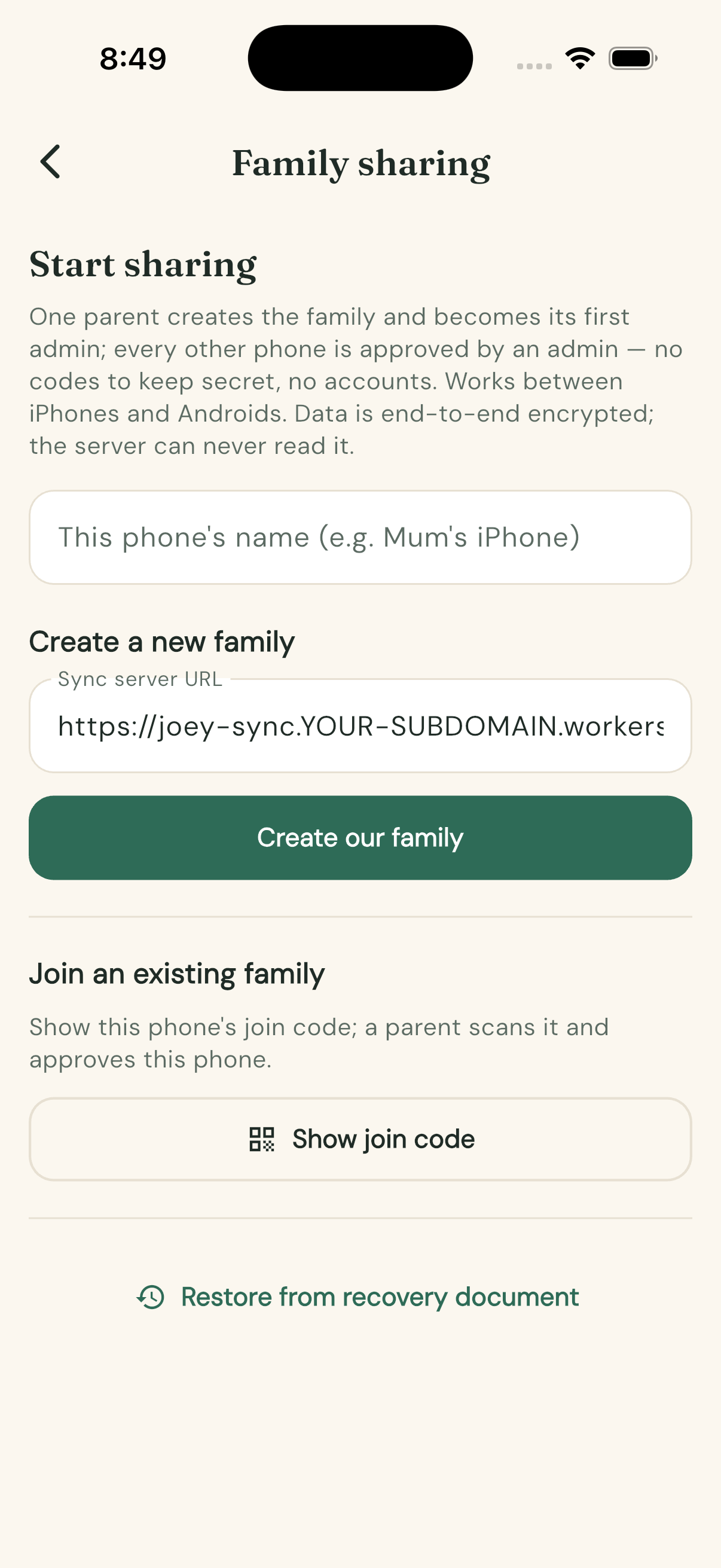
5. Add home-screen widgets (optional but lovely)
Long-press the home screen → Widgets → Joey. Five widgets are available:
- Breastfeed — Start L / Start R buttons (no bottle button — start bottles in-app), last-feed status
- Sleep — fell asleep / awake toggle
- Nappy — Wee / Poo / Mixed
- Recents — recent activity log
- Pump — Left / Right / Both, with a running timer and Stop
The buttons log directly without opening the app. Android widgets show clock times ("fed at 3:04 pm") rather than "ago" times — Android widgets are static pictures redrawn only periodically (Joey runs a 15-minute background refresher, mainly to roll day labels over), so an "ago" label could sit stale; a clock time is always right. (Unlike iOS, the Android widgets don't have per-widget configuration toggles yet.)
Troubleshooting
- "That welcome code was made for a different phone" — the parent scanned another phone's join code, or an old one; show the join code again and re-scan.
- Pasted code rejected — it got truncated or auto-corrected in transit; re-copy it whole (join codes start
joeyj1., welcome codesjoeyw1.). - Sync problem shown on the Family sharing screen — check the phone is online and the backend is still deployed; the error text on the screen says what failed.
- New entries not appearing on other phones — sync polls every 10 seconds while the app is open; open Joey on both phones.
How to pump
Audience: the pumping parent — assumes Joey is set up and you know the Home tab.
Start a pump
- On the Home tab, look at the bottom row of the Feeding card. It shows "Last pump 2h 15m ago" (or just "Pump" if there's none yet) with Start pump on the right.
- Tap Start pump and choose Left, Right or Both from the menu — pick Both if you're double pumping.
- A "Pumping — Left" (or "— Right" / "— Both") banner appears at the top of the screen with the running time, and the Feeding card's pump row changes to "Pumping now".
You can also start without opening the app: the Pump widget (iOS and Android) has L, R and Both buttons, and the large Joey control widget on iOS has a Pumping panel with the same controls.
Switch sides while the pump is running
Switched the pump to the other breast? Tell Joey:
- iOS lock screen / Dynamic Island: the running pump shows as a Live Activity. Tap Switch on the lock screen (or on the expanded Dynamic Island) — the title flips, e.g. "Pumping — Left" becomes "Pumping — Right".
- Joey control widget (iOS): the Pumping panel shows the elapsed time with a Stop button — to switch sides, use the Live Activity or the app.
Note: Switch only appears for a Left or Right pump — a Both pump has no side to switch, so the button is hidden.
Stop
Tap the stop button (Stop) on the "Pumping" banner in the app, or Stop on the lock-screen Live Activity, the Pump widget, or the Joey control widget. No further input is needed.
Where pump totals appear
- Home → Today summary: its own line, e.g. "Pumped 3× — 55m" (count and total time).
- Home → Feeding card: the pump row shows "Last pump 2h 15m ago" between sessions.
- Journal: entries like "Pumped 20m · left" under the Pumping filter chip.
- Trends → Daily totals: pump minutes are one of the stacked segments in the FEEDING (MINUTES) bars, alongside Left and Right breast minutes; tapping a bar opens the focused day sheet, where pumping gets its own lane on the 24-hour feeding strip.
- Trends → tap a day in the pattern chart: the whole-day breakdown sheet includes your pump totals.
How to read trends and drill down into a day
Audience: anyone who has logged a few days of feeds, sleeps and nappies and wants to see the patterns.
The Trends tab has two levels: the pattern chart (the shape of each day) and the daily totals bars (how much of each thing per day). Both are tappable — every chart drills down into a day sheet.
Read the pattern chart
- Open the Trends tab. The top card is titled Patterns — "The last week, midnight to midnight."
- Read it as seven columns, one per day, oldest on the left and Today on the right (Today's label is bold).
- Time runs downwards within each column: midnight ("12a") at the top, midday ("12p") halfway, back to midnight at the bottom. Gridlines mark every 6 hours.
- Within a column, three kinds of mark:
- Sleep — violet vertical spans. The taller the span, the longer the sleep. A sleep that crosses midnight appears in both days' columns.
- Feed — dots at the time each breastfeed or bottle started.
- Nappy — small ticks on the right edge of the column.
- Look across columns at the same height to compare days — a cluster of feed dots at the same height each day means the routine is settling.
Drill into a whole day
- Tap anywhere in a day's column. As the chart says: "Tap a day for the full breakdown."
- A bottom sheet opens for that day (titled "Today" or e.g. "Thursday 3 September"), showing:
- feeding totals, e.g. "Fed 8× — 1h 12m at breast (L 40m · R 32m) + 60 mL bottle", plus a pumping row if you pumped;
- total sleep and number of sleeps;
- wees and poos;
- then every event for the day with its time and colour-coded badge.
- Drag the sheet up for the full list, or swipe it down to close.
Read the daily totals bars
- Scroll below the pattern chart to the Daily totals card. It covers the last 14 days, oldest to newest.
- FEEDING (MINUTES) is a stacked bar per day: Left breast, Right breast and Pump minutes in three shades of the feeding colour. The busiest day and the latest day are labelled with their total minutes.
- SLEEP (HOURS) and NAPPIES are simple bars per day, each labelled on the peak and latest day.
Zoom into one activity for one day
- Tap any bar — "Tap any bar to zoom into that day." Tapping a feeding bar opens a focused day sheet titled e.g. "Feeding · Today"; sleep and nappy bars open their own focused sheets.
- The focused sheet leads with a 24-hour strip graph of just that activity:
- the feeding strip draws each breastfeed as a span split into its real Left and Right segments, with Bottle feeds translucent and Pump sessions on a second lane;
- the sleep strip shows asleep spans; the nappy strip marks Wee and Poo / mixed.
- Below the strip are that activity's totals and its timed events for the day.
Tips
- Charts need data: until you've logged a bit, the Patterns card says "Patterns appear here once you've logged a day or two."
- Everything above adapts to dark mode automatically — Joey follows your system theme, so late-night chart reading is easy on the eyes.
How to release a TestFlight build
Audience: Rob — the exact runway from working tree to testers' phones. Fastlane is deliberately scoped to build + upload only; signing stays Xcode-automatic so nothing in this pipeline can touch the medapps team's other apps or certificates.
One-time setup — DONE 9 September 2026
All complete; recorded here so it's never redone:
- App record created: App Store Connect app 6810242138, iOS,
bundle
au.com.medipearl.joeyapp, SKUjoeyapp, medapps team. - ASC API key created: Key ID F4QH5X3C82, Issuer ID
69a6de87-8d77-47e3-e053-5b8c7c11a4d1(issuer is per-team — same as residentguide's). The.p8lives at the repo root (AuthKey_F4QH5X3C82.p8, git-ignored, chmod 600, can never be re-downloaded). Don't confuse it withAuthKey_JTYPXBL797.p8beside it — that's the APNs key (shared with OneSignal, never revoke). - First upload (1.10.0 build 22) went through 9 Sep 2026.
Every release
cd app/ios/fastlane
export ASC_KEY_ID=F4QH5X3C82
export ASC_ISSUER_ID=69a6de87-8d77-47e3-e053-5b8c7c11a4d1
export ASC_KEY_PATH="$(git rev-parse --show-toplevel)/AuthKey_F4QH5X3C82.p8"
RBENV_VERSION=3.4.7 rbenv exec bundle install   # first time only
RBENV_VERSION=3.4.7 rbenv exec bundle exec fastlane beta
(The rbenv prefix is required — system Ruby 2.6 can't run fastlane.)
The lane runs flutter build ipa --release --dart-define=JOEY_APNS_ENV=production
and uploads with pilot. Notes:
- Bump
version:inapp/pubspec.yamlfirst (build number must be new). JOEY_APNS_ENV=productionmatters: TestFlight builds get production APNs tokens; the define makes the app register them to the production environment so pushes keep working. Dev builds stay sandbox by default.- Export compliance is pre-answered (
ITSAppUsesNonExemptEncryption=falsein Info.plist — standard-algorithm AES only, mass-market exemption). - Add testers in App Store Connect → TestFlight → Internal (instant, up to 100, must be ASC team members) or External (up to 10,000, email invite or public link — just send the URL; installs still go through the TestFlight app). External needs one light Beta App Review per version — later builds of the same version flow without re-review. Betas expire 90 days after upload; keep a fresh build inside the window.
- Test Information (required before external testers): beta description + feedback email; untick "Sign-in required" — Joey has no accounts.
Gotchas ledger
- The
.p8API key and the APNs key are different keys with the same file format — don't mix them up in 1Password. - A TestFlight install replaces a dev build in place (same team + bundle id) — keychain credentials survive; testers joining fresh do the normal wizard + QR pairing.
- Live Activity + push behaviour on TestFlight uses production APNs — the first TestFlight session is also the first real test of the production push path; check Diagnostics on day one.
How to set up family sync
Audience: the parent setting up sharing for the first time — comfortable with the app, happy to run a few terminal commands (or to nag Rob to).
Joey has no accounts and no sign-up. One parent creates a "family" on a small private server and becomes its first admin; every other phone is then approved by an admin in a quick two-scan pairing. After that, every feed, sleep, nappy and pump logged on any phone appears on the others within seconds — and the admins can always see exactly which phones have access.
Sync is live. The backend was deployed on 6 September 2026 and lives at
https://joey.medipearl.com.au(canonical since 9 September 2026). The app never asks for a URL — builds ≥ 1.11.0 have that address compiled in (older builds baked in the still-workingworkers.devURL).
Before you start
- The backend must be deployed — done for our family (
https://joey.medipearl.com.au, compiled into the app). Self-hosters change thekJoeyServerUrlconstant and rebuild (see How to deploy the backend). - Joey installed on every phone that should share data (iPhone and Android both work, and they sync with each other).
Create the family (one phone only)
- Open Joey and go to the More tab → Family sharing. Setup is a two-step wizard.
- Step 1 — give the phone a name ("Mum's iPhone"): that's how it appears in the device list forever, and the name is remembered — you only ever type it once, even if you later re-pair.
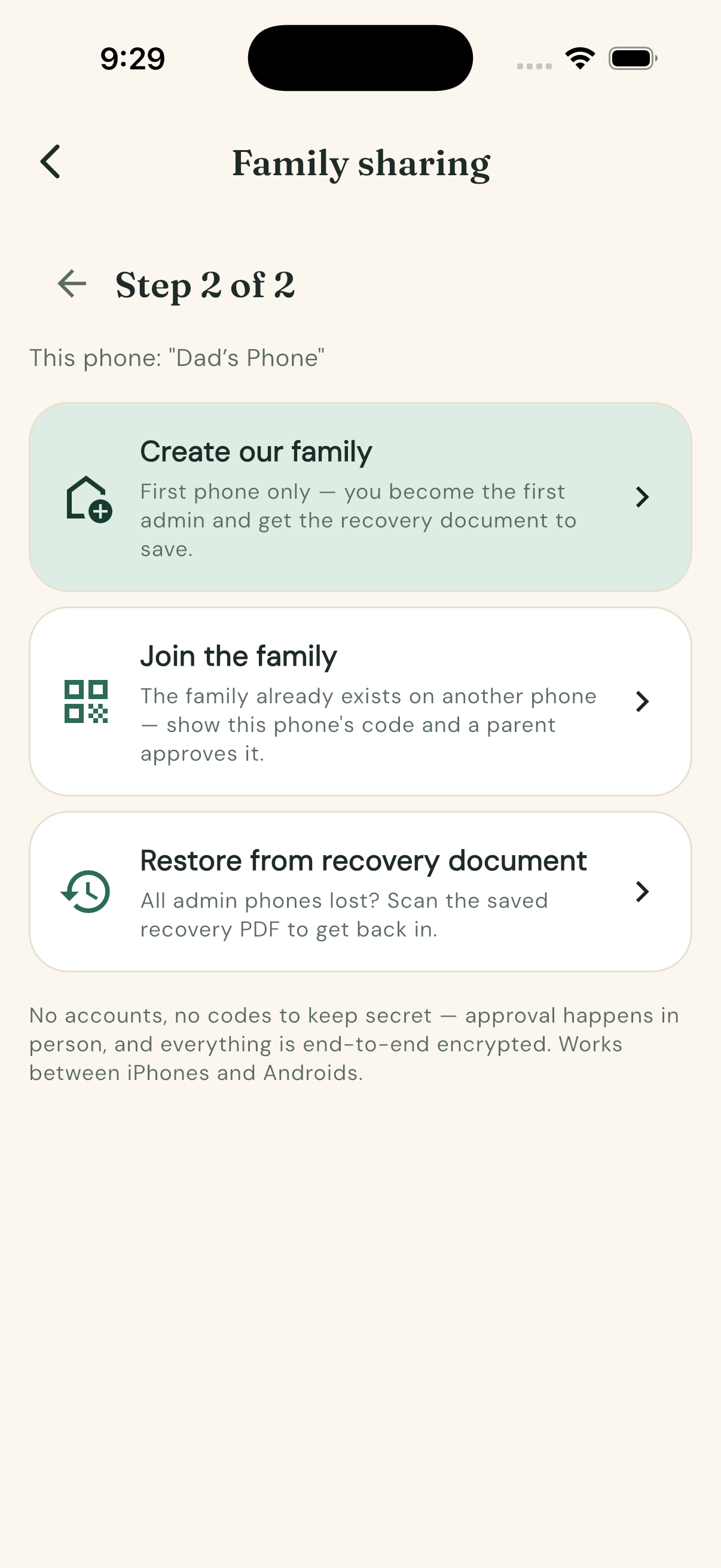
- Step 2 — pick the highlighted Create our family card (the server
address is built in; self-hosters change
kJoeyServerUrlinapp/lib/src/data/family.dart).
That phone generates the family's end-to-end encryption key locally, registers the family with the server, and signs itself in as the first admin. You'll immediately be required to save the recovery document — the share sheet re-appears until it's actually saved somewhere (Files, AirDrop, email): it's a PDF you print or email to yourself, and it is the only way back in if every admin phone is ever lost at once. (Joey's encryption means nobody — not the server, not Rob — can reset access for you.)
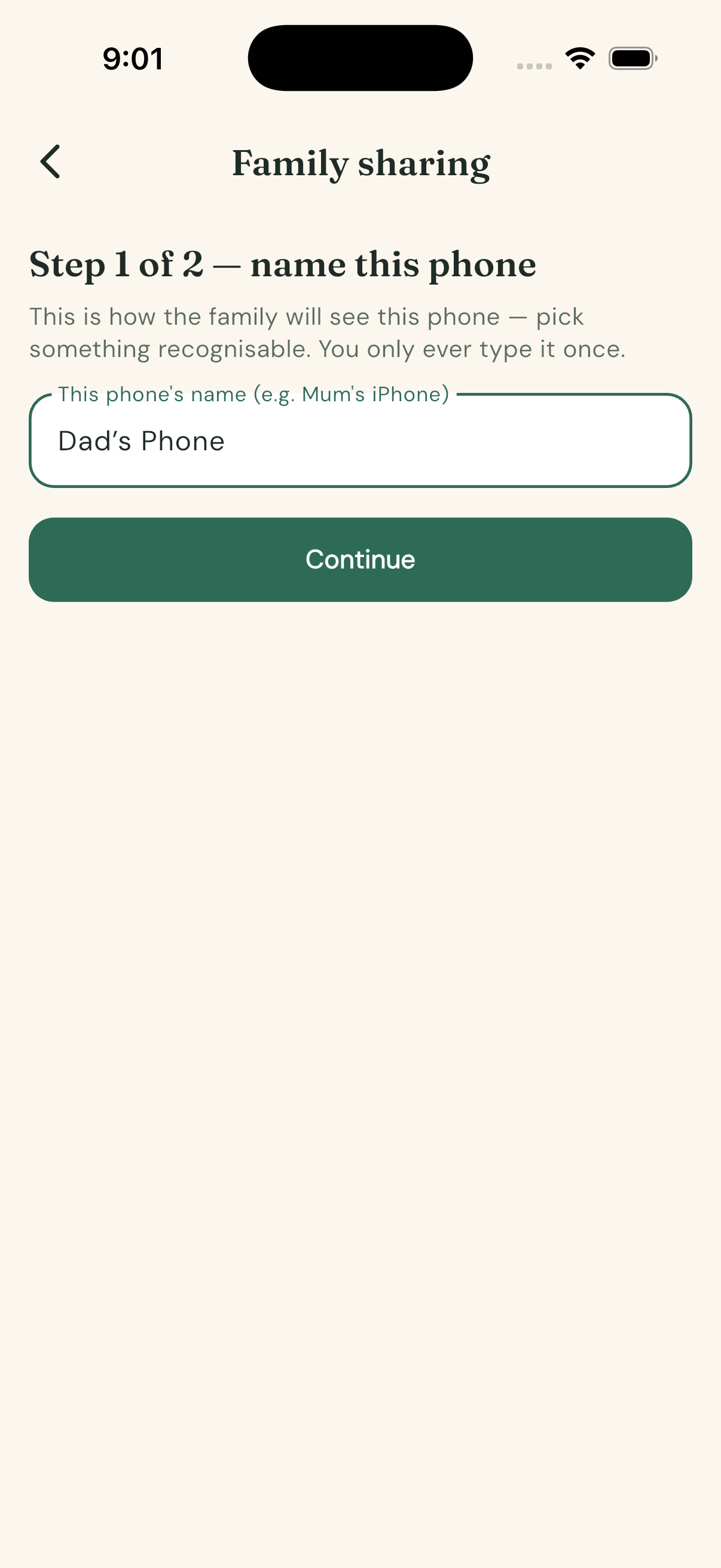
Add every other phone (the two-scan pairing)
No secret codes are ever shown or shared. Instead:
- On the new phone: More → Family sharing → name the phone (Step 1) → pick the Join the family card (Step 2). A QR appears. It contains only the phone's public identity — a screenshot of it is useless to anyone.
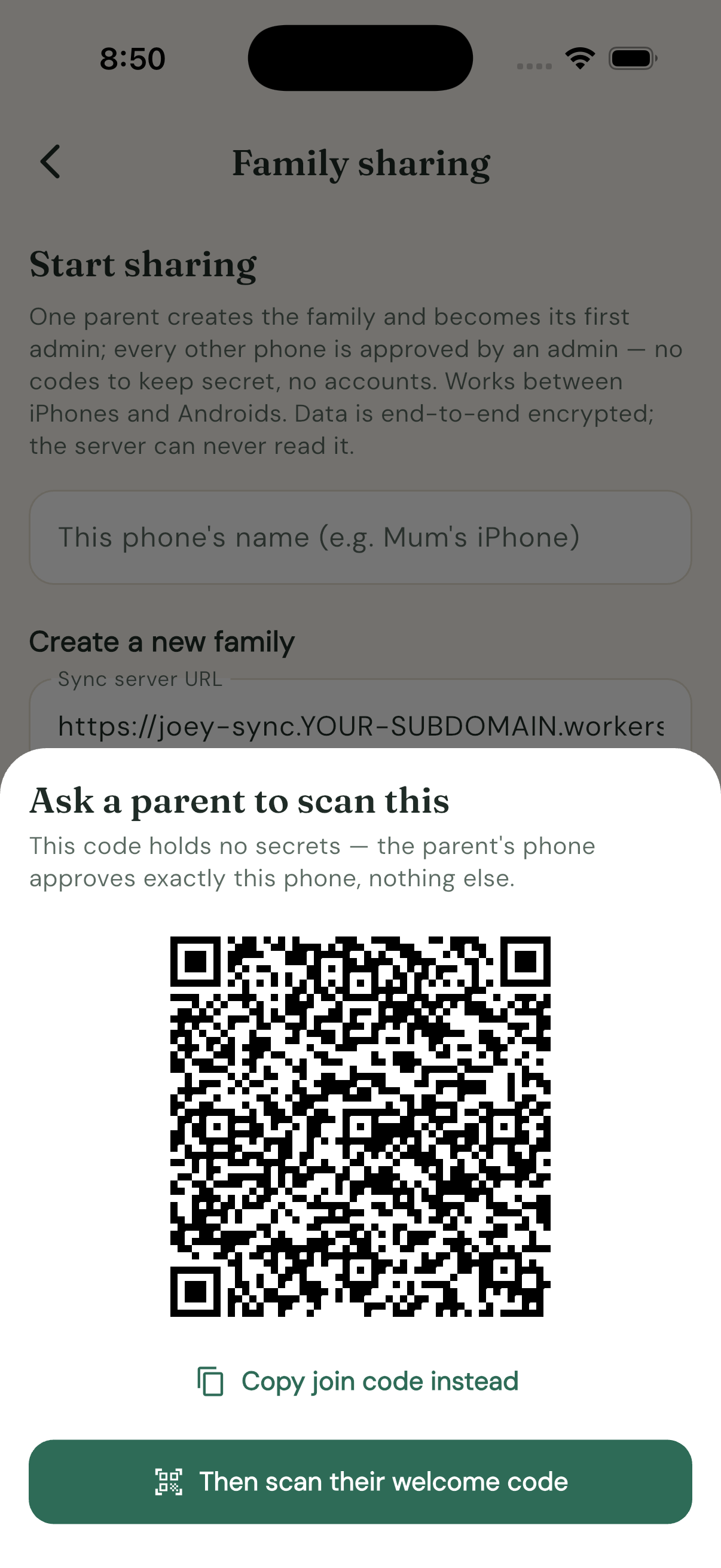
- On an admin phone: Family sharing → Add a device → scan that QR. Check the name and fingerprint, then choose from the role sheet: Add as admin (a parent — can approve, remove and manage devices) or Add as member (a helper — can log and view only).
- Back on the new phone: tap Then scan their welcome code and scan the QR now showing on the admin's phone. Done — syncing starts immediately.
Both codes can also be copied and pasted for phones without a camera handy. The welcome code is sealed to that one specific phone — sent to anyone else, it's gibberish.
Why this is safe: membership is granted per-device by an admin's cryptographic signature. A member can't invite anyone else, a forwarded QR screenshot grants nothing, and the family can always see the full device list.
Mum gets a new phone
Standard pairing, self-service: the new phone shows its join code, and her old phone (or the other parent's) scans and approves it as an admin. Then remove the old phone from the device list if it's being traded in.
How fresh is "in sync"?
While the app is open, each phone polls the server every 10 seconds (and pushes immediately after you log something). So a breastfeed started on one phone shows up on the other within seconds — you can even stop it from the second phone; the most recent change wins. A backgrounded iPhone is also woken by a content-free push nudge when another phone syncs, and widget taps run their own best-effort background sync — so phones usually stay current without being opened; worst case, a phone that's been in a pocket all day catches up the moment Joey is opened.
If something goes wrong
- "Could not reach the server" — the backend isn't deployed yet, the URL is wrong, or the phone is offline.
- "That welcome code was made for a different phone" — the admin scanned a different phone's join code (or an old one). Show the join code again and re-scan.
- "Not authorised — has the family been re-created?" — the family was re-created on the server. On each phone, tap Leave family on this phone and pair again. Local entries stay on the phone.
- All admin phones lost — new phone → Family sharing → Restore from recovery document → scan the PDF. See Manage family devices.
More on removing devices, roles and the recovery document: How to manage family devices.
How to track growth and centiles
Audience: parents logging weigh-ins and check-up measurements who want to see where bub sits on the WHO charts.
Joey plots weight, length and head circumference against real WHO growth-standard curves (0–24 months) and tells you the exact centile for every measurement.
Set up centiles first
Centiles need bub's age and sex. Without them, the Growth tab still stores measurements but simply hides the centile chart. (Before anything is logged, the empty Growth tab prompts: "Set date of birth and sex in More → Baby profile to get WHO centiles.")
- Go to More → Baby profile.
- Set the date of birth (tap the date row) and choose Girl or Boy.
- Tap Save. Name is optional; DOB and sex are what centiles need.
Log a measurement
- Open the Growth tab and tap the Measurement button (bottom-right).
- In the Log growth sheet, fill in any or all of Weight (kg), Length (cm) and Head circumference (cm) — one field is enough.
- The When row defaults to now — tap it to backdate the measurement (weigh-ins from earlier days welcome).
- Tap Save. The measurement appears as a card, e.g. "Weight 6.4 kg · 45th centile".
Read the chart
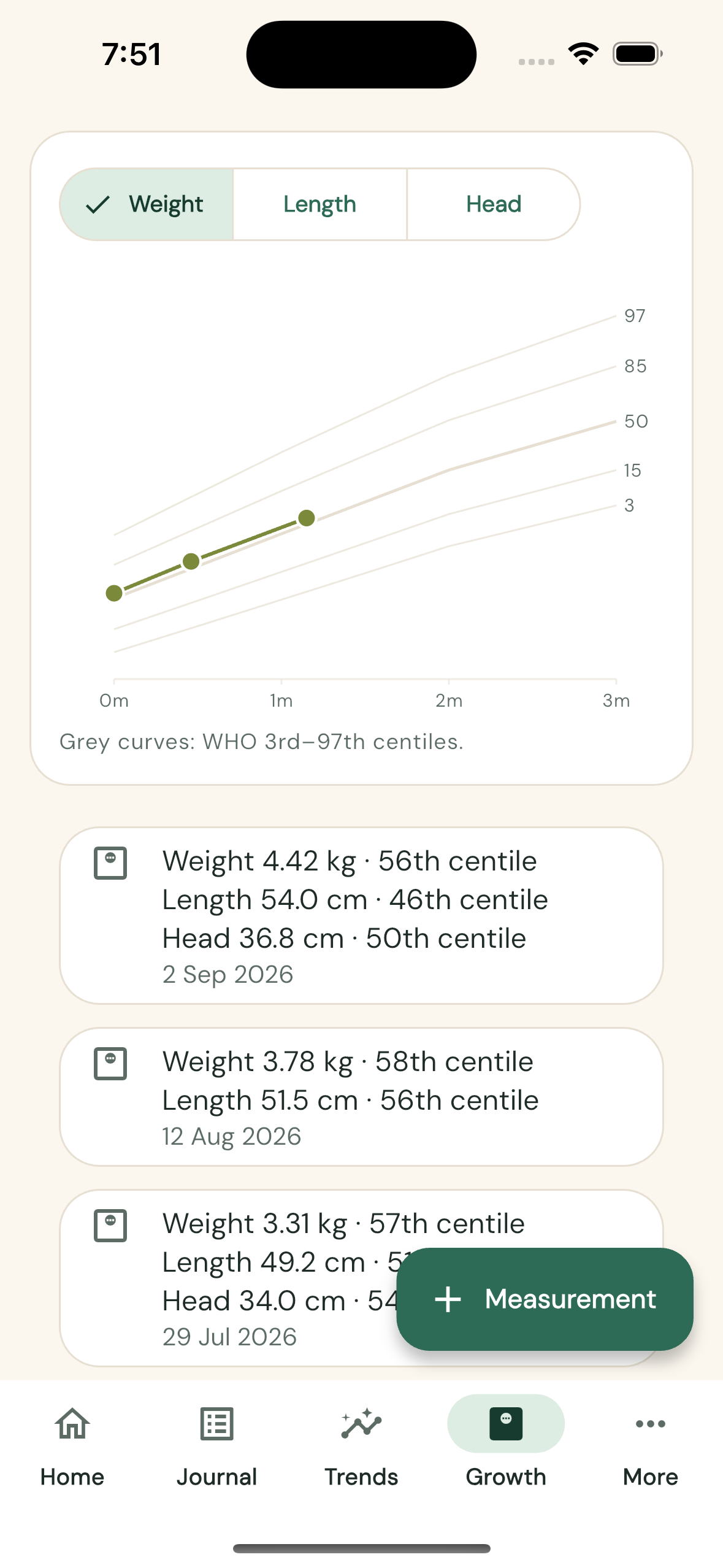
- The chart shows your measurements as points over a fan of five grey curves — as the caption says, "Grey curves: WHO 3rd–97th centiles." The curves are the 3rd, 15th, 50th (middle), 85th and 97th centiles, from real WHO/CDC LMS data for bub's sex.
- Points tracking roughly parallel to the curves means steady growth along a centile — that's what health nurses look for, more than the absolute number.
- A point on the 50th curve means bub is bang on the median; near the 3rd or 97th just means smaller or larger than most, which is normal if it's consistent.
- Each measurement card below the chart shows the exact centile per measure, so you don't have to eyeball the fan.
Switch measures
- Use the Weight / Length / Head switcher at the top of the chart card.
- The chart redraws with that measure's WHO curves and only the entries that include it. If you've never logged that measure you'll see "No entries for this measure yet."
Notes
- Centiles are calculated for ages 0–24 months; measurements outside that window are stored but shown without a centile.
- The whole family sees the same chart once family sharing is set up.
How to troubleshoot sync, push and Live Activities
Audience: anyone whose phones seem out of step — how Joey TELLS you something is wrong, what each signal means, and what to do. Born from the 9 September field marathon; every signal here exists because we needed it that day.
Where the app tells you something is broken
- Home tab — red "Sync problem" banner. Appears whenever the last sync round failed or found something wrong. The message is specific: a network timeout, "N changes could not be decrypted", a clock-skew warning, or "the family's access token was rotated — waiting for the new one".
- Family sharing — sync status row. Cloud icon: ticked = last round clean; struck-through = the same error text as the Home banner.
- More → Diagnostics — the flight recorder. A timestamped log of every sync round, push registration, silent nudge, and Live Activity decision, newest first, plus a header with the keys this phone holds and the last sync outcome. Copy all puts the whole log on the clipboard for a bug report. Local only — nothing ever leaves the phone.
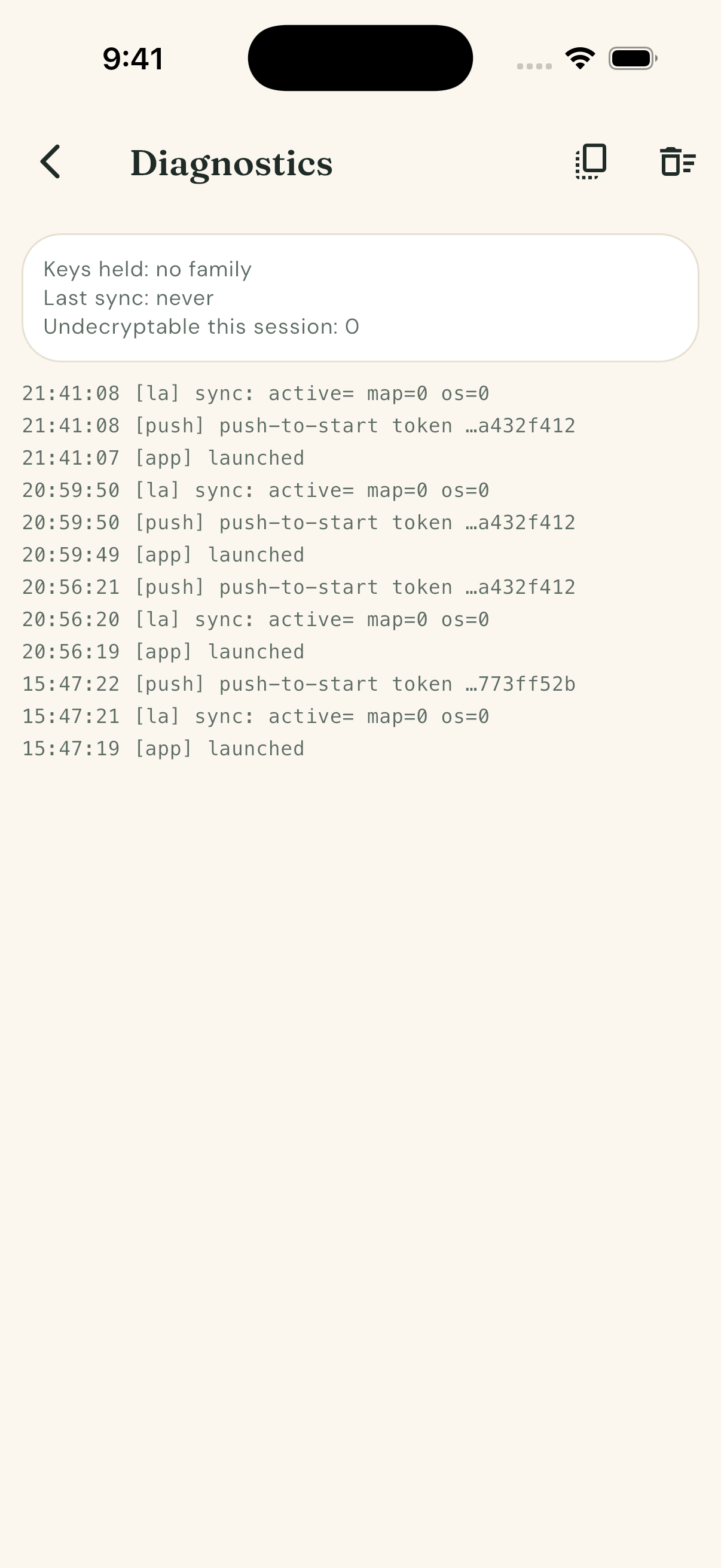
Reading the Diagnostics log
| Line | Meaning |
|---|---|
[app] launched |
App start (background wakes count too). |
[push] registered nudge=…x laStart=yes env=sandbox |
This phone told the server where to send pushes. laStart=NO means the island start-address is missing — remote islands won't appear on this phone. |
[push] silent nudge received |
iOS delivered a background wake and the app synced. The absence of these while the other phone logs entries is the signature of the nudge blackhole (see known issues). |
[push] native layer last received a nudge at … |
Proof of delivery stamped before any app code runs — separates "iOS never delivered" from "app mishandled". |
[push] registered island end-token for … |
This island can now be ended by the other phone's stop. |
[sync] pulled N, applied changes |
Remote changes landed. |
[sync] sent N LA start/end hint(s) |
This phone asked the server to light up / kill islands elsewhere. |
[sync] round FAILED: … |
One round failed (usually network); the next round retries — only persistent repeats matter. |
[la] adopted push-started … as "Asleep" |
A remotely-started island was claimed and titled. |
[la] create "Asleep" -> <activity id> |
No island arrived by push (or this phone started the timer itself) — created locally instead. |
[la] create refused for "…": … Target is not foreground |
Normal during background wakes — iOS only allows creation in the foreground; the island appears via push or next open. |
[la] ended orphan activity … |
Housekeeping: an island no event claims (e.g. a test push) was removed after its grace period. |
Symptom → likely cause → action
| Symptom | Meaning | Do |
|---|---|---|
| Other phone's entries only appear when I open the app | Silent nudges aren't being delivered (known issue; islands don't depend on them but background data freshness does) | Check Background App Refresh is on; live with it until the BGAppRefresh fallback ships; watch for native layer last received a nudge appearing |
| Island appeared but stayed titled "Joey" | The correcting sync hasn't run yet | Opens with the next nudge/app-open; if it never corrects, copy Diagnostics — look for adopt failed |
| Island didn't appear at all on the other phone | Its start-address wasn't registered (laStart=NO), or the phone was reinstalled and the app not yet opened |
Open Joey once on that phone; retest |
| Stopped a timer, other phone's island kept going | End-token wasn't registered yet (first ~10 s of a fresh install's first island) or end push failed | Open the app there; check registered island end-token lines |
| "N changes could not be decrypted" persists | This phone is missing a family key (see the security model) | Leave + re-join the family, or restore from the recovery document |
| "Access token was rotated — waiting…" persists beyond a few minutes | This phone missed a removal's token handout and can't yet learn the new one | Keep the app open a minute (pull-only mode still works); if it never resolves, this phone may have been removed |
| Both phones show different durations for the same entry | One phone acted on stale state (e.g. stopped an already-stopped timer) | Fix the entry in the Journal (tap → edit); prevention is prompt delivery, above |
When reporting a problem
Reproduce once, then More → Diagnostics → Copy all on the affected phone and paste. The log names the failing hop; guessing is how the 9 September afternoon happened.
How to use the control widget
Audience: anyone who wants one big home-screen widget that covers feeding, nappies, sleep and pumping.
Joey control is the large widget — a one-stop panel so you don't need four separate widgets. If you have room for a large widget, this is the one to add. (See How to add and configure widgets for adding it.)
The layout
- Left rail — one row per activity: Feeding, Nappy, Sleep and Pump. Each row shows a live status line underneath its name: "feeding now", "asleep" or "pumping" while a timer is running, otherwise how long ago it last happened (e.g. "2h 5m ago").
- Right panel — the controls for whichever activity is selected in the rail.
Use it
- Tap an activity in the left rail. The row highlights and the right panel switches to that activity's controls.
- Tap a button in the panel to log or start something:
- Feeding — L, R or the bottle-icon button to start a feed; while a feed is running the panel shows the elapsed time with Switch and Stop (breastfeeding) or Stop (bottle).
- Nappy — the wee (💧 waves), poo (swirl) or mixed icon button logs the nappy instantly.
- Sleep — Fell asleep, or Awake while a sleep is running.
- Pump — L, R or Both to start; Stop while pumping.
Selecting a rail row happens instantly inside the widget, and the action buttons flip the widget to the expected state almost as fast (~200 ms) — Joey completes the real database write in the background and silently confirms or corrects.
Your selection is remembered
The widget remembers which activity you last selected, even overnight and across widget refreshes. If you mostly use it for nappies, leave Nappy selected and it'll be waiting on the nappy panel next time you look.
Hide what you don't use
Long-press the widget and choose Edit Widget:
- Show pumping — turn it off to remove the Pump row from the rail. (If Pump was selected when you hide it, the widget falls back to the Feeding panel.)
- Show bottle button — turn it off to drop the bottle button from the feeding panel.
The control widget is iOS-only for now — Android has separate widgets for each activity instead.
How to view usage stats (admin dashboard)
Audience: Rob. Answers "what's going on with the app?" — families, devices, events, recency — in one page.
Open https://joey.medipearl.com.au/admin.
Cloudflare Access guards the page: it lets rob@medapps.com.au straight through if the browser has a Cloudflare session, otherwise it emails a one-time PIN to that address. Nobody else can get in — the allow-list is a single email.
What it shows
Stat tiles: total families (and new in 30 days), families active in the last 7 days, devices (with per-platform split), devices active in 7 days, total events (and last 7 days), average events per family, and how long ago the last event landed.
Growth charts (30d/90d toggle, hover any point for the exact day and
value): families over time, events per day, active families per day, and
devices over time. Series data comes from the daily block of
/admin/stats — dense 90-day arrays bucketed by UTC day. One caveat:
devices.created_at only exists since 9 September 2026; older rows were
backfilled with their last-seen time, so device history before that date is
approximate.
Below the charts, a per-family table: truncated family id, plan, created date, device count, event count, last activity.
Counts and timestamps are all the server can show — event content is end-to-end encrypted and never readable server-side (see Privacy and sync).
How the door is locked
A Cloudflare Zero Trust Access application ("Joey admin", team
billowing-paper-f313, free plan) coversjoey.medipearl.com.au/admin*with one policy: allowrob@medapps.com.au.The Worker verifies the Access JWT itself (
ACCESS_TEAM_DOMAIN/ACCESS_AUDvars inbackend/wrangler.jsonc) — necessary because the still-liveworkers.devURL bypasses Access at the network level; without the in-worker check that would be an open side door.GET /admin/stats(the JSON behind the page) additionally accepts theADMIN_TOKENbearer secret, for curl:curl -H "Authorization: Bearer $JOEY_ADMIN_TOKEN" \ https://joey.medipearl.com.au/admin/stats
Access configuration lives in the Cloudflare dashboard under Zero Trust → Access controls → Applications (not in the repo).
Design system
Audience: developers and designers working on Joey's UI — the source of truth is app/lib/src/ui/theme.dart.
Joey deliberately avoids ColorScheme.fromSeed (the generic Material wash). Instead: warm cream paper, deep eucalyptus ink, and a distinct accent per activity so each card reads at a glance — hand-tuned for both light and dark.
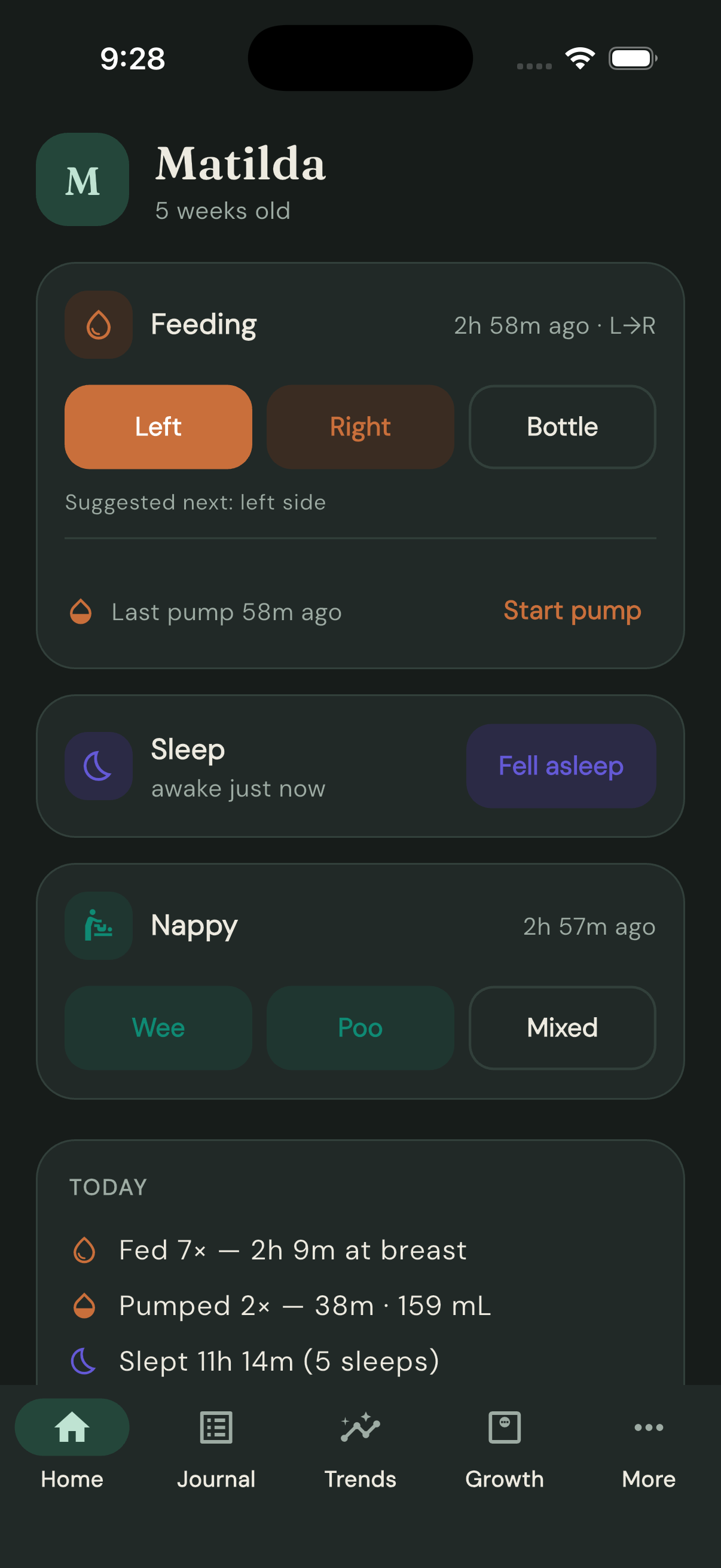
Palette
Foundations
| Token | Light | Dark |
|---|---|---|
| Paper (background) | #FBF7EF warm cream |
#171C1A |
| Card | #FFFFFF |
#212927 |
| Ink (text) | #1F2B26 deep eucalyptus ink |
#EDEAE0 |
| Ink soft (secondary text) | #5C6B63 |
#9DABA3 |
| Line (borders/dividers) | #E7E0D2 |
#32403B |
| Error | #B3392E |
#B3392E (container #3E211E) |
Brand
| Token | Value | Use |
|---|---|---|
| Eucalyptus | #2E6B57 |
Primary in light mode |
| Eucalyptus bright | #63B598 |
Primary in dark mode |
Activity accents
A categorical palette validated with the dataviz six-checks script on both surfaces (colour-vision-deficiency ΔE 18.9, normal-vision ΔE 23.7).
| Activity family | Accent | Tint (light) | Tint (dark) |
|---|---|---|---|
| Feed | #C96F3B burnt apricot |
#F9E9DD |
#3A2C22 |
| Sleep | #6459D6 dusk violet |
#E9E7FA |
#2B2A45 |
| Nappy | #0F8A74 billabong green |
#DFF0EA |
#1F3630 |
| Growth | #7A8A3A wattle olive |
(card surface) | (card surface) |
| Meds | #A84A5E gum blossom |
(card surface) | (card surface) |
| Milestone/other | #C99A2E golden wattle |
(card surface) | (card surface) |
Accents are identical in light and dark; only tints have dark variants (same hue family, low luminance). Growth, meds, and milestone fall back to the plain card surface for their badge tint.
Per-activity colour mapping
kindForEventType in theme.dart maps every event type to a colour family:
| Event types | Family |
|---|---|
nursing, bottle, pump |
feed |
sleep |
sleep |
nappy |
nappy |
growth |
growth |
medication, temperature |
meds |
everything else (note, milestone) |
other (golden wattle) |
Why pumping shares the feeding family: a fourth distinct hue was tried and failed CVD validation against the billabong-green teal — under common colour-vision deficiencies the two collapsed together. So pumping deliberately wears feeding's burnt-apricot family, and its icon and label carry the distinction instead. This also matches the mental model: pumping is part of feeding.
Typography
Two faces via google_fonts:
- Fraunces (weight 600) — display and headline roles. Sizes: displayLarge 44, displayMedium 36, headlineMedium 26, headlineSmall 22, titleLarge 20.
- DM Sans — everything else. titleMedium 16/w700; titleSmall 12.5/w700, letter-spacing 1.1, ink-soft (the SECTION LABEL style); bodyLarge 15.5, height 1.35; bodyMedium 13.5 ink-soft; bodySmall 12 ink-soft; labelLarge 14.5/w700 (buttons); labelMedium 12.5/w600 (chips, nav labels).
Live elapsed readouts use tabular figures (FontFeature.tabularFigures()) so digits don't jiggle as they tick.
Shape and surface rules
- Cards: radius 22, elevation 0, 1px line border. Sheets: top radius 26. Buttons and inputs: radius 14. FAB: radius 18. Chips: radius 10.
- Activity badges (
ActivityBadge): rounded square, tint background, accent icon, radius = 0.34 × size. - App bar and scaffold sit on paper; nav bar, cards, sheets, and inputs sit on card.
Chart colour rules
Verified against app/lib/src/ui/charts/.
- Feeding chart (stacked Left/Right/Pump bars): one hue family (feeding) stepped hard by lightness so the three segments read apart in light AND dark, with 2px surface-coloured gaps between segments, a legend, and direct total labels on the max and latest bars.
- Light: Left
#C96F3B(the feed accent), Right#F0BE92, Pump#5F2F10. - Dark: Left
#D9824A, Right#F6D3AE, Pump#7A3D18.
- Light: Left
- Day strip (24-hour) chart: reuses the feeding chart colours; bottle segments are Left at 45% opacity (translucent); nappy ticks use the nappy accent at 50% opacity; pumping renders in a second lane.
- Pattern chart (7-day columns): grid lines use the theme outline colour (90% opacity at 12-hour marks, 50% otherwise); zebra day-banding is on-surface at 3.5% opacity; spans/dots/ticks use the activity accents.
- Mini bars (daily totals): the latest bar is the full accent; earlier bars are the accent at 55% opacity.
- Never introduce a new hue for a chart series — pick from the activity families and step by lightness/opacity within the family.
Time display rules
Hours and minutes only — never seconds in the UI. Seconds are still stored, so totals stay exact; they're just not shown counting up.
formatAgo/formatDuration(app/lib/src/logic/aggregates.dart): under 1 minute →just now; under an hour →27m; under a day →1h 5m(or2hwhen minutes are 0); a day or more →1d 3h(or2d).- Live elapsed on running-timer banners (
_LiveElapsedinhome_screen.dart): under 1 minute →just started, then27m, then1h 5m. It refreshes on a 15-second tick — precise enough for minute display without a per-second rebuild. - Home-screen widgets: minutes-only, driven by per-minute timeline entries (no live seconds on any widget surface).
- The one exception — Live Activities: the lock-screen/Dynamic Island stopwatch uses the system timer text, which renders
mm:ss, so the first minute of a Live Activity shows seconds. That's an Apple formatting behaviour, not a Joey choice.
Event model and sync protocol
Audience: developers (and anyone self-hosting the Joey backend) who need the exact data shapes and wire protocol.
Deployment status: live since 6 September 2026 (Worker
joey-sync, D1 databasejoey-sync); canonical addresshttps://joey.medipearl.com.ausince 9 September 2026 (the originalworkers.devURL still answers during the transition).
The one shape: BabyEvent
Every piece of data in Joey — feeds, sleeps, nappies, even the baby profile — is a single BabyEvent record (app/lib/src/models/event.dart). This one shape drives local storage, the widget snapshot, and sync.
| Field | Type | Notes |
|---|---|---|
id |
string | UUID v4, generated on-device. The baby profile uses the fixed id baby-profile. |
babyId |
string | Currently always 'baby' (single-baby app). |
type |
string | One of the event types below. Unknown types decode as note. |
startedAt |
epoch ms | Stored UTC. |
endedAt |
epoch ms or null | null means the timer is still running. |
payload |
JSON object | Type-specific, see below. |
updatedAt |
epoch ms | The last-write-wins clock, UTC. Stamped with "now" on every local write. |
deleted |
bool | Soft delete — tombstones sync like any other change. |
Derived: isRunning = endedAt == null && !deleted; duration = (endedAt ?? now) - startedAt.
Payload per event type
Verified against app/lib/src/data/actions.dart (the single funnel every UI button and widget tap goes through).
| Type | Payload | Example |
|---|---|---|
nursing |
side ("L"/"R" — starting side), switches (array of {at: epoch ms, side} — history keeps every mid-feed switch) |
{"side":"L","switches":[{"at":1757032800000,"side":"R"}]} |
bottle |
kind (defaults "formula"), ml (int, optional — captured at stop; absent if finished without amount) |
{"kind":"formula","ml":90} |
pump |
side ("L"/"R"/"B" for both — chosen at start, switchable), ml (int, optional, on stop) |
{"side":"B","ml":120} |
sleep |
(empty) | {} |
nappy |
wee (bool), poo (bool) — Mixed sets both true |
{"wee":true,"poo":false} |
growth |
weightKg, lengthCm, headCm (all doubles, each optional) |
{"weightKg":4.2} |
medication |
name (string), dose (string) |
{"name":"Paracetamol","dose":"2.5 mL"} |
temperature |
c (double, °C) |
{"c":37.4} |
note / milestone |
text (string) |
{"text":"First smile"} |
baby |
name (string), dob (epoch ms, optional), sex (string, optional) |
{"name":"Bub","dob":1748736000000} |
Instant logs (nappy, medication, note, …) are stored with endedAt == startedAt. The current nursing side is the last entry in switches, or side if no switches yet.
Local store (SQLite)
app/lib/src/data/event_store.dart — database joey.db, version 1.
CREATE TABLE events (
  id TEXT PRIMARY KEY,
  baby_id TEXT NOT NULL,
  type TEXT NOT NULL,
  started_at INTEGER NOT NULL,
  ended_at INTEGER,               -- NULL => timer still running
  payload TEXT NOT NULL,          -- JSON
  updated_at INTEGER NOT NULL,    -- LWW clock, epoch ms UTC
  deleted INTEGER NOT NULL DEFAULT 0,
  dirty INTEGER NOT NULL DEFAULT 0
);
CREATE INDEX idx_events_type_start ON events (type, started_at DESC);
CREATE TABLE meta (key TEXT PRIMARY KEY, value TEXT NOT NULL);
Rules:
- Local write — stamps
updated_at = nowand setsdirty = 1so the sync loop pushes it. - Remote write — applied only if strictly newer: an incoming event is ignored when the local row's
updated_atis greater than or equal to the incoming one. This is the whole conflict-resolution story (last-write-wins). markClean(id, pushedUpdatedAt)— after a push is acknowledged, the dirty flag is cleared only whereupdated_atstill equals what was pushed, so an edit made mid-flight stays dirty and gets pushed next round.- Running-timer handoff — starting a timer on one phone creates an event with
ended_at = NULL; stopping it on another phone writes the same id with anended_atand a newerupdated_at, and LWW converges both devices. No special casing. - Concurrent-start reconciliation — if a pull leaves two events of the same timer type both running (each phone started its own),
EventStore.reconcileRunning()keeps the latest-started and closes the others at that start time, marking them dirty so the repair syncs. Both phones apply the same rule, so they converge on the same journal. - Edits — any entry can be edited after the fact (journal tap-to-edit); an edit is just a local write of the same id with a newer
updated_at, so it syncs and wins LWW like any other change. - The sync cursor lives in
metaunder keysync.cursor.
Encryption
app/lib/src/data/event_crypto.dart — AES-256-GCM. The server only ever sees the output.
- Keys: 32 random bytes per epoch, generated on-device (
Random.secure). Epoch 1 is created with the family; every device removal mints the next epoch (that's how removal actually revokes access). Keys never reach the server; they travel only sealed to a specific device inside a welcome code, or inside the recovery document. - Blob wire format:
2.<epoch>.<base64(nonce ‖ ciphertext ‖ mac)>; a prefix-less blob decodes as epoch 1. Writers use their highest epoch — except akeyRotationevent announcing epoch N, which is deliberately encrypted under N-1 so devices still on the old key can learn the new one. - Plaintext: the full event JSON (
BabyEvent.toJson(), fields as in the table above) plus, since v1.10, an author-signature envelope (event_signing.dart):sigBy(author's Ed25519 public key),sigEpoch(must equal the blob's epoch — a signature can't be replayed onto a different epoch) andsigover the canonical JSON. The envelope lives inside the ciphertext — the server never learns who wrote what. On pull, an activity event is applied only if its author is a chain-valid family device that legitimately held that epoch; rejections are counted (SyncService.rejectedEvents) and logged to Diagnostics. Unsigned events (pre-1.10) apply and are counted (unsignedApplied). Trust records are exempt from the envelope check — their inner signatures are validated bycomputeTrust/rotationSignerOk. The base64 body packsnonce(12) ‖ ciphertext ‖ mac(16). - Decrypt failures (wrong key, corrupt blob) don't crash the sync loop: the event is skipped, the failure is counted (
SyncService.decryptFailures) and surfaced as a sync error (sharing screen + Home banner), and the earliest skipped row's sequence is remembered (meta sync.retryFrom). When the phone later gains the missing epoch key (rotation absorb, recovery restore), the cursor is rewound and the skipped rows re-pulled — nothing is permanently lost behind an advanced cursor.
Device trust layer
Membership rides the same encrypted log as four extra event types (app/lib/src/data/trust.dart, spec: docs/specs/2026-09-06-family-device-trust-design.md):
| Type | Fixed id | Purpose |
|---|---|---|
familyConfig |
family-config |
Trust root: founder + recovery public keys, self-signed |
device |
device-<deviceId> |
One phone's membership: public keys, role (admin/member) — signed by an admin, stamped with the signer's sigEpoch (v1.10). Never rewritten for a rename |
device |
revocation-<deviceId> |
Standalone revocation (revokes, revokedAtEpoch, sigEpoch) — signed by an admin; authority records are never rewritten (9 Sep lesson) |
deviceProfile |
profile-<deviceId> |
The display name — signed by the device itself or an admin (self-signable so a phone can rename itself without severing its own signature chain) |
keyRotation |
rotation-<epoch> |
New epoch key and (v1.10) the replacement bearer token, each sealed to every remaining device + the recovery key (wraps/tokenWraps/recoveryWrap/recoveryTokenWrap), stamped with sigEpoch |
Epoch-bound authority (v1.10): a record whose signer was already revoked at
its sigEpoch is rejected (computeTrust runs chain + revocations to a
fixed point), and a rotation is honoured only if its signer could
legitimately have minted that epoch (rotationSignerOk) — adopted epoch
keys are also never overwritten. Records without sigEpoch (pre-1.10) get
legacy grace.
Each device holds an Ed25519 signing pair and an X25519 wrapping pair (device_crypto.dart), private halves in secure storage. Phones verify every device entry's signature chain back to the founder/recovery root; member-signed or tampered entries are ignored. Pairing codes (trust_codes.dart):
| Prefix | Shown by | Contains |
|---|---|---|
joeyj1. |
joining phone | its public keys + name — no secrets |
joeyw1. |
approving admin | server details + epoch keys sealed to that one device |
joeyr1. |
recovery PDF only | full credentials + recovery private keys — treat like a password |
Credentials storage
app/lib/src/data/family.dart. Stored in platform secure storage (flutter_secure_storage, key joey.family) as a JSON object:
| Key | Meaning |
|---|---|
serverUrl |
server URL |
familyId |
family id (UUID from the server) |
token |
bearer token (raw; server stores only its SHA-256 hash). Rotated on every device removal since v1.10 |
epochs |
map of epoch → 32-byte key, base64url |
previousToken |
optional — the token in use before the last adoption; sync falls back to it once if the freshly adopted token races the server-side flip |
pendingToken |
optional — set on the phone performing a removal: the replacement token it minted, promoted to token only after POST /family/token confirms |
The device identity (key seeds) lives separately under joey.device, and the founder phone keeps the recovery seeds under joey.recovery so the PDF can be re-exported.
Server
backend/src/index.ts — a deliberately dumb Cloudflare Worker + D1 log of opaque blobs. It cannot read any event content.
Operator endpoints (auth: Bearer ADMIN_TOKEN Worker secret or a Cloudflare Access JWT verified in-worker; run tools/joey-stats.sh for curl):
GET /admin— the HTML usage dashboard (Access JWT only; see View usage stats).GET /admin/stats— coarse metrics only: family/device counts (total, active-7d, new-30d, per-platform), event counts and averages, last-event recency, plan split (families.plan, defaultfree, reserved for a future billing tier), a dense 90-daydailyseries (new families/devices, events, active families, plus running baselines) powering the dashboard charts, and a per-family list (truncated id, plan, created, devices, event count, last activity; capped at 50 rows). Nothing content-derived exists to report.DELETE /admin/family/:id— purges a family row and all its blobs.
D1 schema (backend/schema.sql)
CREATE TABLE families (
  id TEXT PRIMARY KEY,
  token_hash TEXT NOT NULL,       -- SHA-256 hex of the bearer token
  seq INTEGER NOT NULL DEFAULT 0, -- monotonic per-family change counter
  created_at INTEGER NOT NULL,
  plan TEXT NOT NULL DEFAULT 'free' -- reserved for a future billing tier
);
CREATE TABLE family_prev_tokens (  -- superseded (pull-only) token hashes
  family_id TEXT NOT NULL,
  token_hash TEXT NOT NULL,
  replaced_at INTEGER NOT NULL,
  PRIMARY KEY (family_id, token_hash)
);
CREATE TABLE events (
  family_id TEXT NOT NULL,
  id TEXT NOT NULL,               -- client event UUID
  updated_at INTEGER NOT NULL,    -- client LWW clock (epoch ms)
  server_seq INTEGER NOT NULL,    -- assigned from families.seq on write
  blob TEXT NOT NULL,             -- base64 AES-GCM ciphertext
  PRIMARY KEY (family_id, id)
);
CREATE INDEX idx_events_family_seq ON events (family_id, server_seq);
-- plus the push tables described below:
-- devices   (per-family push registry: device_id, platform, apns_token,
--            apns_env, la_start_token, created_at, updated_at)
-- la_tokens (per-Live-Activity update tokens: family_id, attr_uuid,
--            device_id, update_token, apns_env)
Endpoints
| Method & path | Auth | Purpose |
|---|---|---|
POST /family |
none | Create a family. Returns 201 {"familyId": "<uuid>", "token": "<43-char base64url>"}. |
POST /sync |
Bearer | Push local changes and pull remote ones in one round trip. A successful push also fans out content-free APNs wake-ups ({"aps":{"content-available":1}}) to the family's other registered devices, coalesced to at most one per device per minute — inert until the APNS_* Worker secrets are configured. A superseded token may pull but not push (401 {"error":"stale token","staleToken":true} if changes are included). |
POST /family/token |
Bearer (current) | Rotate the family bearer token: {newTokenHash: "<sha256 hex>"}. The app mints the token client-side and sends only its hash; the old hash moves to family_prev_tokens (pull-only forever). Idempotent when re-sent with the already-current hash. |
POST /push/register |
Bearer (current) | Register/refresh a device for push nudges: {deviceId, platform, apnsToken?, apnsEnv?, laStartToken?}. apnsToken: null unregisters. Rows live in the devices table; a 410/BadDeviceToken from APNs clears the token automatically. |
POST /push/register-activity |
Bearer (current) | Register a Live Activity's per-activity update token ({deviceId, attrUuid, updateToken, apnsEnv?}) so a stop anywhere can end that island everywhere by explicit push. Rows live in la_tokens and are deleted once the end is pushed. |
DELETE /family |
Bearer (current) | Self-service erase ("start fresh"). A superseded token gets the stale-token 401 — a removed device can never erase the family. |
GET /health |
none | Returns {"ok": true}. |
Push carries no content — not even the event type — so the E2E-encryption
posture is unchanged: the woken phone pulls the encrypted changes through
/sync like any other sync round.
POST /sync also accepts two optional hint arrays of event ids only
(the server already stores ids): laStartHints fans out ActivityKit
push-to-start to the family's other phones (payload: a UUID derived from the
event id plus a fixed generic alert — field-tested requirement, 9 Sep 2026:
iOS silently discards alert-less start pushes); laEndHints fans out
explicit event:"end" pushes to every island registered for those events.
Authentication
Authorization: Bearer <familyId>.<token> — family id and token joined by a dot. The server hashes the presented token (SHA-256) and compares against token_hash with a timing-safe comparison, falling back to the family's superseded hashes in family_prev_tokens. Unknown → 401 {"error":"unauthorized"}. A superseded token (rotated away by a device removal) is pull-only: /sync without changes works — that's how a lagging phone or a recovery PDF learns the sealed replacement token — but any write, push-registry call, rotation, or erase gets 401 {"error":"stale token","staleToken":true}, which the app treats as "catch up, don't panic" rather than "family gone".
POST /sync request
{
  "cursor": 42,
  "changes": [
    { "id": "<event uuid>", "updatedAt": 1757032800123, "blob": "<base64 blob>" }
  ]
}
cursor— highestserverSeqthe client has already seen (0 or omitted on first sync).changes— the client's dirty events, encrypted. Limits: max 500 changes per push (413beyond that; the client caps itself at 400 dirty rows per round), blob max 32 KiB, id max 64 chars (400 invalid changeotherwise).
Push handling: the server atomically reserves a contiguous server_seq range from families.seq, then upserts each blob with LWW — the row is only overwritten WHERE excluded.updated_at > events.updated_at. The server never inspects blob contents. Clock-skew clamp: an updatedAt more than 2 minutes in the server's future is clamped to server time + 2 min, so a phone with a fast clock can't stamp writes that win every conflict until real time catches up.
POST /sync response
{
  "cursor": 57,
  "hasMore": false,
  "changes": [
    { "id": "<event uuid>", "updatedAt": 1757032800123, "serverSeq": 57, "blob": "<base64 blob>" }
  ],
  "serverTime": 1757032800500
}
changes— up to 500 rows withserver_seq > cursor, ordered ascending. A client's own pushes come straight back and no-op locally under LWW.cursor— the lastserverSeqin this page (echoes the request cursor when empty); the client persists it assync.cursor.hasMore— true when the page was full; the client loops immediately until it's false.serverTime— server clock, epoch ms. The client compares it to its own clock and, beyond ±2 minutes of skew, surfaces a "fix Date & Time settings" warning through the sync status (skewed clocks make LWW resolve conflicts wrongly).
Client sync loop
app/lib/src/data/sync_service.dart:
- Polls every 10 seconds while the app is open, plus an immediate
syncNow()after every local commit (so a timer started on one phone appears on the other within seconds). - Each round: read cursor → collect dirty rows → encrypt → POST → clear dirty flags (guarded by
markClean) → decrypt andapplyRemotepulled changes (counting decrypt failures) →reconcileRunning()when anything applied → store new cursor → repeat whilehasMore. - Concurrent
syncNow()calls no-op; request timeout 20 s; a401surfaces as "Not authorised — has the family been re-created?". - After a successful round,
lastErrorcarries any decrypt-failure count or clock-skew warning; the sharing screen and the Home-screen banner both display it. - The shell also triggers
syncNow()(and a DB re-read) on every app resume, so widget-tap writes made while backgrounded appear immediately.
Feature inventory
Audience: anyone who needs the complete, factual picture of what Joey does today — every screen, action, event type and display format.
This is a reference, not a guide. For instructions, see the how-to docs; for the ideas behind the design, see the explanation docs.
Platforms and appearance
| Item | Status |
|---|---|
| iOS app | Yes (primary — includes widgets and Live Activities) |
| Android app | Yes (includes home-screen widgets) |
| Dark mode | Full hand-tuned theme; follows the system setting automatically |
| Accounts | None — no sign-up, no login |
| Sync | Built in, end-to-end encrypted, live (backend deployed 6 September 2026). |
Screens
The app has five tabs: Home, Journal, Trends, Growth, More.
Home
- Header — baby's initial, name, and age ("X days old" under 2 weeks, then weeks, then months). Name defaults to "Bub" if no profile is set.
- Running-timer banners — one coloured banner per active timer (breastfeeding, sleep, bottle, pump), each showing a live elapsed time ("just started", then "27m", then "1h 05m" — never seconds). Banner actions:
- Breastfeeding: Switch side, Move to bottle, Stop
- Bottle: Stop (opens the "How much did bub take?" dialog — Finish feed or Finish without amount)
- Pump: Stop
- Sleep: Awake
- Feeding card — buttons Left / Right / Bottle; the suggested next side (opposite of where the last breastfeed ended) is the filled button, with a "Suggested next: left side" caption. Header shows time since the last feed's start plus detail ("· bottle" or "· L→R"). While a nursing timer runs the card shows "Timer running above ↑".
- Pump row (inside the Feeding card) — "Last pump Xh Ym ago" (or "Pumping now"), and a Start pump menu with Left / Right / Both.
- Sleep card — Fell asleep button; shows "awake Xh Ym" since the last sleep ended, or "asleep now".
- Nappy card — Wee / Poo / Mixed buttons; shows time since the last change.
- TODAY summary card — unified feeding line ("Fed 6× — 1h 20m at breast + 120 mL bottle"), pump line when any ("Pumped 2× — 40m · 180 mL"), sleep ("Slept 3h 10m (4 sleeps)" or "No sleeps logged"), nappies ("4 wees · 2 poos"). Durations of events that cross midnight are clipped to today's window.
Journal
- Filter chips: All, Feeds, Sleep, Nappies, Pumping, Other.
- Time column (h:mm a) with day headings (e.g. "Friday 5 September").
- Colour-coded badges per activity; entry text like "Breastfed 12m · L 5m → R 7m" (the plain "Left → Right" form appears only when one side logged no time).
- Swipe left to delete, with a "Delete entry?" confirmation (Cancel / Delete). Deletes sync as tombstones.
- Tap any entry to edit it — start/end times (date + time pickers), nursing side, bottle mL + Formula/Expressed, pump side + mL, nappy wee/poo, medication name/dose/unit, temperature, note/milestone text, growth measurements. Edits sync. This is also how a bottle stopped from a widget or the lock screen gets its mL added afterwards, and how a stuck "running" entry gets an end time. See How to edit or backdate entries.
- Resume — still going — the edit sheet's ▶ button clears a stopped timer's end time so it runs again everywhere (banners, widgets, Live Activity); refused with a message if another timer of the same kind is already running.
- Backdating — every reachable retro-log sheet (medication, temperature, note, growth) has a When row for logging things that happened earlier, including on previous days. (The retro-log bottle sheet exists in code but has no UI entry point yet — backdate a bottle by logging one and editing its times.)
Trends
- Patterns — vertical chart of the last 7 days as columns, midnight→midnight running downwards: sleep spans, feed dots, nappy ticks. Tapping a day opens a whole-day breakdown sheet (left/right breast minutes, pump mL, list of timed events).
- Daily totals — three charts: FEEDING (MINUTES) with stacked Left/Right/Pump bars, SLEEP (HOURS), NAPPIES. Tapping a bar opens a focused day sheet led by a 24-hour strip graph (feeds split into their real left/right segments, bottles translucent, pumping in a second lane) plus that activity's totals and timed events.
Growth
- WHO centile chart with the 3rd/15th/50th/85th/97th curves (real WHO/CDC LMS data, 0–24 months) and a Weight / Length / Head switcher. Caption: "Grey curves: WHO 3rd–97th centiles."
- Measurement cards show the exact centile for each logged measurement.
- A Measurement floating button opens the "Log growth" sheet (Weight (kg), Length (cm), Head circumference (cm) — any subset).
- Requires date of birth and sex from the Baby profile to plot centiles.
More
- Health — Medication button (Log medication: name e.g. Paracetamol; numeric dose amount + unit selector mL / mg / drops, stored as e.g. "2.5 mL") and Temp button (Log temperature, °C, numeric keypad, validated 30–45); merged timeline underneath, e.g. "Paracetamol 2.5 mL · 4h 56m ago".
- Notes & milestones — Add button opens "New note" with a "Milestone 🎉" toggle ("First smile, first word…").
- Baby profile — Name, date of birth, sex (Girl / Boy). All optional ("All optional — fill in what you like."). Sex + DOB power the Growth centiles. The profile is stored and synced as an event like everything else.
- Family sharing — see below (including Erase family & start fresh, which deletes the family from the server and wipes the phone).
- Export data / Import data — the raw event log as a JSON file via the share sheet; import merges by event id with last-write-wins (re-importing never duplicates; imported entries sync onward).
- Diagnostics — the sync log for troubleshooting: keys held, last sync result and error, undecryptable-blob count this session, and recent log lines.
Family sharing
- No accounts. One parent names their phone, taps Create our family (server URL pre-filled), becomes the first admin, and is prompted to save the recovery document PDF.
- Every other phone joins by two-scan pairing: it shows a join code QR (public keys only); an admin taps Add a device, scans it, picks Admin or Member, and shows back a welcome code QR sealed to that phone. Camera scanning on both platforms, paste fallbacks everywhere. No displayed code contains a secret.
- The connected screen lists Family devices (name, role, "this phone", fingerprint). Admins can rename, promote/demote, remove (rotates the encryption key so the removed phone can't read anything new), and re-export the recovery PDF. The last admin can't be removed or demoted.
- Restore from recovery document turns a fresh phone into an admin if every admin phone is lost.
- Server is a Cloudflare Worker + D1 database storing only AES-256-GCM encrypted blobs (it can't see the device list either); the app polls every 10 seconds while open. Last-write-wins conflict resolution (per-event
updatedAt). - A timer started on one phone can be stopped on another.
- Leave family on this phone stops syncing; local entries stay on the phone.
- Current status: live — backend deployed 6 September 2026.
The event model
Every piece of data — including the baby profile — is a single BabyEvent record:
| Field | Meaning |
|---|---|
id |
UUID (the profile uses the fixed id baby-profile) |
babyId |
Always baby (single-baby app) |
type |
One of the event types below |
startedAt |
UTC timestamp |
endedAt |
UTC timestamp; null means the timer is still running |
payload |
Type-specific fields (below) |
updatedAt |
Last-write-wins clock for sync |
deleted |
Tombstone flag (deletes sync too) |
Event types and payloads
| Type | Timer or instant | Payload fields |
|---|---|---|
nursing |
Timer | side: "L" or "R" (starting side); switches: list of {at: ms, side} — every mid-feed side switch is kept |
bottle |
Timer (or instant when retro-logged) | kind: "formula" or "expressed" (default formula); ml: integer, recorded at stop — absent if stopped without an amount |
pump |
Timer | side: "L", "R" or "B" (both), chosen at start, switchable mid-pump; ml: optional integer at stop |
sleep |
Timer (toggle) | (none) |
nappy |
Instant | wee: bool; poo: bool (Mixed = both true) |
growth |
Instant | weightKg, lengthCm, headCm — each optional double |
medication |
Instant | name: string; dose: string |
temperature |
Instant | c: double (°C) |
note |
Instant | text: string |
milestone |
Instant | text: string |
baby |
Instant (profile) | name: string; dob: ms since epoch (optional); sex: "girl" or "boy" (optional) |
Instant logs are stored with startedAt == endedAt.
Actions (the app's verbs)
Every entry point — app buttons, iOS widgets, Android widgets, Live Activity buttons — funnels through the same action layer, so behaviour is identical everywhere. Actions are idempotent: starting a timer that is already running is a no-op; stopping one that isn't running is a no-op.
| Action | Effect |
|---|---|
| Start nursing (left/right) | Opens a nursing timer on that side |
| Switch nursing side | Appends a timestamped switch to the running feed |
| Stop nursing | Ends the nursing timer |
| Nursing → bottle | Stops the nursing timer and starts a bottle timer in one step |
| Start bottle | Opens a bottle timer (volume unknown until the end) |
| Stop bottle (± mL) | Ends the timer; mL recorded if given |
| Retro-log bottle | Instant bottle with mL and kind (action exists; not currently reachable from any screen) |
| Start pump (L/R/Both) | Opens a pump timer |
| Switch pump side | Flips L↔R (no-op for Both) |
| Stop pump (± mL) | Ends the pump timer |
| Toggle sleep | Starts a sleep timer, or ends the running one |
| Log nappy (wee/poo/both) | Instant |
| Log growth / medication / temperature / note / milestone | Instant |
| Edit entry | Rewrites an entry's times/fields and re-syncs it |
| Resume entry | Clears a stopped timer's end time so it runs again (refused if another timer of that kind is running) |
| Delete entry | Marks the event deleted (tombstone) |
| Save baby profile | Upserts the baby-profile event |
After every action the app saves locally, refreshes all widgets and Live Activities, and attempts a sync (best-effort — offline changes sync on next opportunity).
Display formats
- Elapsed time (running timers, in-app and widgets): minutes only — "just started", "27m", "1h 05m". Seconds are stored, never shown counting up. (Sanctioned exception: iOS Live Activities use the system stopwatch format, mm:ss — Apple's ticking timer text is the only self-updating Live Activity text and its format can't be changed.)
- Android widget times are absolute ("fed at 3:04 pm", "yesterday 3:04 pm") because static RemoteViews can't tick — an "ago" string would go up to 30 minutes stale.
- Time since ("ago") labels: "just now", "42m ago", "2h ago", "2h 5m ago", "1d 3h ago"; "no entries yet" when nothing is logged. Refreshed roughly every 30 seconds on screen.
- Time since last feed counts from the start of the last feed, not its end.
- Journal/recents descriptions (generated from the event): "Breastfed 12m · L 5m → R 7m", "Bottle 8m · 90 mL · formula" (or "· expressed"), "Pumped 20m · both · 120 mL", "Slept 2h 5m", "Nappy · wee + poo", "Growth · 4.2 kg, 54 cm, head 37 cm", "Medication · Paracetamol 2.5 mL", "Temperature · 37.2°C", "Note · …", "Milestone · …". Running items read "— in progress".
- Nursing side story: "Left" for a one-side feed; a switched feed shows the per-side split "L 5m → R 7m" (falling back to "Left → Right" only when one side logged no time); compact form "L→R" in tight spaces such as widget status lines.
- Units: mL for milk, °C for temperature, kg/cm for growth.
Known gaps
- No reminders, no Siri, no Apple Watch.
- Single baby profile only.
- Android widgets have no configuration toggles.
Widget catalogue
Audience: anyone who needs the exact specification of every Joey widget — sizes, states, button labels, configuration options, Live Activity anatomy and the action URIs behind the buttons.
Widget buttons work without opening the app. On iOS they also feel immediate: the button's native intent applies the expected outcome to the widget straight away (~200 ms), then a headless background engine performs the real database write, syncs, and silently confirms or corrects. (The optimistic flip covers home-screen and lock-screen widgets only — a running Live Activity updates when the real write lands, a second or two later.) On Android there is no optimistic step: the tap fires a background broadcast and the widget re-renders when the write completes, typically one to three seconds. Every action funnels through the same code path as the in-app buttons. The Switch control is a ⇄ icon.
Reliability: every tap is written to a pending-action queue in shared storage before it is processed, and removed only after the database write succeeds. If the background engine ever fails (boot failure, database lock), the app replays the tap on next launch or resume — no lost feeds. The app also re-reads the database on every resume, so a tap made while the app was backgrounded shows in the UI immediately.
All iOS widget times are minutes-only ("just now", "42m ago", "1h 5m ago"; elapsed "just started", "27m", "1h 05m"), kept fresh by a per-minute timeline — no seconds ever tick on a widget.
iOS widgets (6)
Feeding (JoeyNursingWidget)
- Sizes: small, medium, lock-screen rectangular.
- Gallery text: "Feeding — Left, right or bottle — without opening the app. Long-press to hide the bottle button."
- Idle: title "Feeding"; status line "fed 2h 5m ago" with side ("L→R · …") or "bottle · …"; buttons L | R | bottle-icon.
- Breastfeeding running: "Feeding — Left/Right" + elapsed; buttons Switch, Stop.
- Bottle running: "Bottle feed" + elapsed; button Stop. (No volume can be typed on a widget — add the mL afterwards by tapping the entry in the Journal.)
- Pump running: shows "Pumping — Left/Right/Both" + elapsed with a Stop button (the widget repurposes itself so a running pump is never invisible).
- Config (long-press → Edit Widget): two toggles — "Show bottle button" (default on) and "Show pumping". Both appear because the config intent is shared across widgets; on Feeding only "Show bottle button" has any effect ("Show pumping" drives the control widget's pump row).
- Lock screen (accessory rectangular): one line — "Feeding L · 27m" while nursing, "Pumping 15m" while pumping, otherwise "2h 5m ago · L→R". No buttons (lock-screen accessory widgets are display-only; use the Live Activity for buttons).
Sleep (JoeySleepWidget)
- Sizes: small, lock-screen rectangular.
- Gallery text: "Sleep — Tap when they go down, tap when they wake."
- Idle: title "Sleep"; "woke 1h 10m ago"; button Fell asleep.
- Running: title "Asleep" + elapsed; button Awake.
- Lock screen: "Asleep 27m" or "woke 1h 10m ago". Display-only.
Nappy (JoeyNappyWidget)
- Sizes: small, medium.
- Gallery text: "Nappy — Log a wee, poo, or mixed nappy with one tap."
- Single state: title "Nappy" with a custom nappy glyph (SF Symbols has no nappy; Joey ships its own vector, also used on the control widget's rail); "changed 55m ago · wee + poo"; three icon buttons — waves (wee) | swirl (poo) | waves+swirl (mixed). Icons never truncate the way "Mixed" did in narrow layouts; VoiceOver still reads "Wee"/"Poo"/"Mixed". The drop family is deliberately reserved for milk (feeding and pumping), so a wee is waves, never a drop.
Pump (JoeyPumpWidget)
- Sizes: small, medium.
- Gallery text: "Pump — Start and stop pumping — left, right, or both."
- Idle: title "Pump"; "last 3h ago · both"; buttons L | R | Both.
- Running: "Pumping — Left/Right/Both" + elapsed; button Stop.
Recent activity (JoeyRecentsWidget)
- Size: medium only.
- Gallery text: "Recent activity — The last few feeds, sleeps and nappies."
- Shows the last 4 entries, each as its journal description ("Breastfed 12m · L 5m → R 7m") with an "ago" time on the right; "Nothing logged yet" when empty. Display-only.
Joey control (JoeyControlWidget)
- Size: large only.
- Gallery text: "Joey control — Everything in one widget: pick an activity, then act. Long-press to hide pumping or the bottle."
- Layout: left rail of activity rows — Feeding, Nappy, Sleep, and (unless hidden) Pump — each with a live status line ("feeding now", "asleep", "pumping", or an "ago" time). Tapping a row selects it; the right panel then shows that activity's full controls (identical to the standalone Feeding/Nappy/Sleep/Pump widgets above). The selection persists between looks.
- Config: "Show bottle button" and "Show pumping" toggles. Hiding pumping removes the rail row (and falls back to Feeding if Pump was selected).
Android widgets (5)
Same actions, same background path, but rendered with static Android RemoteViews. Android has no per-minute timeline like iOS, so all Android widget times are absolute clock times, not "ago" strings — a rendered "fed 12m ago" would sit unchanged for up to 30 minutes (the OS floor for widget refresh) and read wrong; "fed at 3:04 pm" is true no matter how stale the render is. Labels gain a day qualifier when older ("yesterday 3:04 pm", "Fri 3:04 pm"), and a 15-minute WorkManager job (WidgetRefreshWorker) re-renders so qualifiers roll over promptly. Running timers show their start time ("started 3:04 pm") — a ticking elapsed count would need Android's seconds-counting Chronometer, which the no-seconds house rule forbids. No per-widget configuration toggles yet.
Breastfeed (NursingWidgetProvider)
- Title: "🍼 Breastfeed".
- Idle: "fed at 3:04 pm · L→R" (or "pumping Both — since 3:04 pm" while a pump runs; "no feeds yet" when empty); buttons Start L | Start R. No bottle button on Android — bottles are started in-app.
- Running: "Feeding — Left/Right", "started 3:04 pm"; buttons Switch | Stop.
Sleep (SleepWidgetProvider)
- Idle: "Awake", "woke at 2:40 pm" (or "no sleeps logged"); button Fell asleep.
- Running: "Asleep 😴", "since 3:04 pm"; button Awake.
Nappy (NappyWidgetProvider)
- Title: "🧷 Nappy"; "changed at 1:20 pm · wee + poo" ("no nappies yet" when empty); buttons Wee | Poo | Mixed.
Pump (PumpWidgetProvider)
- Title: "🤱 Pump".
- Idle: "last at 11:30 am · both" ("no pumps yet" when empty); buttons L | R | Both.
- Running: "Pumping — Both", "since 3:04 pm"; button Stop.
Recent activity (RecentsWidgetProvider)
- Title: "Recent activity"; last entries as "3:04 pm — Breastfed 12m · L 5m → R 7m" (same description strings as the iOS Recents widget; "Left → Right" appears only when one side logged no time). Display-only.
Live Activities (iOS lock screen + Dynamic Island)
Every running timer (breastfeed, bottle, pump, sleep) mirrors to a Live Activity. The first one triggers the system prompt "Allow Live Activities from Joey?".
- Time format: the system stopwatch timer (0:07, then 1:10:05) — this is Apple's ticking timer text and its format is not customisable; rendering hours-and-minutes-only would require push updates ActivityKit rejected. It is the one sanctioned exception to the "never counting seconds" house rule.
- Title strings: "Breastfeeding — Left/Right", "Bottle feed", "Pumping — Left/Right/Both", "Asleep". Titles update in place on a side switch.
Lock-screen platter
Icon + title + stopwatch time on the top row, action buttons below. The icon matches the activity — a sleep shows a violet moon, feeds and pumps the orange drop family — so a glance tells you what is running, not just that something is:
| Timer | Buttons |
|---|---|
| Breastfeed | Switch · Bottle · Stop (Bottle stops the breastfeed and starts a bottle timer; volume is entered in the app at finish) |
| Pump | Switch · Stop (Switch hidden when pumping Both) |
| Bottle | Stop |
| Sleep | Awake |
Dynamic Island regions
| Region | Content |
|---|---|
| Expanded — leading | Title (e.g. "Pumping — Left") |
| Expanded — trailing | Stopwatch time |
| Expanded — bottom | The same button row as the lock screen |
| Compact — leading | Activity icon — orange drop (breastfeed), bottle, pump drop, or violet moon (sleep) |
| Compact — trailing | Stopwatch time |
| Minimal | The same activity icon |
Buttons exist only on the lock-screen platter and the expanded island (long-press the pill) — the compact pill is icon + time only, an Apple limitation.
Action URI table
Every widget and Live Activity button fires one of these deep-link actions, handled identically on both platforms in a background isolate (save → refresh widgets → best-effort sync):
| URI | Action |
|---|---|
joey://nursing/start-left |
Start breastfeeding, left side |
joey://nursing/start-right |
Start breastfeeding, right side |
joey://nursing/switch |
Switch side mid-feed (recorded with timestamp) |
joey://nursing/to-bottle |
Stop breastfeed and start a bottle timer |
joey://nursing/stop |
Stop breastfeeding |
joey://bottle/start |
Start a bottle timer |
joey://bottle/stop |
Stop the bottle timer (no volume — add mL in-app) |
joey://pump/start-left |
Start pumping, left |
joey://pump/start-right |
Start pumping, right |
joey://pump/start-both |
Start pumping, both |
joey://pump/switch |
Switch pump side (no-op for Both) |
joey://pump/stop |
Stop pumping |
joey://sleep/toggle |
Start sleep, or wake if sleeping |
joey://nappy/wee |
Log a wee nappy |
joey://nappy/poo |
Log a poo nappy |
joey://nappy/both |
Log a mixed nappy |
Start actions are no-ops if that timer is already running; stop/switch actions are no-ops if it isn't.
How Joey is built
Audience: anyone curious about why the app is put together the way it is — no Flutter experience needed, though developers will get the most out of it.
Joey looks like three apps — a phone app, a set of home-screen widgets, and lock-screen Live Activities — but underneath it is one small idea repeated everywhere: everything is an event in one table, and every button anywhere funnels through the same set of actions. This page explains that design and the trade-offs behind it.
Why Flutter
Joey exists partly because the app it replaces (Mango Baby) is iOS-only, and the family who help with bub are on Android. That made a cross-platform toolkit non-negotiable, and Flutter won over React Native for one practical reason: the home_widget package gives materially better bridging to native widgets on both platforms. Widgets were the headline requirement — logging a feed without unlocking the phone — so the quality of that bridge mattered more than anything else.
The widgets themselves are still fully native (SwiftUI/WidgetKit on iOS; classic AppWidgetProvider + RemoteViews in Kotlin on Android). Flutter draws the app; the platforms draw their own widgets. What Flutter provides is a single Dart codebase for the logic, the database, the sync client, and the encryption — shared bit-for-bit between the iPhone build and the Android build, so a grandparent's phone behaves identically to a parent's.
One events table
The entire app is driven by a single SQLite table:
events(
  id TEXT PRIMARY KEY,   -- uuid
  baby_id TEXT,
  type TEXT,             -- nursing | bottle | sleep | nappy | growth | medication | …
  started_at INTEGER,    -- epoch ms, UTC
  ended_at INTEGER,      -- NULL ⇒ timer still running
  payload TEXT,          -- JSON per type
  updated_at INTEGER,    -- last-write-wins clock
  deleted INTEGER,       -- soft delete, so deletes sync too
  dirty INTEGER          -- awaiting push to the server
)
A nappy is an event. A breastfeed is an event (with its side switches recorded in the payload). A medication dose, a growth measurement, a milestone note — all events. Even the baby profile is an event with a well-known id, which means it syncs to family members with zero extra machinery.
This buys a lot for very little:
- The Journal is just the table, newest first. Filter chips are
WHERE type IN (…). - Trends and daily totals are queries, not separately maintained counters that can drift out of step.
- The sync protocol only has to move one shape of thing. The server never needs to know what a "feed" is.
Running timers are events with no end time
The neatest consequence: a running timer is simply an event whose ended_at is NULL. Starting a breastfeed inserts the event immediately; stopping it fills in ended_at. "Is a sleep in progress?" is one query: the newest sleep event with no end.
This is also what makes cross-phone timers work without any special code. Start a feed on one phone: the event (with no end time) syncs across. Stop it on the other phone: that phone sets ended_at and bumps updated_at, and last-write-wins merging carries the finished event back. The "start on my phone, stop on yours" feature falls out of the data model for free — there is no timer-handoff protocol, because there is no timer object, only an event being edited from two places.
JoeyActions: one funnel for every button
Every way of logging anything — a card on the Home screen, a widget button on either platform, a Live Activity button on the iOS lock screen — ends up calling the same class, JoeyActions (app/lib/src/data/actions.dart). Its own comment says it best: "The verbs of the app. Every entry point — UI buttons, widget taps on either platform — funnels through here so behaviour is identical."
Each verb (startNursing, switchNursingSide, toggleSleep, logNappy, stopPump, …) commits through one method that does three things in order:
- save the event locally (local-first — this never waits on the network),
- refresh the widget snapshot and Live Activities,
- kick off a background sync if a family is configured.
Because there is exactly one implementation of "start a pump", it is impossible for the widget's idea of pumping to drift from the app's. Guard rails live in the verbs themselves (e.g. startNursing is a no-op if a feed is already running), so a double-tap on a laggy widget can't create two feeds.
The widget bridge and the headless engine
Widgets present a puzzle: they are native code that must show live data and accept taps while the Flutter app may not be running at all. Joey solves each direction differently.
App → widget: a snapshot of timestamps
After every database change, WidgetBridge (app/lib/src/data/widget_bridge.dart) writes a small snapshot to shared storage — the iOS App Group group.au.com.medipearl.joey.shared, or SharedPreferences on Android — and nudges every widget to redraw. Crucially, the snapshot contains timestamps, not pre-formatted strings: lastFeedAt, activePumpStart, and so on. The native widget code turns those into "2h 5m ago" itself, on a per-minute timeline, so the "time since" stays fresh all day without ever waking the app. If the bridge wrote "5m ago" as text, it would still say "5m ago" at bedtime.
The same refresh pass reconciles iOS Live Activities: one activity per running timer, ended timers end their activity. The lock screen is just another mirror of the events table.
Widget → app: taps boot a headless Flutter engine
When you tap "Left" on a widget, no app is on screen to handle it. Instead:
- The tap fires a tiny native intent (
JoeyActionIntenton iOS, a broadcast on Android) carrying a URI likejoey://nursing/start-left. - The intent boots a headless Flutter engine — the full Dart runtime, with no UI attached — in the background.
- That engine runs
widgetBackgroundCallback, which opens the database, routes the URI to the matchingJoeyActionsverb, rewrites the widget snapshot, and attempts a best-effort sync so the other parent sees it quickly.
This is why a widget tap takes one to three seconds to visibly register: the cost is not the database write (microseconds) but cold-starting a Dart runtime from nothing. It's the price of having one shared implementation of every action instead of reimplementing "start a feed" in Swift, in Kotlin, and in Dart — three chances for the logic to disagree. For a baby tracker, a two-second lag on a tap you didn't have to unlock your phone for is a good trade.
Live Activity buttons on the lock screen take exactly the same path — the same intent, the same URI scheme, the same headless callback, the same JoeyActions verb. Whether you stop a pump from the app, a home-screen widget, the lock screen, or another phone entirely, it is the same line of Dart that runs.
Design decisions
Audience: anyone wondering why Joey behaves the way it does — especially where it deliberately differs from Mango Baby, the app it replaces.
Joey was built for one specific user: a sleep-deprived parent glancing at a phone at 3 am. Most of its opinionated choices trace back to that person, and to two structural complaints about Mango Baby that Joey exists to fix. This page walks through the decisions worth explaining.
Minutes, not seconds
The original brief was explicit: times should show as "hours and minutes rather than seconds, so it's not distracting". A ticking seconds counter turns a lock screen into a stopwatch you can't stop watching; "2h 5m ago" tells you what you actually need — is it time to feed again? — without demanding attention.
So Joey formats every duration and "time since" as hours and minutes, everywhere: the Home cards, the Journal, widgets, the Today summary. Widgets run on per-minute timelines, so nothing on the home screen ever ticks. A running timer's banner shows "just started" for its first minute, then "27m", then "1h 05m".
There are two places seconds unavoidably leak in, both on the iOS lock screen:
- Live Activity timers tick in stopwatch format (
mm:ss). Apple's live timer text (Text(timerInterval:)) is the only way to show elapsed time on a Live Activity without the system throttling updates, and it always renders as a stopwatch. That's a platform constraint, accepted rather than fought. - The first minute of a Live Activity therefore shows raw seconds ("0:47") before settling into a stable-looking minutes count.
Everywhere Joey controls the formatting, it's minutes only.
One "Feeding", not nursing versus bottle
Mango Baby tracks nursing and bottles as separate activities with separate totals — and for a mixed-feeding baby, that was the primary user's main complaint. When bub breastfeeds and then tops up with a bottle, "how much has she fed today?" has one answer, not two.
Joey treats feeding as one activity with two measures. The Home screen has a single Feeding card ("Left" / "Right" / "Bottle"); the Today summary shows one feeding line combining breast minutes and bottle mL; Trends stacks them in the same chart family. Even mid-feed, the running breastfeed banner has a Move-to-bottle button — one tap ends the breastfeed and starts the bottle timer, because to the parent it's the same feed continuing.
The suggested next side
Lactation advice is to alternate starting sides, but at 3 am nobody remembers which side the last feed ended on. Joey remembers for you: the Feeding card fills in the suggested button and says, for example, "Suggested next: left side".
The suggestion is the opposite of the side the last feed finished on — including any mid-feed switches. A feed logged as "Left → Right" suggests Left next. It's deliberately a suggestion, not a constraint: both side buttons are always live, and tapping the "wrong" one is not questioned. The app advises; the parent decides.
Bottle volume is asked at the end
Joey asks "How much did bub take?" when you stop a bottle feed, not when you start it. This mirrors reality: you know how much went in when the bottle comes back, not before. Babies refuse bottles, fall asleep halfway, or drain an unexpected top-up — a volume entered up front would usually be a guess needing correction.
"Finish without amount" is always available, because a feed with no volume recorded is still worth more than an unlogged feed. A bottle stopped from a widget or the lock screen has nowhere to type a number, so it's saved without a volume — and the repair is a tap away: open the entry in the Journal and add the mL after the fact (How to edit or backdate entries).
Why pumping wears feeding's colour
Every activity in Joey has a colour family — feeding, sleep, nappies — used consistently across cards, journal badges, and charts. Pumping sits inside the feeding colour family rather than getting its own hue, which was a considered choice, not an oversight:
- A fourth distinct hue failed colour-vision-deficiency validation against the sleep teal — for some viewers the palette stopped being distinguishable at a glance, which defeats the point of colour-coding.
- Semantically it fits: pumping is milk production, part of the feeding story. In the Trends charts it appears in the feeding lane (its own sub-bar and second strip lane), where you'd look for it.
The pump icon and label carry the distinction; the colour carries the category.
Australian English throughout
Mango Baby speaks US English — "diaper", ounces — which reads foreign in an Australian home. Joey is deliberately en-AU: nappy (Wee / Poo / Mixed), breastfeeding, volumes in mL, temperatures in °C, and "bub" where a friendly word is needed. Even the name plays along: a joey is a baby kangaroo.
This sounds cosmetic but isn't. The app is meant to be handed to grandparents with zero explanation; every label matching the words the family already uses is part of that.
One more nod to the 3 am user: dark mode is a full hand-tuned theme that follows the system setting, so night-time logging doesn't light up the room.
Privacy and sync: how family sharing works
Audience: anyone deciding whether to trust Joey with their family's data, and anyone curious how syncing works without accounts.
Joey syncs a very intimate dataset — when a baby feeds, sleeps, and is medicated is a minute-by-minute diary of a household. The sync design starts from the position that the server should be physically unable to read any of it, and everything else follows from there.
Current status: the sync backend is live (deployed 6 September 2026; canonical address
https://joey.medipearl.com.ausince 9 September 2026, with the originalworkers.devURL still answering during the transition). Everything below is in effect.
Why no accounts
There are no sign-ups, emails, passwords, or user profiles anywhere in Joey. Instead, one parent creates a family — the server mints a random family id and a bearer token, and the app generates an encryption key locally. Every other phone is approved in person by a parent: it shows a QR of its public identity, an admin scans and signs it in, and the family key is delivered sealed to that one device.
This is deliberate, not a shortcut:
- An account system is an identity database — names, emails, password hashes — which is exactly the kind of thing a private family app has no business holding. Joey's server table of "users" is just
families(id, token_hash, seq, created_at, plan)plus a content-free push registry (random device ids and APNs tokens): it doesn't know who you are, only that a request holds the right token. - Grandparents don't want another account. Joining is two QR scans with a parent in the room, not a registration flow.
- Membership is a parent's signature, per device. The parents (admins) can see every phone in the family and remove any of them. Members can't invite anyone, and no code that's ever displayed contains a secret — a screenshot of a join or welcome QR grants nothing. Removing a phone rotates both the family key and the server bearer token (v1.10), so the removed phone can't read anything new and can't write, erase, or touch the server again. The identity layer itself is encrypted too: the server doesn't even learn how the family is organised.
- The recovery document is the one secret — a PDF generated on-device at family creation (print it, or email it to yourself, knowing your email provider then holds a copy). It exists because end-to-end encryption cuts both ways: if every admin phone were lost at once, nobody — by construction — could reset access for you.
End-to-end encryption: the server stores blobs it cannot open
Before any event leaves a phone, it is encrypted on-device with AES-256-GCM using a 32-byte family key. What the server receives and stores is an opaque base64 blob — nonce, ciphertext, and authentication tag. The server's own source describes itself as "a deliberately dumb, end-to-end-encrypted sync log", and that is the whole design: it upserts blobs keyed by (familyId, eventId) and hands back blobs past a cursor. It cannot tell a nappy from a milestone.
The key is generated on the first parent's phone and never sent to the server — not at family creation, not during sync. It travels only sealed to a specific device's public key (a welcome code opened with that device's private key), or inside the printed recovery document, and each phone keeps it in the platform's secure storage (Keychain on iOS, Keystore on Android). The key is versioned: removing a device mints a new epoch key delivered to everyone remaining, which is what makes removal real rather than cosmetic. The GCM authentication tag also means the server (or anyone between you and it) can't tamper with a blob undetected — a modified blob simply fails to decrypt and is skipped (and counted, and surfaced).
Two honest consequences:
- Lose the keys, lose the shared history. There is no "forgot password" — the server can't help, by construction. That's what the recovery document is for; keep it somewhere real. (Each phone still has its own local copy of everything.)
- No server-side features. Reports, a web dashboard, email summaries — all impossible without giving the server the key. That trade was accepted knowingly: the app on both platforms is the viewer.
What the server can and cannot see
Honesty requires listing both columns. The server (a Cloudflare Worker with a D1 database, run by Rob) can see:
- That a family exists, when it was created, and a hash of its token.
- Event row ids (random UUIDs) and which family they belong to.
updated_attimestamps on each row, and the timing and frequency of sync requests — so it can observe that something was logged around a given time, and roughly how active the family is. Traffic analysis could infer, say, a rough day/night rhythm.- Blob sizes and the connecting IP addresses, like any web server.
- The push registry: a client-generated random device id per phone, its platform, and its APNs token(s) — needed to send the content-free wake-up nudges. Tokens are opaque routing handles issued by Apple, not identities, but they do tell the server how many devices a family has.
It cannot see:
- Any event content — type, times inside the event, sides, volumes, medication names, notes, the baby's name. All of that is inside the encrypted blob.
- Who anyone is. No names or emails are ever collected, and the device ids in the push registry are random strings minted by the app — nothing links them to a person.
Last-write-wins: the trade-off
When two phones edit the same event, the copy with the newer updated_at wins — everywhere, wholesale. This is how "start a feed on one phone, stop it on the other" works (the stop is just a newer edit of the same event), and it means sync can never get stuck on a conflict.
The costs are accepted with eyes open:
- Whole-event granularity. If both parents somehow edited the same event at once, one edit would silently win; the edits are not merged field-by-field. For "when did bub last feed", losing one concurrent edit is a shrug, not a disaster — this is not a banking ledger.
- It trusts phone clocks.
updated_atcomes from the device. Phones sync time automatically, so in practice this is fine, but a wildly wrong clock could make a stale edit win. - Deletes are soft. A deleted event is an event with a
deletedflag, so the deletion itself syncs under the same rule rather than resurrecting on the next pull.
Why polling (plus a content-free nudge), not a live connection
While the app is open, it asks the server "anything new past my cursor?" every 10 seconds, rather than holding a live connection. That sounds crude, but it is the right shape for this system:
- The empty poll is nearly free. One indexed query returning nothing, well inside Cloudflare's free tier even at one request per 10 s per phone.
- The server stays stateless and dumb. No WebSockets, no connection state — every request stands alone.
- 10 seconds is "live" for this domain. The scenario that matters — one parent starts a timer, the other's phone shows it — resolves within seconds, and each poll also pushes any local changes, so your own taps land immediately. Widget taps additionally fire a best-effort sync of their own.
Polling is complemented by content-free APNs nudges: after a successful push, the Worker sends the family's other registered devices a silent {"content-available":1} wake-up (at most one per device per minute), so a backgrounded phone syncs promptly instead of waiting to be opened. The nudge carries no data at all — it just says "worth polling now" — and the same machinery push-starts and push-ends Live Activities across phones. This does mean the server keeps APNs device tokens (see "what the server can see" above); they are opaque Apple routing handles, not identities.
If the family ever outgrows this, the upgrade path (a Durable Object holding a WebSocket) is noted in the design spec — but it hasn't been needed.
Security model — how Joey keeps the family's data private
Audience: Rob (and future maintainers) — one page that explains the whole security design in plain language, so the next incident is understandable before it happens. Written 9 September 2026 (the day of the split-brain incident documented below); revised the same week after an external red-team review of this document and the code. The review's principal findings are addressed in v1.10; its accepted residual risks are listed at the end.
The claim, stated carefully
Joey is local-first and end-to-end encrypted. Family content is encrypted on each phone before sync, so the relay operator cannot normally read it. The relay is still trusted to retain and deliver the complete, current history; it can observe metadata and can disrupt, delete, withhold, or replay encrypted records. Device signatures independently protect both family membership records and (since v1.10) every synced entry.
Two things that earlier drafts overstated, now said plainly:
- The relay is "trustless" for confidentiality only. Availability, freshness and completeness still depend on it behaving.
- Joey is pseudonymous, not anonymous. No account, name or email exists, and identifiers are random — but Cloudflare sees IP addresses and timing, Apple sees APNs tokens, and the push registry links a random device id to a family. That is operational evidence of participation, not anonymity.
The big picture
Every phone holds the full data (once fully synced) and works offline; the server is a dumb, encrypted logbook that relays sealed pages between phones. Three independent systems build on that:
- The keyring — who can read (epoch-numbered encryption keys).
- The trust chain — who is in the family, with what role (signatures).
- The bearer token — who can talk to the server at all (rotated on every removal, since v1.10).
What the server can and cannot see
| The server sees | The server can never see |
|---|---|
| A family row (random id, hashed access token, creation time) | Any event content — feeds, sleeps, names, notes |
| Opaque encrypted blobs with ids, timestamps, sizes | The baby's name or profile |
| Request timing and IP addresses (like any server) | Who is in the family, device names, roles |
| The push registry (since v1.6.x): random pseudonymous device id, APNs token, platform, per family | Encryption keys, in any form; bearer tokens are stored only as hashes (the raw token is presented on each request and hashed on arrival, never persisted) |
| Who wrote which entry — author signatures live inside the ciphertext |
The push registry is a deliberate, bounded trade-off: it is an addressing list ("these tokens want wake-ups"), not a membership list. Push payloads are always content-free. The cryptographic member list stays on the phones. But be honest about what the registry is: linkage between a device pseudonym, an APNs token and a family — visible to the operator and to anyone who compromises the server.
The keyring (who can read)
- The family's entries are encrypted with shared secret keys, numbered by epoch: key #1 is minted when the family is created.
- Removing a device mints the next key, so the removed phone cannot read anything written afterwards. The new key is delivered like registered mail: individually sealed to each remaining device (and to the recovery key), inside an ordinary synced record.
- A phone's keyring is simply its copy of these keys. Writers always use their newest key; readers keep every key they've ever held. A key, once held, is never overwritten by a later record — and a rotation record is honoured only if its signer was an admin who could legitimately have minted that epoch (otherwise a forged rotation could plant an attacker-known "family key" that phones would start writing under).
- Keys are never fetched on demand. If a rotation's mailing list didn't include you, no amount of syncing will ever get you that key. The only remedies are a device that holds the key re-sealing it to you, or the recovery document.
The bearer token (who can talk to the server)
Every request to the relay authenticates with a family bearer token. Before
v1.10 this token was minted once and shared forever — so a removed device
kept full server access: it couldn't read new content, but it could write
junk blobs, overwrite known records, manipulate the push registry, and even
erase the entire remote family (DELETE /family). The red-team review
rated this the most important immediate issue, and it was right.
Since v1.10, removal rotates the token together with the key:
- The admin phone performing the removal mints the replacement token locally and seals it per-device into the same rotation record as the new epoch key. The server is told only the new token's hash, and only after the sealed copies are safely uploaded (so a crash mid-removal can never strand the family without a learnable token).
- Superseded tokens become pull-only. They can never again write, erase, or touch the push registry — but a phone that was offline during the removal (or a recovery PDF printed before it) can still pull, which is exactly where the sealed replacement token arrives. Lock-out heals itself; eviction doesn't.
- The server never stores a usable token — the raw bearer is presented in the Authorization header on each request and hashed for comparison; during rotation only the replacement's hash crosses the wire.
The trust chain (who is in)
- Every phone has a permanent cryptographic identity (signing + sealing key pairs) created on first launch.
- Membership is a chain of signed records: the founder self-signs, and every other device's record is signed by an admin whose own record must validate back to the founder or the recovery key. Verification is recomputed from the log on every phone — the server holds no authority.
- Admins approve devices in person (the two-scan QR pairing); members can log and view but cannot add devices.
- Renames deliberately live in separate self-signable profile records — rewriting the signed authority record severs its chain (the "vanishing-rename" lesson). Revocations are likewise standalone signed records; authority records are written once and never touched (the 9 Sep lesson).
- Authority is epoch-bound (v1.10): every approval, revocation and rotation is stamped with the highest key epoch its signer held when signing. A record whose signer was already removed at that epoch is rejected — so a removed admin cannot poison the member list, revoke other devices, or approve new ones. Records made before the signer's removal stay valid: a removed parent's history, and every device they legitimately enrolled, survive.
Entry authorship (who wrote what) — v1.10
AES-GCM stops the relay altering a ciphertext, but until v1.10 said nothing about who created one: any holder of the token plus an old epoch key could mint fresh, valid-looking history. Now every synced entry carries an Ed25519 signature by the writing device — inside the encrypted blob, so the relay learns nothing about who writes — binding the entry to the epoch it is sealed under. On pull, an entry is applied only if its author is a chain-valid device that legitimately held that epoch. Rejections are counted and written to Diagnostics, never silent. Entries written by pre-v1.10 versions have no signature and are accepted (and counted) — the alternative was orphaning every entry ever logged before the scheme existed.
The recovery document
A one-page PDF generated on the founding phone, holding root authority — a complete master credential, not merely "like a password": the family token, every epoch key at print time, and the recovery private seeds. Anyone holding it can join the family as an admin and read everything. It can re-admit a phone after any trust disaster, unwrap every key rotation ever made, and (v1.10) learn the current bearer token even after rotations, because each rotation seals the new token to the recovery key too. Saving it is non-negotiable and now enforced at family creation (the share sheet re-prompts until the PDF is actually saved). Historical correction, for accuracy: on 9 Sep the family did hold a saved recovery PDF — the repair path went unused because the fault was misdiagnosed for hours and, more fundamentally, no in-app "restore from recovery" entry point existed on an already-connected phone to apply it. The rebuild was forced by tooling gaps, not a missing document. (That repair entry point remains on the open list.) Store the PDF like the master key it is.
Incident: the 9 September split-brain
What happened. After migrating to a renamed app, old device entries were
removed from the family list. revokeDevice rewrote the removed device's
authority record signed by the remover — but the remover's own record had
been signed by that very device, creating a signature cycle the validator
correctly rejects. With the verified list empty, the next removal's key
rotation sealed the new key to nobody (empty mailing list). From then on
the phones lived in different worlds: the remover's phone (holding the
orphaned key) saw the poisoned chain and showed no device list; the other
phones couldn't decrypt the poisoned records at all and showed the old,
happy membership — while "2 changes could not be decrypted" ticked up.
Why re-adding never healed it. A welcome code can only hand over keys the approver holds; the approver was missing the orphaned key. And the re-joined phone's membership proof still ran through the poisoned record.
Resolution. Export (JSON, validated) → leave family → create a fresh family (recovery PDF saved this time) → import → re-pair. Data loss: none.
Root causes and their fixes (tracked in known issues):
- ✅ Revocation rewrites the authority record → separate signed revocation records (v1.7); authority chains are never rewritten.
- ✅ Rotation with an empty mailing list proceeded silently → refused loudly (v1.7).
- ⏳ No key-inventory visibility → planned signed key manifests (epoch numbers only) so any phone can show "T's phone is missing key #7".
- ⏳ No repair path → planned "Repair keys" action: any device holding a missing epoch re-seals it to the devices that lack it.
- ◐ Flying blind → on-device Diagnostics shipped (v1.8.1: sync/push/Live Activity log, and now signature rejections); per-device trust verdicts with reasons still to come.
Honest limits (accepted residual risks)
- The relay is trusted for availability, freshness and completeness. It can omit records, serve stale history to a phone that is behind, withhold key rotations, or show a new joiner a truncated past. It cannot alter records (GCM), forge entries (author signatures), or roll back a phone that is already up to date (each entry's LWW clock rides inside the ciphertext). There is no hash-chained history or cross-phone consistency proof — for a family tracker whose phones all hold the full log locally, that machinery buys little; the local copies are the availability story.
- Legacy grace is a real (small) hole. Records and entries from before v1.10 carry no epoch stamp / signature and are accepted. A removed device can also still create records back-dated into epochs it legitimately held. Exploiting either now requires collusion with the relay operator, because a superseded token cannot write — but a colluding relay plus a removed device could inject plausible history into old epochs. Accepted: the relay operator is the family.
- A current member is all-powerful. Any phone holding the current token can erase the server-side family ("start fresh" is a feature), and could rotate the token out from under the others. Removal, not software, is the boundary between trusted and untrusted phones — and there is an inherent seconds-wide race between a removal starting and the old token dying.
- Removal cannot un-show data. A removed phone keeps whatever it already synced, and may keep pulling (undecryptable) ciphertext and record metadata. Removal's teeth are the key rotation (no future reads) and the token rotation (no future writes or erases).
- Metadata exists. Cloudflare sees IPs, timing, family ids, record counts and sizes; Apple can associate APNs traffic with its device and account ecosystem; traffic rhythm can reveal behavioural rhythm (a 3am sync looks like a night feed) even though content never does. Joey is pseudonymous to its infrastructure, not anonymous.
- E2EE protects the relay hop, not the phone. The local SQLite database is plaintext on the device (protected by iOS file protection and the passcode, not by Joey); JSON exports are deliberately plaintext and go wherever the share sheet points; the recovery PDF is a master credential (see above). An unlocked phone is an open journal.
- "Every phone holds the full data" is an eventual property — true only after a complete, successful sync. A phone can be behind, missing an epoch, or removed.
Related pages
Privacy & sync · Event model & sync reference · Manage family devices · Known issues
Status — how Joey compares to the leading baby trackers
Audience: Rob (and anyone curious why we built our own) — an honest look at where Joey sits against the big commercial apps as of September 2026.
Joey was built to replicate the parts of Mango Baby the family loved, fix its two structural gaps (no Android, nursing and bottle totals kept separate), and keep a no-account privacy model. This page compares Joey against the five apps that came up in research: Huckleberry, Baby Tracker (Nighp), Glow Baby, Talli Baby, and Mango Baby itself.
Feature matrix
Legend: ✅ yes · Ⓟ paid tier only · ✗ no · — not applicable. The table scrolls sideways.
| Capability | Joey | Mango Baby | Huckleberry | Baby Tracker (Nighp) | Glow Baby | Talli Baby |
|---|---|---|---|---|---|---|
| Nursing timer with L/R sides | ✅ suggested next side; switch mid-feed; history keeps every switch | ✅ | ✅ | ✅ | ✅ | ✅ (app or hardware button) |
| Bottle feeds | ✅ timer; mL asked at end of feed | ✅ | ✅ | ✅ | ✅ | ✅ |
| Combined feeding total (breast + bottle as one view) | ✅ breast minutes + bottle mL in one Today summary | ✗ (kept separate — the original complaint) | Partial (separate reports) | Partial | Partial | Partial |
| Pump timer | ✅ Left / Right / Both, side switchable mid-pump | ✅ | ✅ | ✅ | ✅ | ✅ |
| Sleep tracking | ✅ toggle timer ("Fell asleep" / awake-since) | ✅ | ✅ | ✅ | ✅ | ✅ |
| Nappy logging | ✅ one tap: Wee / Poo / Mixed | ✅ (US "diaper") | ✅ | ✅ | ✅ | ✅ |
| Home-screen widgets | ✅ 6 on iOS, 5 on Android | ✅ 14 (iOS only) | ✅ | ✅ incl. lock screen | Limited | ✗ (frequently requested) |
| Interactive widgets (log without opening the app) | ✅ iOS + Android — start/stop timers, one-tap nappies, large control widget | ✅ (iOS 17) | Partial | Partial | ✗ | — (hardware button instead) |
| Live Activities / Dynamic Island | ✅ every running timer, with buttons: Switch / Stop / Bottle / Awake on lock screen and expanded island | ✅ timers | Ⓟ status-only lock-screen updates (Plus tier; Android "Live Updates" too) | ✗ (lock-screen widgets only) | ✗ | ✗ |
| Charts / patterns | ✅ 7-day vertical pattern chart, daily totals, tap-through day sheets with 24-hour strips | ✅ | ✅ strong; Ⓟ SweetSpot nap predictions | ✅ basic | Ⓟ personalised sleep reports | Basic |
| Growth centiles | ✅ WHO 3rd–97th curves (real LMS data, 0–24 months), free | ✅ WHO/Fenton (Ⓟ charts) | Ⓟ growth charts | ✅ WHO percentiles | ✅ (Ⓟ comparative insights) | Basic log |
| Medication + temperature | ✅ free (name + dose, °C, merged timeline) | Ⓟ | ✅ | ✅ | ✅ | ✅ |
| Sharing / sync model | Two-scan QR pairing; self-hosted Cloudflare Worker + D1; live since 6 September 2026 | iCloud/CloudKit family sharing | Shared account sign-in, vendor cloud | Vendor cloud sync | Email invites, vendor cloud | Vendor cloud, simultaneous caregivers |
| Account required | ✗ none — anonymous family + invite code | ✗ (Apple ID implicit) | ✅ | ✅ | ✅ | ✅ |
| Price | $0 (self-hosted; Cloudflare free tier) | One-time ~A$15 | Free tier; Plus US$11.99/mo or $68.88/yr; Premium $14.99/mo or $119.88/yr | One-time US$4.99 (ad removal) | Premium ~US$60/yr (US$90/yr family, $79.99 lifetime) | App + US$109.99 hardware device |
| Android support | ✅ same app, same widgets (minus config toggles) | ✗ iOS only | ✅ | ✅ | ✅ | ✅ |
| Privacy / end-to-end encryption | ✅ AES-256-GCM E2E; server stores only encrypted blobs; keys travel only sealed to a specific approved device (QR pairing) | Partial (CloudKit private DB, Apple-managed keys) | ✗ vendor holds data | ✗ | ✗ | ✗ |
| Australian English (nappy, mL) | ✅ throughout | ✗ | ✗ | ✗ | ✗ | ✗ |
Where Joey is ahead
Privacy is structural, not a policy. Every other app in the table syncs plaintext through a vendor's cloud (or, for Mango, Apple's). Joey's server is a dumb log of AES-256-GCM blobs — encryption keys travel only sealed to a specific device approved by a parent's QR scan; no displayed code ever contains a secret. There are no accounts, no emails, nothing to breach.
Zero ongoing cost. Huckleberry's useful tier is ~US$69–120 a year, Glow is ~US$60–90 a year, Talli wants US$110 for hardware. Joey's marginal cost is a Cloudflare free-tier Worker.
True cross-platform family sharing. Mango Baby — the closest feature match — is iOS-only, which shut out the Android-using grandparents. Joey ships the same app and the same interactive widgets on both platforms from one Flutter codebase.
The combined feeding view. No competitor presents breastfeeding minutes and bottle mL as one unified "Feeding" story in the daily summary and trends — this was the single biggest complaint about Mango and it's Joey's centrepiece.
Interactive Live Activity buttons. Huckleberry's lock-screen Live Activities are status-only (and paywalled); Mango shows timers. Joey puts actual controls on the lock screen — Switch, Stop, Move to bottle, Awake — so a whole pump session can run without unlocking the phone.
Where Joey is behind
Maturity. These apps have years of polish, edge-case handling and support behind them. Joey is days old, and the sync backend went live on 6 September 2026.
No intelligence. Huckleberry's SweetSpot predicts ideal nap windows from your baby's sleep data with ML; Joey shows you the pattern and lets you draw your own conclusions. There are also no reminders of any kind.
Feature breadth. No reminders, no data export, single baby profile only, no solids/tummy-time UI, no Siri, and no Apple Watch app — Nighp has a decent one and Talli users keep asking for one. (Two launch gaps have since closed: journal entries are fully editable — tap to fix times, sides and amounts — and family invites are QR-scanned on both platforms.)
Platform gaps. Android widgets can't yet be configured per-widget the way the iOS ones can, and Live Activity buttons appear only on the lock screen and expanded Dynamic Island (the compact pill is icon + time only — an Apple limitation shared by everyone).
Sources
- Huckleberry pricing · Huckleberry Plus vs Premium 2026 (Pebbi) · Huckleberry Live Activities FAQ
- Baby Tracker vs Glow Baby comparison (Tinylog) · Best baby tracker apps 2026 (Tottli) · Apple Watch baby trackers (nappi)
- Glow Baby · Best baby tracker apps 2026 (Pebbi)
- Talli Baby Tracker · Talli one-touch device
- Mango Baby · Joey design research:
docs/specs/2026-09-05-joey-design.md§1
Status — gap analysis
Audience: Rob — an honest engineering status report of what's incomplete, missing, fragile, or untested, ranked by impact on the family actually using Joey next week. Not user-facing.
Everything below was verified against source on 2026-09-10. File references are to the repository root.
Ranked summary
| # | Gap | Impact next week |
|---|---|---|
| 1 | https://joey.medipearl.com.au since 2026-09-09 (workers.dev transitional) |
Two-phone sync is now real |
| 2 | app/test/trust_e2e_test.dart (approve → join → rename over the real wire format); revoke lockout in security_test.dart |
The trust layer's riskiest seam, now covered |
| 3 | Android widgets have no configuration (iOS has Edit Widget toggles) | Cosmetic parity, not correctness |
| 4 | POST /family unauthenticated, no rate limit, no compaction |
Fine for a private URL; don't share it |
| 5 | Android secure storage uses default options (consider encryptedSharedPreferences) |
Low, family-scale |
| 6 | No widget-URI routing tests, zero UI tests (SyncService cursor/loop now covered by sync_cursor_test.dart + security_test.dart) |
Regressions land silently |
| 7 | "Favourite 3 activities" widget (wishlist 3, v1.1) and daily-totals widget (wishlist 15) not built | Deferred scope, not bugs |
| 8 | No reminders, single baby profile ( |
Worth knowing; never promised |
| 9 | Retro-log bottle sheet (showBottleSheetDialog) exists in code but is unreachable — no screen calls it |
Backdating a bottle needs the log-then-edit workaround |
Closed later on 2026-09-06 (second batch): the device trust layer
The QR-scanner gap and the whole "who has access" problem were closed together by the device-trust protocol (spec: docs/specs/2026-09-06-family-device-trust-design.md): per-device Ed25519/X25519 identities; admin-signed membership entries riding the encrypted log; two-scan pairing (join QR = public keys only, welcome QR = keys sealed to that device — the old secret-bearing joey1. invite is gone); parents see and manage the device list; removal rotates the epoch key so removed phones can't read new data; a recovery PDF (generated on-device) restores the family if all admin phones are lost. Camera scanning now exists on both platforms (mobile_scanner) with paste fallbacks. 12 new unit tests cover sealed boxes, signatures, the epoch keyring (including rotation-under-previous-epoch), and membership chain verification.
Closed on 2026-09-06
The 2026-09-05 report's top gaps were fixed in one batch:
- Journal editing + backdating (was #2 and the biggest promise-vs-reality
gap). Tap any journal entry to edit times, sides, amounts, kind, dose or
text (
app/lib/src/ui/edit_event_sheet.dart); every retro-log sheet gained a When row for late entries. Edits go throughJoeyActions.updateEventand sync. This also rescues widget-stopped bottles (was §1.2): add the mL from the journal afterwards. - Silent decrypt failures (was #3/§3.1).
SyncServicenow counts undecryptable pulls (decryptFailures) and surfaces them vialastErroron the sharing screen; the Home screen shows a sync-problem banner (syncErrorProvider) so a broken sync is visible without digging. - Pending-action queue + resume refresh (was #4/§3.2). Widget taps are
written to shared storage before processing and replayed by the app on
launch/resume if the background isolate died
(
drainPendingWidgetActions,widget_bridge.dart); aWidgetsBindingObserverin the shell re-reads the DB and kicks a sync on every resume, so a widget tap made while backgrounded is visible immediately, not at the next 10-second tick. - Concurrent-start ghosts (was #5/§3.3).
EventStore.reconcileRunning()keeps the latest-started running timer of each type and closes the others at that start time after every pull; both phones apply the same rule so LWW converges. Covered byapp/test/store_test.dart. - Clock skew (was #6/§3.4). The Worker clamps future
updatedAtstamps to server time + 2 min and returnsserverTime; the client measures its own skew and warns ("fix Date & Time settings") beyond 2 min. A slow clock can still lose a genuine same-event conflict — acceptable at family scale, now visible instead of silent. - Android stale "ago" labels (was #7/§1.5, the "grandparents see wrong
times" bug). Idle labels now use absolute times ("fed at 3:12 pm",
"yesterday 3:12 pm") that cannot go stale, plus a 15-minute WorkManager
refresher (
WidgetRefreshWorker.kt) so date qualifiers roll over. A tickingChronometerwas rejected deliberately: it displays counting seconds, which the house rules forbid outside the Live Activity stopwatch. - Timed bottles always "formula" (was §1.6). The stop-bottle sheet asks Formula/Expressed, the kind shows in the journal ("Bottle 15m · 90 mL · expressed") and is editable after the fact.
- README drift (was §2). Feature list and "deliberately not built" section refreshed to match reality.
- Demo data recency. Demo seed regenerates on every launch anchored to now, with a wake→feed→change→pump recent tail — screenshots can no longer show "fed 14h ago".
Reframed, not a bug
Live Activity shows seconds (was §1.4). ActivityKit's
Text(timerInterval:) is the only self-updating text a Live Activity can
render without push updates (the entitlement ActivityKit rejected), and its
format is not controllable beyond hiding hours. The house rules explicitly
carve this out ("exception: Live Activity stopwatch"); README and docs now
state it rather than implying a defect. Home-screen and lock-screen widgets
still honour hours-and-minutes via per-minute timelines.
Remaining detail
Backend deployment
Done — deployed 2026-09-06 (Worker joey-sync, D1 joey-sync, health
check green); canonical address https://joey.medipearl.com.au since
2026-09-09, with the original workers.dev URL answering until both phones
run ≥ 1.11.0 and recovery PDFs are regenerated. All the sync-correctness code
(reconciliation, decrypt surfacing, skew warning) is now live. Operator
visibility: usage dashboard at /admin.
QR scanning
Closed by the trust layer (see above): scanning is now the approval gesture on both platforms, with paste fallbacks throughout.
Android widget configuration
iOS widgets have Edit Widget toggles ("Show bottle button"; hide-pumping on
the control widget). The five Android providers have no
AppWidgetConfigure activities. Needs a small config Activity per widget +
manifest wiring — native UI work, parked.
Server hardening
POST /family is unauthenticated with no rate limiting. Auth on /sync
itself is solid (SHA-256 token hash, timingSafeEqual, per-family isolation
tested), and size limits and the skew clamp exist. Family deletion exists
twice over: self-serve DELETE /family (bearer-authenticated) and operator
DELETE /admin/family/:id. The /admin* routes take either the
ADMIN_TOKEN secret or a Cloudflare Access JWT verified in-worker
(ACCESS_TEAM_DOMAIN/ACCESS_AUD), so the workers.dev host can't sidestep
Access; GET /admin/stats powers tools/joey-stats.sh and the dashboard.
Fine for a private URL.
Secure storage
Credentials live in FlutterSecureStorage with default options
(family.dart:82) — Keychain on iOS is fine; on Android consider
AndroidOptions(encryptedSharedPreferences: true). Key generation
(Random.secure()) is fine.
Test coverage
Covered: all of the 2026-09-05 list, plus store_test.dart (concurrent-
start reconciliation, applyRemote LWW, edit persistence + dirty flagging),
trust_test.dart (sealed boxes, signatures, epoch keyring incl.
rotation-under-previous-epoch, membership chain verification incl.
member/tamper rejection and recovery authority), trust_e2e_test.dart (the
two-phone approve → join → rename choreography through the real wire
format), sync_cursor_test.dart (SyncService cursor persistence and
family-scoped reset), security_test.dart (forged-event drop, token
fallback, revoke lockout), and the Worker suite incl. skew clamp +
serverTime (24 backend tests, 64 app tests).
Still not covered: widgetBackgroundCallback URI routing and the
pending-queue replay; timezone/midnight edges of forDay/since; zero
Flutter widget/UI tests; zero native tests.
Minor
_tryBackgroundSyncgives widget taps a 25 s ceiling — iOS may not grant it; the event still lands locally and the pending queue now covers the failure case.- iOS widget timelines: 120 per-minute entries,
policy: .atEnd— a long-untouched phone can drift past the 2-hour horizon.
What to do first
- Retire the workers.dev URL once both phones run ≥ 1.11.0 and fresh recovery PDFs are saved (checklist in the repo README).
- Android real-device smoke test (install, join, log, widget taps) before any Android relative onboards.
- Android widget config activities;
encryptedSharedPreferences;/familyrate limit.
Status — known issues & resolutions
Audience: Rob — the running ledger of every issue found in real family use, what caused it, how it was fixed (or why it can't be), and what remains open. Updated 10 September 2026. Newest first.
Field notes from the 9 Sep push marathon (v1.7.x–1.9.0)
Hard-won facts, so nobody re-learns them the long way:
- Alert-less push-to-start is silently discarded by iOS (26.6) despite
APNs 200 and Apple docs calling
alertoptional. Found by differential test; the worker always attaches a fixed generic alert. getAllActivitiesIdsreturns iOS's random activity ids, not the attributes UUID — adoption/cleanup must match onattributes.id, only reachable natively (thejoey/pushchannel'slaMap/laAdopt/laEnd/laTokens).- Silent nudges (
content-available) have never been observed delivered to the family's phones — proven by the native arrival breadcrumb — with config verified correct (plist mode, entitlement, BAR on, both networks). Island lifecycle was therefore moved entirely onto the liveactivity push channel, which delivers reliably. (open: root-cause the nudge blackhole; candidates: apsd topic classification, sandbox quirk — revisit on TestFlight/production APNs. Background data-freshness still depends on it; BGAppRefreshTask fallback is the queued mitigation.) - Double-stop on a stale phone out-writes the first stop (LWW is doing its job; the input was stale state — 1h18 vs 1h39). Mitigated by prompt island ends; an "earliest end wins" merge rule was considered and parked (it would fight deliberate later-end edits).
flutter installwedges Flutter's global startup lock when killed (Waiting for another flutter command…forever):pkill dartvm+ deletebin/cache/lockfile; preferxcrun devicectl device install app.
OPEN — Android parity (assessed 9 Sep, pre-TestFlight)
Android runs the same Flutter app and syncs correctly, but is a tier behind iOS and currently untested on a real device since the applicationId rename. Honest gap list:
- No push at all — no FCM: no silent nudges, no background sync, no remote anything; entries appear on app open / foreground poll only. (Fix: FCM data messages; the worker's registry already stores platform.)
- No Live Activities / Dynamic Island equivalent — platform has none; nearest analogue is an ongoing notification for running timers (unbuilt).
- Widgets are static-times only (absolute clock times by design — no per-minute timeline exists on Android) with no configuration options.
- No themed (monochrome) icon, no dark icon variant — Android only supports a monochrome silhouette; not yet drawn.
- Unverified since the rename: needs one real-device smoke test (install, join family, log, widget taps) before anyone Android joins.
Verdict: fine as a second device for viewing/logging when opened; not yet at par for a primary carer's phone. TestFlight (iOS) is unaffected.
OPEN — trust & key hardening (from the 9 Sep split-brain)
Full narrative in Security model. The incident: removing a device that had approved the remover created a signature cycle that emptied the verified device list, and the removal's key rotation then sealed the new key to nobody. Resolved by export → fresh family → import (no data lost).
Revocation must not rewrite the authority record— fixed v1.7.0: standalone signed revocation records; authority chains never rewritten; regression test replays the incident sequence.Refuse a rotation with an empty mailing list— fixed v1.7.0: removal now throws if this phone's own record fails verification or if no verified device would receive the new key.- Signed key manifests (epoch numbers per device) so missing keys are visible the moment they happen. (open)
- "Repair keys" action — re-seal missing epochs from any device that holds them. (open)
- Sync diagnostics panel in More — (largely shipped): the Diagnostics screen shows keys held, last sync result/error and the undecryptable count. Per-device trust verdicts with reasons remain (open).
- Removal hygiene — push-token unregistration on both sides shipped in v1.7.0; the removed phone auto-wiping its local copy remains (open). (Hostile phones keep what they saw — that's physics, not policy.)
- "Repair with recovery document" on a CONNECTED phone (open) — on 9 Sep the family held a valid recovery PDF throughout, but no in-app entry point existed to apply it from a phone already attached to the (broken) family; restore is only reachable from the not-connected wizard. A repair action under Family sharing would have made the whole incident a one-scan fix. (Record corrected 10 Sep: the PDF existed — earlier notes wrongly said it didn't.)
Resolved in v1.3.x (morning 7 Sep)
Island timer survived an in-app stop (second zombie mechanism)
- Cause: the widget-intent process can now create Live Activities, but the eventId→activityId registry sat in SharedPreferences, which caches per process — the app's stale copy couldn't see (so couldn't end) activities the background isolate created.
- Fix: the registry moved into the shared SQLite database both isolates already use.
Widget taps not instant ("why can't it be instant?")
- Cause: the widgets are fully native, but the source of truth (the database) lives in the Flutter app — a tap had to boot a headless Dart engine (~1.5–2 s) before there was new state to draw. Additionally the control widget re-rendered a 120-frame timeline on every tap.
- Fix: optimistic native state — the Swift intent applies the expected outcome to the shared snapshot immediately (~200 ms to visible change) and Dart confirms/corrects behind it; the control widget renders a 15-frame timeline (~8× cheaper per tap). Verified on-device by Rob: "substantially more responsive."
Old data lingering on a joining phone
- Fix: joining a family now wipes the phone's local entries and adopts the family's shared history (stated on the join sheet). Practice resets on re-pairing behave as expected on both phones.
Health & Notes lists not editable on the More tab
- Fix: tap-to-edit and swipe-to-delete (with confirm) on medications, temperatures, notes and milestones — identical to the Journal; edits and deletes sync. ("just now ago" fixed there too.)
Stale sync cursor across family changes
- Cause: after leaving one family and joining another, the cursor from the old family's log made the new family's records (including the device list) invisible — "I show on her phone, nobody shows on mine."
- Fix: the cursor is scoped to the family id and resets automatically; affected phones self-heal on the next sync.
Switch button truncated
- Now a ⇄ icon on the feeding widget and Live Activity buttons.
Resolved in v1.2.0 (overnight 6–7 Sep)
The vanishing device ("she can't see my device", then "my phone doesn't show at all")
- Symptom: after renaming a phone, its entry disappeared from Family devices — eventually on every phone, including its own.
- Root cause (found by a 2-phone protocol soak against the live server, reproduced deterministically on cycle 1): renaming a device rewrote its own signed authority record. When a phone renamed itself, the rewrite was self-signed — making the record's chain of authority point at itself, which the verifier's cycle guard rightly rejects. Worse, any later edit signed by a broken device cascaded the invalidity to other entries.
- Fix: display names moved to separate
deviceProfilerecords that any device may sign for itself (or an admin for anyone); the authority record (role, keys, revocation) is now only ever rewritten with another admin's signature, and the UI removes role-change/remove from the phone you're holding. Verified by unit tests + 300 clean soak cycles. - Field repair: the practice family created before this fix carries broken entries. Simplest: leave the family on both phones and re-create it (2 minutes, and it re-tests pairing). Alternative without re-pairing: on each phone, toggle the OTHER phone's role twice (Make member → Make admin) — the re-signed entries become valid again — then rename as desired.
Events skipped when the decryption key arrives late
- Symptom: a phone restoring from a recovery document (or absorbing a key rotation) permanently missed events that were pulled before the key arrived — the sync cursor had advanced past them.
- Fix: the earliest undecryptable row's sequence number is remembered
(
sync.retryFrom); when the keyring later grows, the cursor rewinds and the skipped rows are re-pulled. Caught by the soak's recovery-restore step.
Duplicate milestones / medications on the originator phone
- Finding: 300 soak cycles prove the sync protocol never duplicates instant logs — the duplicates were almost certainly double-taps on save buttons (medication and milestone sheets both live on the More tab; their Save buttons fired once per tap with no guard).
- Fix: double-tap guards on every save sheet (medication, note/milestone, bottle, retro-bottle, temperature, growth, journal-edit). If a duplicate ever appears again it disproves the double-tap theory — report it, and meanwhile swipe-delete the extra copy in the Journal.
Resolved in v1.1.0 (evening 6 Sep)
Live Activity zombie ("the feed won't stop — it actually can't be closed")
- Root cause: widgets and Live Activities refreshed only after local actions; a stop synced from the other phone never triggered a refresh, and tapping Stop on the stale activity no-opped (the bottle was already ended) without refreshing either. Even opening the app didn't help — its launch refresh ran before the sync pull landed.
- Fix: sync now fires a widget/Live-Activity refresh whenever remote changes apply, and widget taps refresh even when the action no-ops. (Manual escape hatch that always works: swipe the activity sideways on the lock screen → Clear.)
Widget-started timers missing from the Dynamic Island
- Root cause: iOS refuses Live Activity starts from background processes, and widget taps run in a headless engine.
- Fix: the widget button intent now conforms to
LiveActivityIntent, Apple's sanctioned way to grant widget interactions ActivityKit rights. Needs on-device confirmation (simulators don't do Live Activities faithfully) — verify on the phones after installing v1.2.0.
Widget tap latency (3–4 s on the control widget)
- Causes found: every tap boots a headless Flutter engine (~1–2 s, irreducible without a native rewrite); the refresh made ~16 sequential channel calls; and once the live server existed, a network sync ran inside the tap with a 25 s allowance.
- Fixes: snapshot writes batched into one parallel flush; in-tap sync capped at 8 s (the event is already saved locally — a missed push lands on next open); control-widget tab switches now trigger an immediate targeted timeline reload instead of waiting for the system.
- Expectation: tab switches near-instant; action buttons ~1.5–2.5 s to visible state change (engine boot dominates). Measure on-device; if action latency still feels bad, the next lever is optimistic native state flips (widget updates its own snapshot before Dart confirms) — designed but not built.
Expanded Dynamic Island shows no action buttons
- Finding: the buttons (Switch / Bottle / Stop / Awake) exist in the expanded island layout and always have. Two failure modes addressed: a transiently-empty shared-defaults read could render nothing (now falls back to deriving the button set from the activity title), and — user education — a tap on the island opens the app; press-and-hold expands it to show the buttons.
Smaller v1.1.0 items
- Device name required before create/join/restore (no more silent "My phone").
- "just now ago" → "just now".
- Partner's running timers mirror into your island while your app is open/syncing; always-on mirroring while locked would require push notifications, which the no-accounts design deliberately avoids.
Open / lingering
| Item | State |
|---|---|
| Trends chart screenshots in the kb are underwhelming (Rob) | Retake with fresh demo data — blocked 7 Sep by a macOS Simulator window-server wedge; retake after a restart |
| The practice family's broken trust entries | Recreate the family (recommended) or the double-role-toggle repair above |
| Personally-signed builds expire 13 Sep | Done 9 Sep: medapps team → TestFlight (ASC app 6810242138, build 22 then 23 = 1.11.0); builds now auto-update and never expire |
| Live Activity stopwatch shows seconds | Apple primitive; sanctioned exception in house rules |
| Android widgets: no config toggles, no bottle button | Parked (needs native config activities) |
POST /family unauthenticated, no rate limit |
Fine for a private URL; add before any public use |
| Overnight soak metrics | 300/300 cycles clean post-fix, 900/900 rename checks passed; sync round-trip p50 120 ms, p95 223 ms; cross-phone handoff p50 224 ms, p95 371 ms (see app/test_harness/overnight_test.dart) |
How these were found: the overnight harness
app/test_harness/overnight_test.dart simulates two (up to four) complete
phones — real crypto, real HTTP against the live Worker — and loops the full
family lifecycle: create → two-scan pair → renames in both directions →
timer handoff → concurrent starts → instant-log duplication counts →
member add → revocation with key-rotation lockout proof → recovery-document
restore, deleting its throwaway family after every cycle. It reproduced the
vanishing-rename bug on its first cycle after two days of it being
invisible to unit tests, because it is the only layer where the same
records cross the wire between differently-keyed stores. Run it after any
change to trust, sync, or crypto code.
Project status
Audience: Rob — the state of Joey as of 10 September 2026, synthesised from the codebase, the gap analysis, and the competitive research.
One-paragraph verdict
Joey is a complete, polished single-phone baby tracker that already matches or beats the commercial category on the core logging loop, and leads it outright on privacy (E2E, no accounts), price (nil), interactive lock-screen controls (no competitor ships actionable Live Activity buttons), and Android widget parity. The 2026-09-06 batches closed the entire correctness backlog (journal editing and backdating, widget-tap reliability, sync self-repair, clock-skew defence, Android widget staleness) and replaced the shared-secret invite with a full device-trust layer: parents are admins who see and manage every phone, joining is a two-scan approval, removal cryptographically rotates the key, and a printable recovery PDF covers total phone loss — all still end-to-end encrypted, with the server learning nothing (not even the member list). And as of 6 September 2026 the headline promise — two parents, one live dataset — is live: the backend is deployed at https://joey.medipearl.com.au and the app ships with that URL pre-filled.
What works today (verified on device/simulator)
- Logging: breastfeeds with left/right timing and mid-feed switches (history keeps every switch and shows "Left → Right"), bottles (volume + Formula/Expressed asked at the end of the feed), pumping (left/right/both, switchable mid-session), sleep, nappies (wee/poo/mixed), medications, temperatures, growth measurements, notes and milestones.
- Fixing: tap any journal entry to edit its times, side, amounts, kind, dose or text — including adding the mL to a bottle stopped from a widget, and closing a stuck "running" entry. Every retro-log sheet has a When row for backdating. Edits sync.
- Surfaces: the app; six iOS widgets (feeding with configurable bottle button, sleep, nappy, pump, recents, and the large control widget) plus lock-screen accessory widgets; five Android widgets (absolute clock-time labels that can't go stale, 15-min background re-render); iOS Live Activities on lock screen and Dynamic Island with working Switch / →Bottle / Stop / Awake buttons. Widget taps are queued in shared storage and replayed on app launch/resume if background processing ever fails, and the app re-reads the database on every resume.
- Understanding: vertical 7-day pattern chart; 14-day daily-total bars for feeding (stacked left/right/pump), sleep and nappies; tap-through to focused single-day 24-hour graphs where each feed shows its real left/right segments; WHO growth centiles from genuine WHO/CDC LMS tables; unified feeding totals (the fix to Mango Baby's split-totals complaint).
- Family device trust (live): per-device keypairs; admin-approved two-scan joining with camera QR scanning on both platforms; a visible device list with Admin/Member roles; removal that rotates the encryption key; an on-device recovery PDF for total-admin-phone loss. No displayed code ever contains a secret.
- Sync self-defence (live): decrypt failures are counted and surfaced (sharing screen + Home banner) instead of silently skipped; concurrent-start duplicates are auto-closed after every pull; the server clamps future timestamps and the client warns when a phone's clock is >2 min off.
- Craft: bespoke design system (validated colour palette, Fraunces/DM Sans), full dark mode, minutes-not-seconds display discipline (sole sanctioned exception: the Live Activity stopwatch, an Apple primitive), en-AU throughout, custom app icon.
- Tests: 64 Dart tests (merge/LWW, concurrent-start reconciliation, edit persistence, sealed boxes, signatures, epoch keyring, membership verification, side-split maths, centiles, crypto round-trip, pairing codes, the two-phone trust end-to-end, SyncService cursor persistence, forged-event rejection) + 24 backend tests (auth, push/pull, LWW, isolation, validation, clock-skew clamp). All passing.
Deployment
Live since 6 September 2026: Worker joey-sync + D1, health check green —
canonical address https://joey.medipearl.com.au since 9 September 2026 (old
workers.dev URL still answers during the transition), with a usage
dashboard at /admin.
Android onboarding: build the APK and pair per the
onboarding guide.
The iOS app is on TestFlight (App Store Connect app 6810242138, medapps
team): current build 23 = 1.11.0, uploaded via the fastlane beta lane per
the release guide.
Top gaps (ranked)
- Android onboarding untested on a real device since the applicationId rename — needs one smoke test (install, join, log, widget taps) before an Android relative joins.
- Android widgets have no config toggles and no bottle button;
POST /familyis unauthenticated and unrate-limited (fine for a private URL). - Test blind spots — widget-URI routing and pending-queue replay, and all UI, remain untested. (The trust-flow end-to-end test and
SyncServicecursor tests now exist —trust_e2e_test.dart,sync_cursor_test.dart.)
Full honest list: gap analysis.
Competitive position (details: comparison)
Ahead of the field on: end-to-end encryption and no-account privacy (unique), cost (unique at $0), actionable lock-screen/Live-Activity buttons (unique — Huckleberry's activities are paywalled and status-only), interactive widgets on both platforms (unique), unified breast+bottle totals (fixes Mango's known complaint), full entry editing and backdating, open codebase the family controls.
Behind on: maturity and breadth — no Huckleberry-style sleep predictions ("SweetSpot"), no reminders, no multi-child, no Apple Watch app, no Siri. Nighp's Baby Tracker (with its Watch app) is the strongest cheap incumbent; Talli's differentiator is hardware, not software.
Recommended next three moves
- Retire the workers.dev URL once both phones run ≥ 1.11.0 and fresh recovery PDFs are saved (checklist in the repo README).
- Android real-device smoke test (install, join family, log, widget taps) before any Android relative onboards.
- Android widget config activities,
encryptedSharedPreferences, and the/familyrate limit.